Set a Field for Auditing
The script content on this page is for navigation purposes only and does not alter the content in any way.
Audit your business object’s history using fields based on existing columns in your DB table or view. For example, let’s say your table has the DATETIME_CREATED, DATETIME_MODIFIED, USER_CREATED_BY, USER_MODIFIED_BY, and VERSION_NUM columns; you can add these columns as fields to your business object and use them to track history.
Audit fields maintain a history of changes made to your business object by tracking who created and updated an object when. They also include a version number used in the generation of an entity tag (ETag) which protects against users overwriting changes. Because audits can help you verify changes, you might want to set audit fields for each of these history types: Created By, Updated By, Time Created, Time Updated, and Version Number. A warning will be logged in your app’s Audits pane for each history type that isn’t assigned to a field. You’ll also see an error if the same history type is assigned to more than one field.
Before you use your own fields for auditing, make sure the column data types used by those fields are compatible:
| Purpose | Column Data Type |
|---|---|
| Created By | VARCHAR2(200)1 |
| Creation Date | TIMESTAMP(6) |
| Updated By | VARCHAR2(200)1 |
| Updated Date | TIMESTAMP(6) |
| ETag | NUMBER |
To set a field added to a business object based on an existing table or view as an audit field:
-
From your business object’s Fields editor, select the field you want to use for auditing.
-
In the field’s Properties pane, select an option in the History Type list.
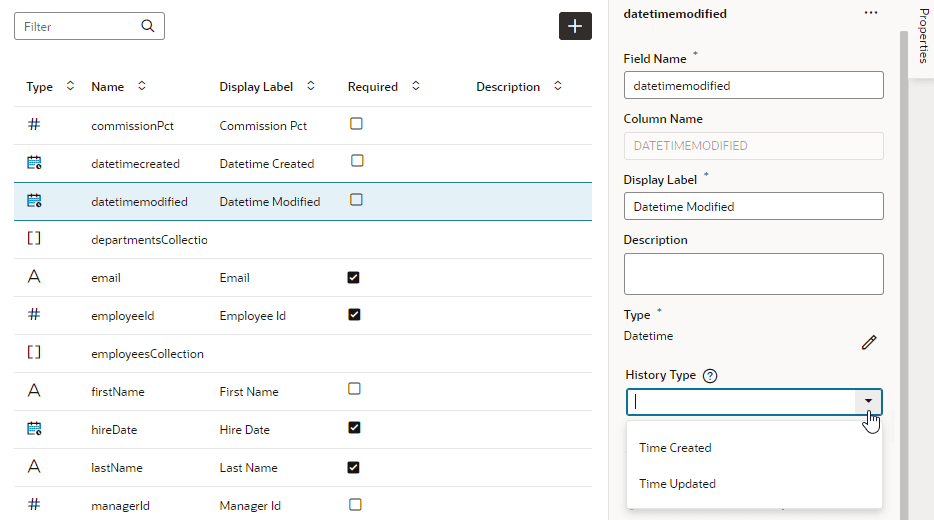
Description of the illustration bo-audits-byos-sethistorytype1.png
Your options depend on the field’s data type. For a datetime-type field, you see Time Created and Time Updated (as shown here). For a string-type field, you see Created By and Updated By, and Version Number for a number field.