Create a Custom Backend
You can create your own backend to map to a custom server other than the built-in Integration Applications, Process Automation, and Oracle Cloud Application backends.
A custom backend lets you access a service when you know its URL. You can create a custom backend with a free-form URL, or create a custom ADF backend when you know the Describe URL that points to an ADF Describe service.
To create a custom backend:
-
Click Services in the Navigator.
-
In the Services pane, click + sign and select Backend.
-
In the Create Backend wizard, select the type of backend you want to create:
-
To create a backend with a free-form URL, click Custom.
-
To create a backend with the Describe URL of an ADF service, click Custom ADF Describe. Use this option only when your custom ADF Describe endpoint does not have any child backends.
-
-
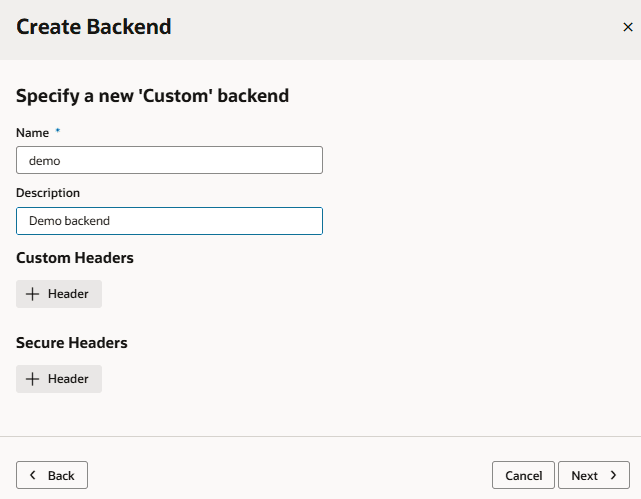
Enter a name and description for the custom backend. Your description will be the backend’s display name in your application.
-
Optionally, add static headers:
-
To add a static header that is passed from the browser to the service (for example, a REST-Framework-Version header), click + Header under Custom Headers. Enter a name for the header and its value, then click OK. Custom headers become available to you from the browser’s Developer Tools console.
-
To add a static header that isn’t passed from the browser to the service and is automatically inserted only at the server, click + Header under Secure Headers. Click the Create Secure Header icon, enter a name and value for the header, then click Save. Secure headers are useful when you want to apply a credential to a header and never want it to be available on the browser.
-
-
Click Next to display the second page in the wizard:
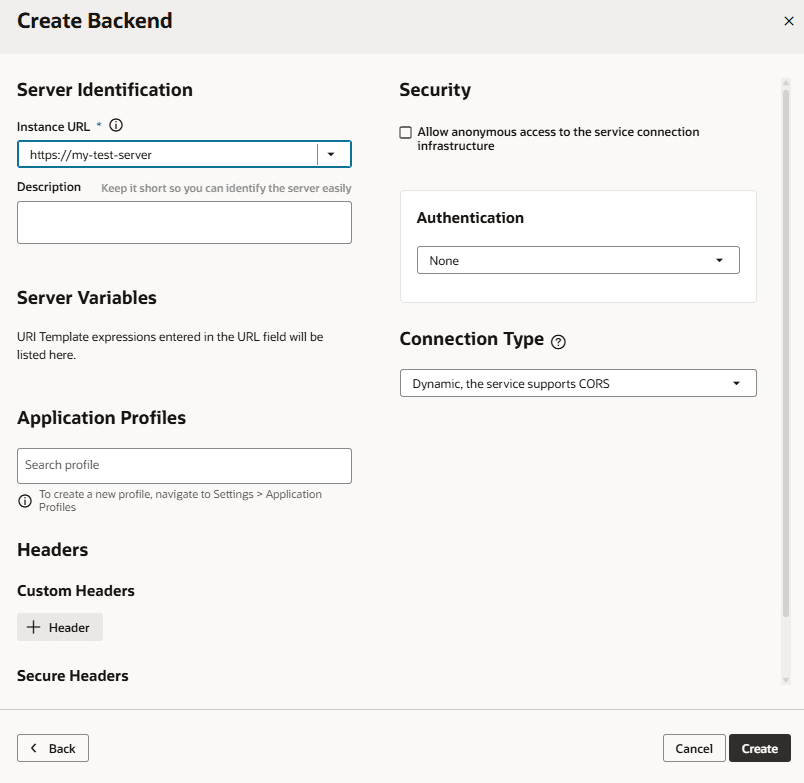
Description of the illustration create-backend-details-vis-apps1.png
-
Enter the instance URL and other information that your visual app requires to connect to the custom backend.
Note: If you’re using an IP address instead of a proper DNS-based URL in a production environment, you’re probably using self-signed certificates. Be aware that certificates based on IP addresses are less secure and more difficult to maintain than DNS-based URLs. To avoid potential security issues, self-signed certificates should never be used in production environments. For this reason, an audit warning is displayed whenever an IP address-based service connection is used.
-
If you need more information about the options in the Authentication drop-down, see Set the Backend’s Authentication Method and Connection Type.
-
To add server variables, see Add Server Variables for Backends.
-
Click Create.
A new custom backend displays in the Backends tab on the Services pane. Click the newly created custom backend to view and edit its details. See Edit a Backend.
Now that your custom backend is registered, you can click + Service Connection to create a service connection to your backend, either by providing a service specification document or by pointing to the URL of a service endpoint. See Create a Service Connection from a Service Specification or Create a Service Connection from a REST Endpoint.