Enable Time Zone Specification
Different time zones have different standards for formatting date and time fields. You can implement the appropriate format for a given time zone by customizing the Input Date Time component.
You will first need to edit your visual application’s JavaScript file to enable the arbitrary time zone setting. You can then customize the Input Date Time component to display time zone data.
In this example, the Input Date Time component is added to the table with a datetimeCol template applied.
-
To enable the time zone specification, add the definition of the
ojs/ojtimezonedataRequireJS module to your visual application’s JavaScript file.Here is an example of
ojs/ojtimezonedataadded to a page’s JavaScript file:define(['ojs/ojtimezonedata'], function() { 'use strict'; var PageModule = function PageModule() {}; return PageModule; });You can specify this definition for any unit of the page, flow, or application.
-
In the Page Designer, drag and drop the Input Date Time from the Field components into the target column.
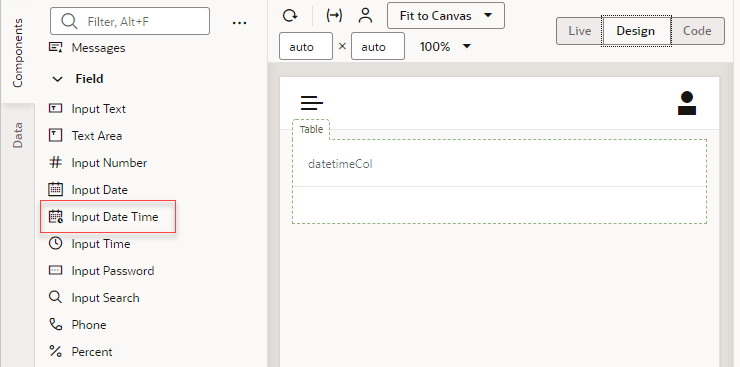
Description of the illustration common-timezone-drag-component1.png
Here is an example of page code with a cell template that has been applied to a column named
datetimeCol:<div class="oj-flex"> <oj-table scroll-policy="loadMoreOnScroll" class="oj-flex-item oj-sm-12 oj-md-12" data="[[$page.variables.mySampleBOListSDP]]" columns='[{"headerText":"datetimeCol","field":"datetimeCol","template":"datetimeCol"}]'> <template slot="datetimeCol"> <oj-input-date-time value='[[typeof $current.data === "string" ? $current.data : null]]' readonly="true"></oj-input-date-time> </template> </oj-table> </div> -
In the Structure view, select the Input Date Time component that you added.
-
In the Properties pane, choose Custom from the Converter drop-down list, then click fx to open the Expression Editor.
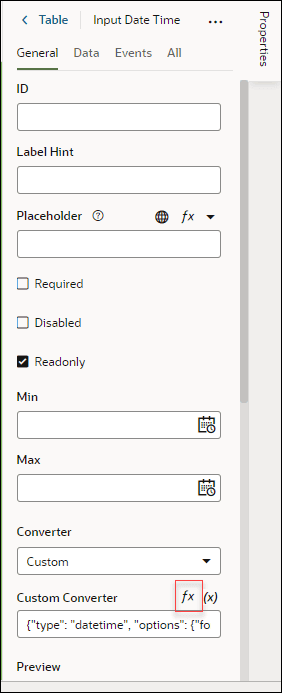
Description of the illustration common-timezone-select-custom-converter1.png
-
In the Expression Editor, set the
timeZoneproperty to a time zone in ISO 8601 format, and save.Here is an example with the Asia/Tokyo time zone specified.
{"type": "datetime", "options":
      {"formatType":"datetime", "pattern": "MM dd, yyyy h:mm:ss a Z", "timeZone":
      "Asia/Tokyo"}}
When the custom converter is applied, the page code described above will look like this:
<div class="oj-flex"><oj-table
      scroll-policy="loadMoreOnScroll" class="oj-flex-item oj-sm-12
      oj-md-12"data="[[$page.variables.mySampleBOListSDP]]"columns='[{"headerText":"datetimeCol","field":"datetimeCol","template":"datetimeCol"}]'><template
      slot="datetimeCol"><oj-input-date-time value='[[typeof $current.data === "string" ?
      $current.data : null]]' readonly="true"converter='
      }}'></oj-input-date-time></template></oj-table></div>