Generate Translation Keys for Display Texts
For static strings in the UI of your application, you can use the Properties pane to add keys and values for the strings to a bundle for translation.
You can use the Properties pane to generate and add keys for UI components to a translation bundle. When you use the Properties pane to define the translatable string, a key is generated automatically, but you can specify your own key in the dialog box. You can also edit the keys, values and metadata in translation files directly using a text editor.
To generate a key for a string using the Properties pane:
-
Select the component on the canvas that you want to be translatable. You can select components that use a static string in their text fields, for example, a Button component. You cannot create translations for elements where the display label or text is the result of an expression or variable.
-
Click the globe icon for the text field to open the Translatable String popup.
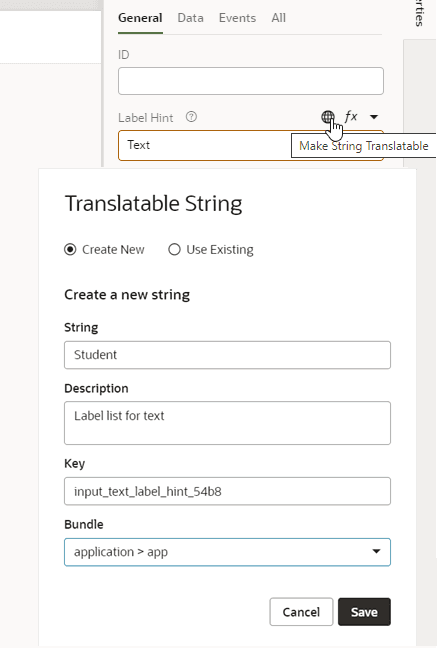
Description of the illustration page-designer-inspector-translate.png
-
Select Create New to add a new string to a translation bundle.
-
Confirm or edit the string to be translated. Click Save.
The Translatable String popup contains a Text field for the string to be translated. The popup also contains a Description field that you can use to provide a description of the context for the string. The description text is included as metadata in the translation bundle.