Manage Custom Component, CSS, and Module Imports
You can import resources such as custom CSS files, modules, and components to create “declarative” references to imported resources.
The Imports tab in the Settings editor enables you to manage resources imported for an application, flow, or page artifact. You can manage custom components, CSS files, as well as modules containing code that you want to call in your application. Let’s consider some sample scenarios of when you’d want to use this tab:
-
When your artifact includes components that are deprecated or no longer used, these component definitions stay intact in the artifact’s metadata, but might be flagged by audits as a deprecated or unused component dependency. While you can resolve this issue by manually editing the JSON editor, you can use the Imports tab to manage these imports without potentially introducing errors.
-
When you want to use custom CSS files for specific pages, you’ll usually need to add an import statement to the page’s HTML manually. By declaratively adding custom CSS files on the Imports tab, you can easily apply these imported CSS files to any page or pages in a flow without having to manually add an import to the HTML pages.
-
When you want to use JavaScript modules at the application, flow, or page level to create custom functions within the module (say, the
IntlConverterUtilsutility function that lets you format a date field as an ISO string), referencing the module from the Imports tab makes it available for you to call in your application without having to add code to your JSON or JavaScript files.You can call these functions in an action chain using the Call Function action and in a component’s property, by selecting the function in the Expression editor or Variables picker in the properties pane, as shown here:
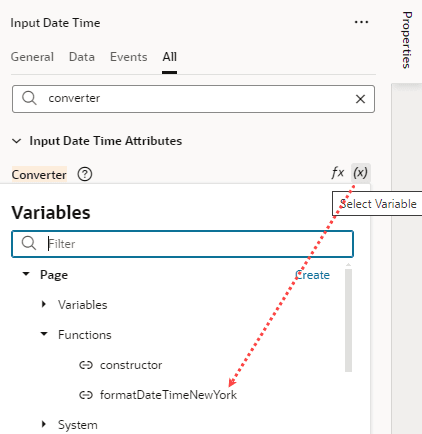
Description of the illustration js-functions-variablepicker.png
To manage imports for an application, flow, or page artifact:
-
Open the Imports tab in the Settings editor of an application, flow, or page artifact.
-
Import components, CSS, and custom modules:
-
To import custom components to your application, flow, or page artifact, click + Component, then enter the component name and path to the component module. To manage an existing component, click its Actions menu and select Edit or Delete.
-
To reference CSS files in your application, flow, or page artifact, click + CSS, then create a reference to an existing file, an external file, or a new file:
-
To create a reference to an existing CSS file in your resources folder, click Existing, then select the file from the drop-down list. (For information on how to add CSS files to your application’s resources, see Work With Application Resources.)
-
To create a reference to an external CSS file (say, a font or an icon in an external resource that you’d like to use), click External, then specify the path to the file.
-
To create a reference to a new CSS file, click New and specify the name and path to the new file (which will be created for you).
To manage an existing CSS file, click its Actions menu and select Edit or Delete.
-
-
To reference custom modules that contain code you want to call in your application, flow, or page artifact, click + Module, then enter the module name and path to the module.
To manage an existing module, click its Actions menu and select Edit or Delete.
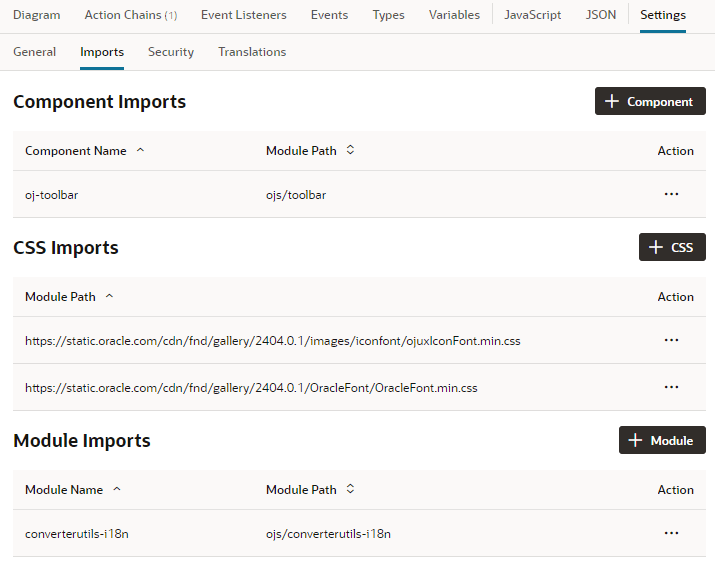
Here’s an example of imports at the flow level:
-
-
Click Create or Create & New to repeat the action.