Re-Order a Dynamic Container’s Content
Besides defining new cases and sections for a container, you can also change the order the sections are displayed in the container. Just grab the section’s handle next to the name and move the section into position:
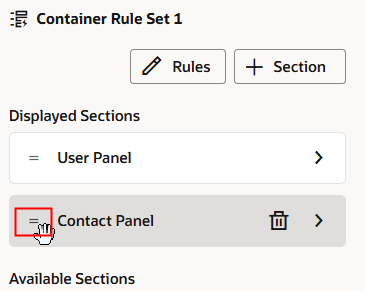
After selecting the dynamic container, if the container has only one case you can re-order the container’s sections directly in the Properties pane. However, if the container has more than one rule, you can only re-order the rules in the rules editor.
To re-order the sections in the rules editor:
-
Click Rules in the Properties pane.
-
Select the case you want to edit.
-
Grab the section handle and move it into the position you want.
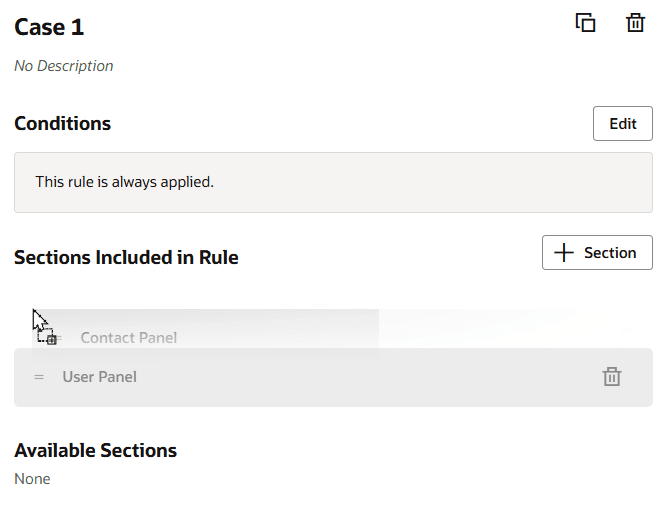
Description of the illustration dynamic-container-reordermove1.png
You can also use the  icon to remove a section from a case. The removed section will still be available to use in other cases for dynamic containers in the page.