Set a Field as Required
When you set a field as required, users won’t be able to save a record until the field’s value is entered. You can set a dynamic form’s field to be required in all layouts or in a particular layout, but the Required property for a dynamic table applies to all layouts and can only be set from the Fields tab.
-
To edit a field’s Required property for all layouts (dynamic forms and tables):
-
In the layout’s Fields tab, select the field you want to work with.
-
Edit the field’s Required property in the Properties pane.
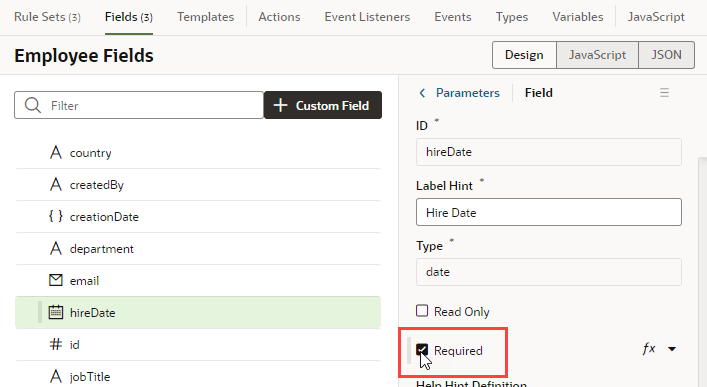
Description of the illustration required.png
Fields that are marked as required show as Suggested Fields when you’re building a layout to emphasize that they might be important or relevant to include in your layout:
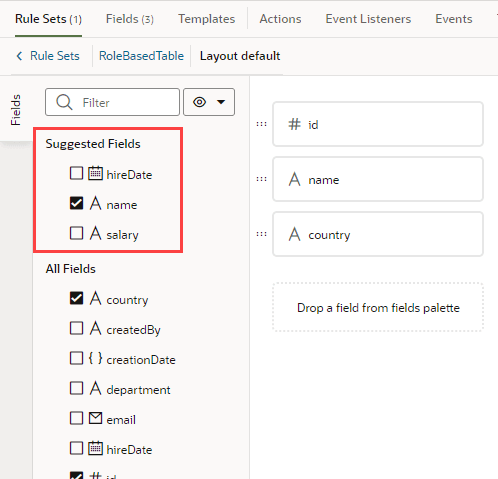
-
-
To edit a field’s Required property in a particular layout (only for dynamic forms):
-
In the dynamic form’s Rule Set editor, open the layout and select the field in the center pane.
-
Edit the field’s Required property in the Properties pane.
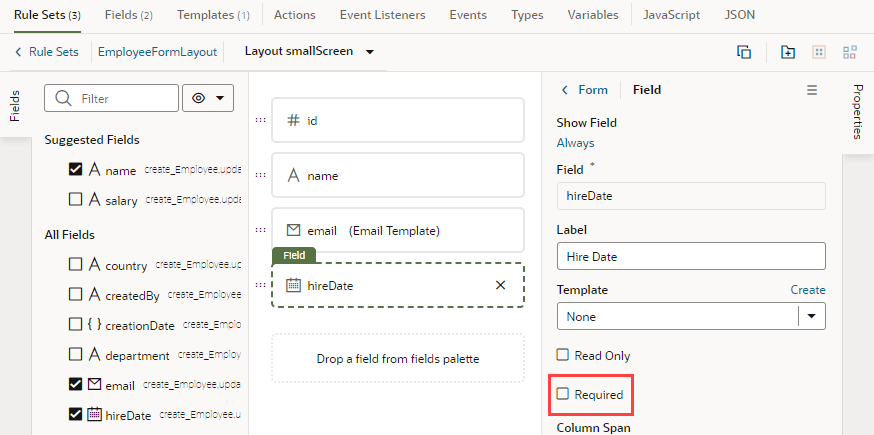
Description of the illustration required-inalayout.png
If the field’s Required property was set in the Fields editor to apply to all layouts, you would see a warning as shown here:
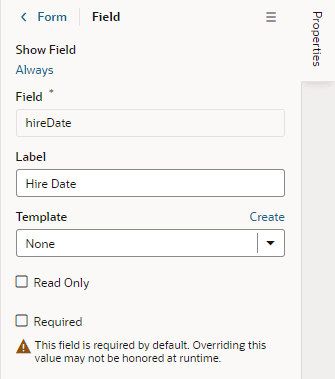
Description of the illustration required-inalayout-warning.png
The Required property might not be editable if you select a field that has a template applied to it. You would need to remove the template to edit the property in the layout.
-