Create a Search Filter for a Table
You can use an input text component to filter a table column to search for text.
-
Drag an Input Text component onto your page.
-
Click the All tab of the component and locate the raw-value attribute, which tracks what is typed into the text field.
-
Click the Select Variable icon for the attribute to create a new page variable (call it
searchVar, for example).
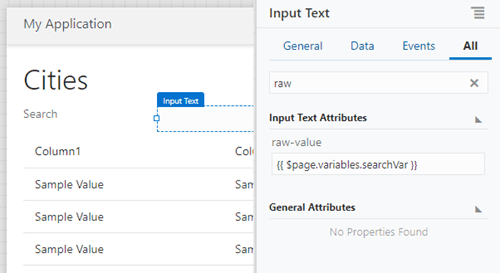
Description of the illustration common-filtertable-rawvalue.png
After you set the raw-value attribute, when you type in the Input Text field, the value of the
searchVarvariable will change. -
Click the table, then click the Add Data quick start to populate the table.
-
On the Add Data page of the quick start, specify the business object you want to use and click Next.
-
On the Bind Data page of the quick start, bind the fields you want to display and click Next.
-
On the Define Query page of the quick start, click the filterCriterion builder icon on the Target side.
-
Select the table column you want to filter, the operation you want to use ($co for Contains, or $sw for Starts With, for example), and the value (
$variables.searchVar).

Description of the illustration common-filtertable-criterion.png
Once you have bound the raw value of the input text to a variable and then used that variable as the filter criterion for a table column, you have your search filter. Use the Run icon or the Live button to test the behavior.