Work with Business Object Diagrams
When working with business objects, it’s helpful to visualize business objects and their relationships. You can do this by creating diagrams for your business objects to show their fields and relationships.
To create a Business Object Diagram:
-
In the Business Objects pane, click + and select Business Object Diagram.
-
In the Create Business Object Diagram dialog box, enter a name in the Diagram name field and click Create.
An empty page for the diagram opens, along with the Properties pane.
-
In the diagram’s Properties pane, select the business objects you want to display, or click Select All to display all of them. If you have many business objects, you can create multiple diagrams to display them.
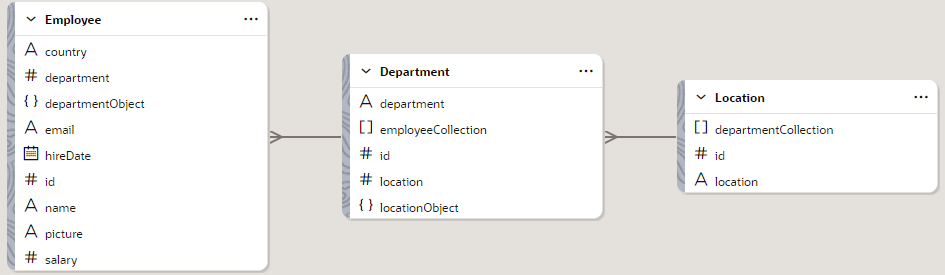
Here’s an example that shows three selected business objects: Employee, Department, and Location. Each object’s fields display in alphabetical order, along with their type. The relationships between the objects and the object accessor names through which you access referenced business objects are also shown:
What Can I Do With a Diagram?
You can use a business object diagram to complete many different tasks:
-
Click the name of a business object to see the object’s Properties pane, where you can view or edit overview information. Double-click the business object name to go to the object’s Fields editor.
-
Click a business object field to see the field’s Properties pane, where you can edit its properties.
-
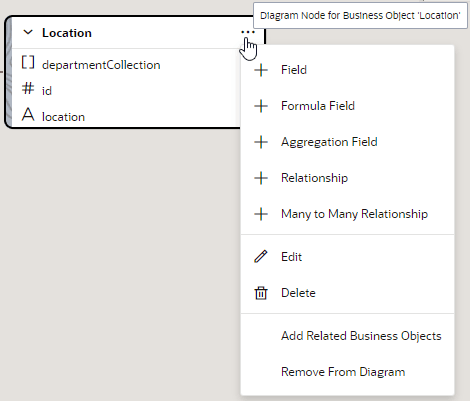
Right-click a business object (or click Menu) to see a menu that lets you create a new field or a new relationship, edit or delete the business object, add related business objects, or remove the business object from the diagram:
-
Click a relationship line between two business objects to see the Properties pane for the relationship, where you can edit or delete the relationship.
-
If the diagram displays many business objects, right-click the canvas outside a diagram and click Find to select one of them.
-
To refresh a diagram, right-click the canvas outside a diagram and click Refresh.
-
To export the diagram to your file system, right-click the canvas outside a diagram, click Save As, and select either PNG (Portable Network Graphics) or SVG (Scalable Vector Graphics) as the format.
To delete a diagram, right-click the diagram in the Diagrams tab and select Delete.
How Do I Customize the Display?
Here’s how you can change a business object diagram’s display to suit your preferences:
-
To change the default display from horizontal to vertical, right-click the canvas outside a diagram, click Layout and select Vertical.
-
To show or hide a business object’s fields, click the down-arrow next to the object’s name.
-
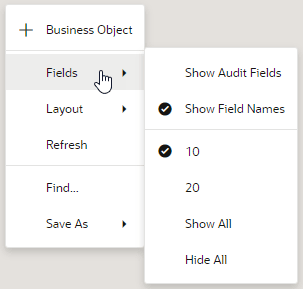
To change how business object fields are displayed, right-click the canvas outside a diagram and select Fields:
Description of the illustration bo-diagram-fields.png
By default, reference fields are displayed (along with their object accessor names), and field names that match what you’ll use in REST API calls or Groovy code are shown instead of display labels. The number of fields displayed is 10 (though you can scroll to view more). If you want to change this, from the Fields menu:
-
Select Show Audit Fields to display the fields that are automatically created when you create a business object.
-
Select 20 to display up to 20 fields by default.
-
Select Show All to display all fields (or Hide All to hide all fields).
-
Deselect Show Field Names to display fields by their display labels.
-