Add Converters and Validators to Fields
You can add converters and validators to fields, including some built-in ones provided by Oracle JET. You might want to add a convertor to a field to change how the field’s data is displayed in your page, for example, to display a date as month, day and year instead of numerically. You could also add a validator to a field to check if a value entered in it is valid, for example, to check if a date is not earlier than the current date.
You can find details and examples in the Oracle JET Developer Cookbook:
To add a converter or validator to a field:
-
Open the Layout’s Fields tab, and then select the field you want to work with.
-
In the field’s Properties pane, click Add next to Converter or Validators, then select one from the list.
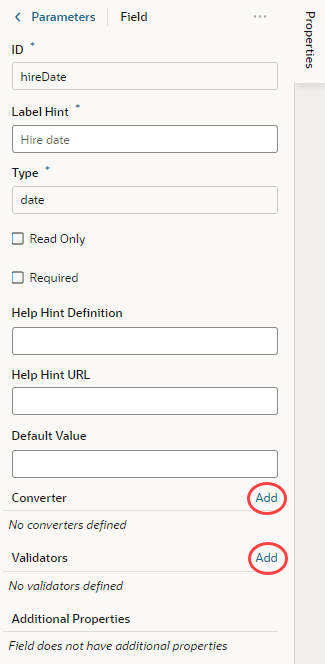
Description of the illustration field-validator-converter.png
A default option is selected based on the field’s type. For example, the default validator for an employee’s Email field that uses the Email format is the Expression Validator:
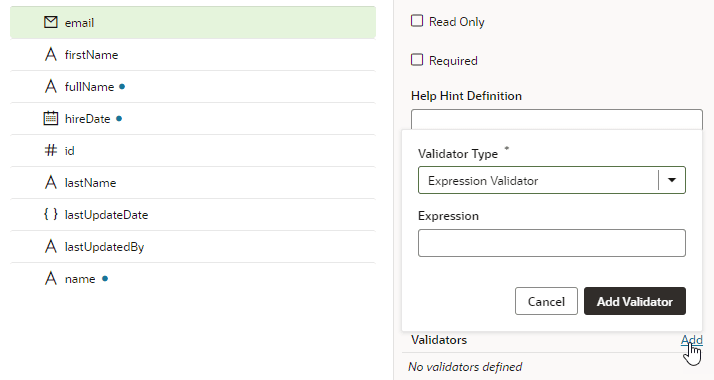
Description of the illustration field-converter-default-example.png
-
Change the type if needed, enter additional details, then click Add Validator or Add Converter.
The details you’ll need to enter will depend on the validator or converter you use, so you might need to consult the samples and documentation for the specific options. Use the JSON editor if you want to add options other than those shown in the UI. For the Length Validator shown here, the options specify how to count the characters and the minimum and maximum string lengths allowed:
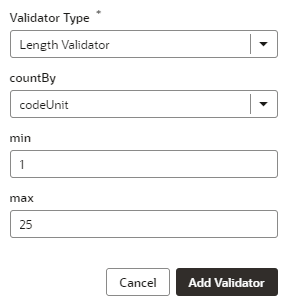
Description of the illustration field-validator-example.png
You can also create your own validator or converter by selecting the From Code option. With this type, the path field specifies the location of a JavaScript file that implements the custom validator or converter; the name field specifies the name of the constructor; and the Option field specifies the options specific to the custom validator or converter, for example:
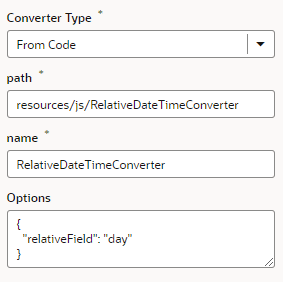
Description of the illustration field-converter-custom-example.png
In this example, the RelativeDateTimeConverter JS file implements a converter with a constructor named
RelativeDateTimeConverterand arelativeFieldoption whose value can be, for example,day,week,month, andyear. The implementation would convert a date value like2014-01-02T20:00:00to a relative date value, likeToday,Tomorrow,This Week,Next Week, and so on, based on the value of therelativeField.It’s possible to update your validator and converter options any time after they’ve been added. Hover near the validator or converter name, click
 , and make your updates. You can add as many validators as you want, but a converter can only be replaced because a field can have only one converter.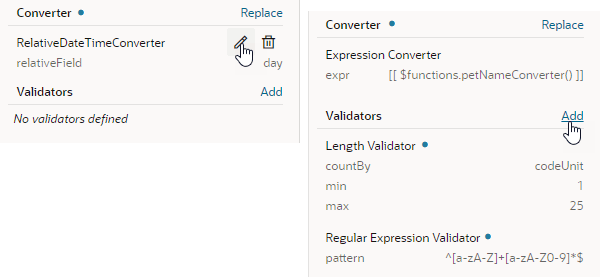
Description of the illustration field-validator-converter-properties.png