Get the Revision ID of a Commit
Before you can cherry-pick a commit, you’ll need the ID of the revision you want to include in your branch.
- If the commit is local to your workspace, follow these steps:
- Click the Git History panel in your workspace.
- Select Commit from the action filters and click Apply Filter.
-
Select the commit you want, then copy the revision ID in the details pane:
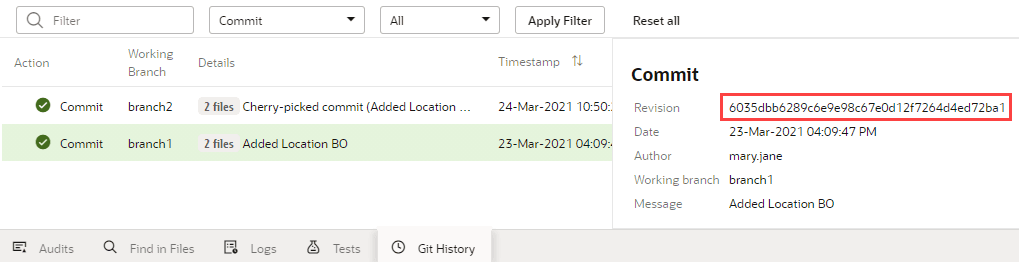
Description of the illustration git-history-panel-commit.png
- If you or one of your teammates already pushed the commit to a remote repository, follow these steps:
- Click
 at the top left of the header to get to the VB Studio navigator.
 - In the VB Studio left navigator, click Git
 .
. - If required, select the branch with the commit you’re looking for.
- Click the Logs tab and find the commit.
-
Click Copy revision to clipboard (
 ) to copy the revision ID.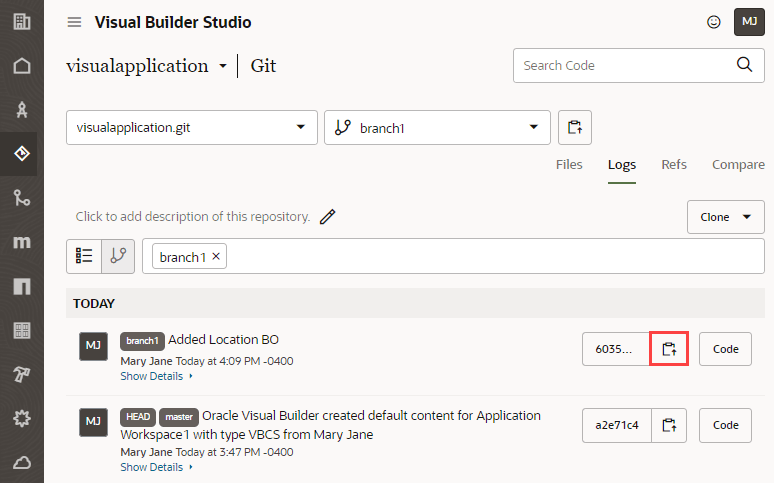
- Click