Navigate Between Pages in the Same Flow
To navigate between pages in the same flow, you associate a page component with an event that sets off a navigation action chain.
Let’s say you’ve defined two pages within a particular flow: main-start and main-other within the main flow. And you want users to click a button on the main-start page to get to the main-other page. To do this:
- Open the page you want to navigate from (
main-start, for example). -
In the Page Designer, drag a component that you want to set off navigation and drop it onto the page canvas. Here’s an example of a button on a page:
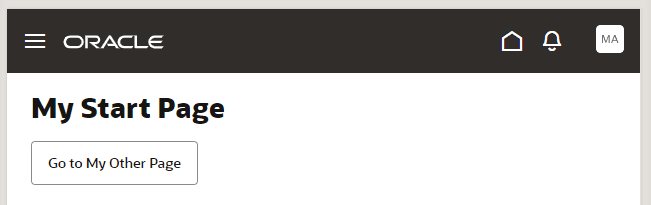
Description of the illustration navigation-page-buttonappui.png
- Select the page component, then click the Events tab in the Properties pane.
- Click the + Event Listener button and select On ‘ojAction’, the default action for a button click. You might see other options suggested for your particular component.
- When a new action chain is created, drag the Navigate to Page action from the Navigation section of the Actions palette and drop it onto the canvas.
-
In the Navigate action’s properties, select Page (if necessary), then select the page you want to navigate to from the Page drop-down list (for example,
main-other).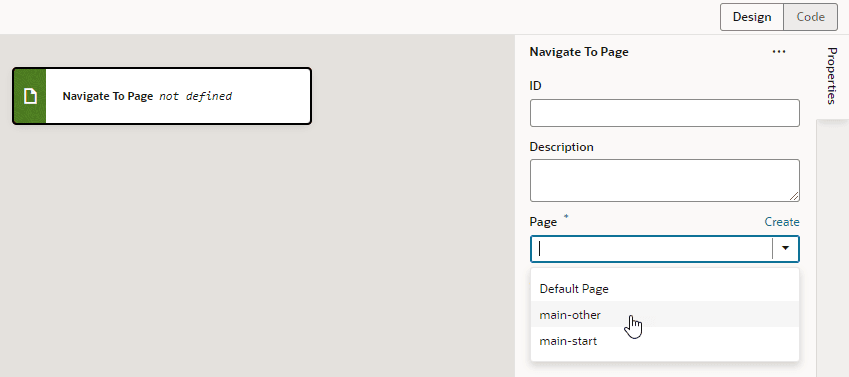
Description of the illustration navigation-page-navigateaction.png
- Optional: To enable users to navigate back to the original page, associate a page component with an event that sets off a Navigate Back action chain:
- Go to the page that you set up navigation to (for example,
main-other). - Drag and drop a component onto the page canvas (for example, a button with the label
Back). - Click the + Event Listener button and select On ‘ojAction’.
- When a new action chain is created, drag the Navigate Back action from the Navigation section of the Actions palette onto the canvas.
- Go to the page that you set up navigation to (for example,
- Preview your App UI to test navigation between the two pages.