Configure the Jenkins Job to Use the VB Studio Git Repository and Enable SCM Polling
Configure the job to use the VB Studio Git repository and enable SCM polling.
-
Log on to Jenkins.
-
Create or open a job.
-
From the links on the left side of the page, click Configure.
-
Click the Source Code Management tab.
-
Select Git.
-
In Repository URL, enter the VB Studio project’s Git repository URL.
Remember the URL’s protocol as you’d need to specify it when you create the webhook.
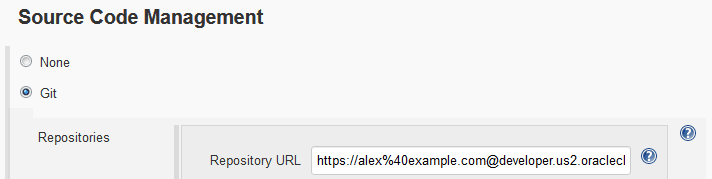
Description of the illustration jenkins-build-git-url.png
You can copy the URL from the Clone menu of the VB Studio Git page.
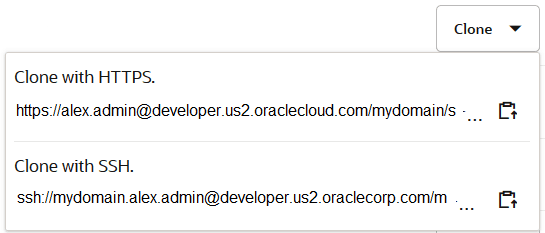
Description of the illustration devcs-code-clone.png
After entering the URL, you might see a
Failed to connect to repository …error message. It appears because you haven’t provided the VB Studio access credentials to Jenkins.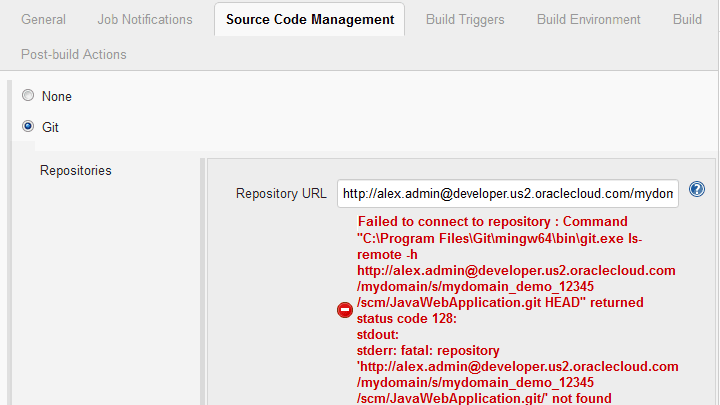
Description of the illustration jenkins-git-credentials-error.png
-
Next to the Credentials list, click Add and then select Jenkins.

Description of the illustration jenkins-git-config-add-credentials.png
-
In the Jenkins Credentials Provider dialog box, enter the VB Studio username and password in Username and Password. Leave other fields with their default values.
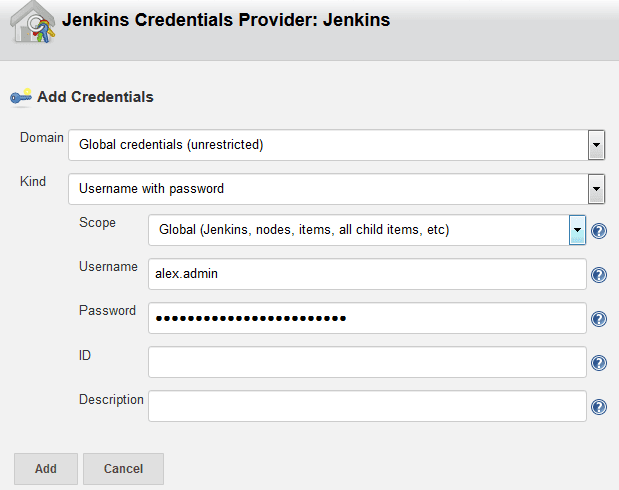
Description of the illustration jenkins-git-config-credentials.png
-
Click Add.
The error message should disappear. If you still see the error message, configure the proxy settings of Jenkins. See the Jenkins documentation to see how to do that..
-
-
Click the Build Triggers tab.
-
Select the Poll SCM check box.
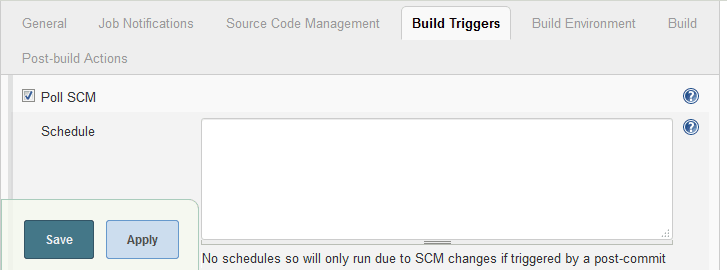
Description of the illustration jenkins-triggers-pollscm.png
-
Continue to configure the job.
-
When you’re finished, click Save.