Define Your Environments
An environment lets you define and manage Oracle Cloud PaaS and Oracle Cloud SaaS service instances as a single entity.
If you’re working with Oracle Cloud Application extensions, you’ll have a VB Studio Development environment that points to your Oracle Cloud Applications DEV instance. If every DEV and TEST instance in your Oracle Cloud Application environment family receives its own instance of VB Studio, you can create a Test environment for your extension and add your TEST Oracle Cloud Applications instance to it. Typically, your DEV (and TEST) instances are in the same identity domain as your VB Studio instance, while your PROD instance is almost always in a different identity domain. So you might want to create a separate production environment and add your PROD instance to it. Note that you can only add one Oracle Cloud Applications instance to an environment. See Add the Oracle Cloud Application’s Production Instance to an Environment in Administering Visual Builder Studio for more information.
If you’re working with visual applications, you’ll have a VB Studio Development environment that points to your Visual Builder development instance (this environment is created automatically if the Visual Application template was used to create the project). You can create additional environments for visual apps and add the production instance of your current identity domain, or an external Visual Builder instance from another identity domain. Note that you can add only one Visual Builder instance to an environment. See Set Up Additional Deployment Instances in Administering Visual Builder Studio for more information.
If you plan to share code between different Oracle Integration instances, you’ll need to add Integration instances to your environment to promote changes from a development environment to a test, and finally to a production environment.
It’s worth noting that Visual Builder and Integration instances that become available to add to an environment are those connected to an OCI account. These instances must be authorized for use with your VB Studio instance. Without this authorization, you won’t see any Visual Builder or Integration instances in the Environments page. See Authorize VB Studio to Access Visual Builder and Integration Instances.
You can access and manage the project’s environments from the Environments page:
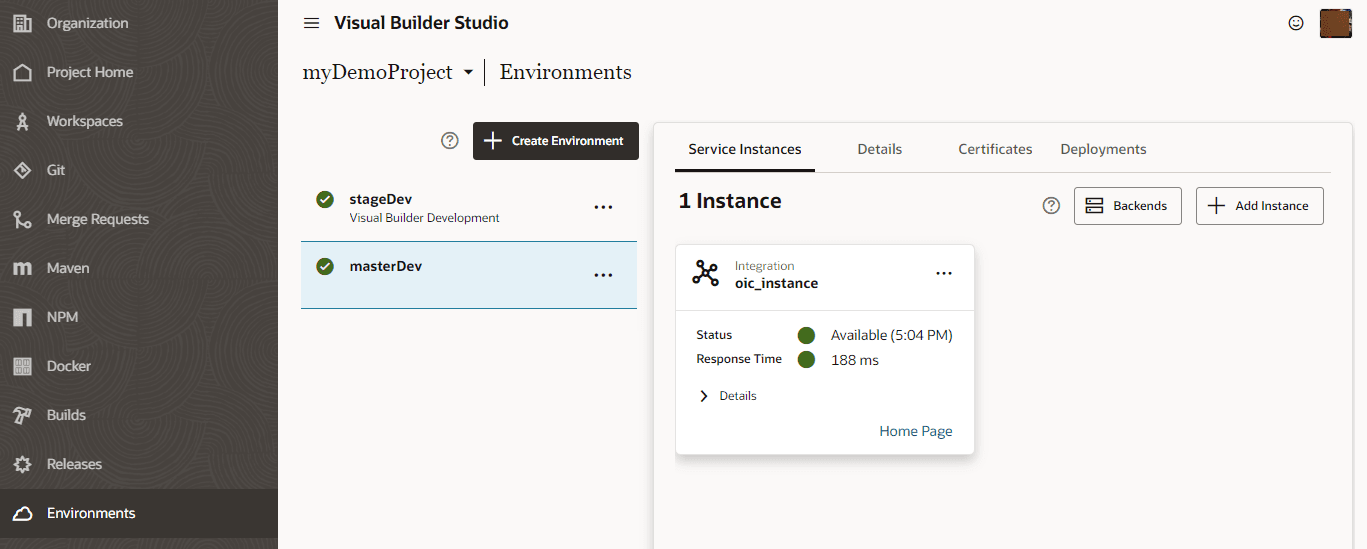
Description of the illustration devcs-environments.png
From the Environments page, you can:
-
Create and delete environments
-
Add or remove service instances from existing environments
-
Update the details of the environment
The Details tab displays details, such as name and description, for the selected environment. You can also instantly see the health of all service instances comprising each environment right on the Project Home page or on the Environments page.
-
View the details of an environment’s service instances
The Service Instance tab captures information, such as the health of and response times for service instances and their URLs, for each environment in a single place, so you won’t have to hunt for it later.
-
Upload and remove an environment’s trust certificates
The Certificates tab shows trust certificates that you upload to connect with external services in an environment, allowing all applications that use that environment to communicate with those services.
-
View deployments
The Deployments tab shows deployments for visual apps, for the current project only. To view deployments for application extensions, use the Application Extensions toggle, then click the Extension Lifecycle link.
-
Manage the lifecycle of deployed extensions
Click the Extension Lifecycle button to centrally manage application extensions deployed across environments (and across projects). On the Manage Extension Lifecycle page, you can view deployed extensions, deploy a published extension to a new instance, delete extensions when no longer needed, and even add new environments.
Note that you won’t see the Extension Lifecycle button if you haven’t yet added an Oracle Cloud Applications instance to your environment.