Set Up Token-Based Authentication
You can create temporary OAuth access tokens to enable access to VB Studio project operations, including Git, Maven, and NPM actions, from your VB Studio account preferences.
Keep the following in mind when creating access tokens:
-
Copy a token immediately after you generate it and paste it somewhere that you can access it later. This is the only opportunity you’ll have to access the token.
-
An access token can’t be edited once it’s been created. If you want to change the permissions for a token, you’ll need to delete it and then create a new one.
-
If the permissions for a user are changed at the project level, this can affect the token-based authentication.
-
If a per-user limit on the number of personal access tokens has been set at the organization level, this can affect how many new tokens you can create and make it necessary for you to perform some maintenance by removing expired or no-longer used tokens before you can create new tokens.
Note: If you’re using curl to work with REST APIs and federated users in a multi-stripe Oracle Cloud Applications environment, one approach is to authenticate with a bearer token. Bearer authentication (sometimes called token authentication) is performed by sending a security token back to the server in every authorization header when requesting protected resources. To pass the bearer token in the Curl authorization header, add the following command line parameter to the Curl request:
-H "Authorization: Bearer {token}"For example, the following example shows the general format for sending a bearer token with a Curl POST request. POST data is passed with the -d command-line option, and the authorization header; the bearer token is passed with the -H command-line option.
curl -X POST https://[REST-endpoint]
     -H "Authorization: Bearer {token}" -d "[post data]"
The format for a Curl GET request would be very similar, except it doesn’t include -d command-line option.
Create a Personal Access Token
To create a VB Studio authentication token:
-
Click your VB Studio user avatar and select Preferences.
-
Click the Personal Access Tokens tab.
-
Click + Access Token.
If you are an org administrator and see a warning message that you have reached the maximum number of tokens allowed per user, to create more you can either click Dismiss and then click the Delete icon
 to delete some of your existing tokens or click Open Access Token Settings and change the maximum value for the entire organization.
If you aren’t an org administrator and see the message about having too many tokens, you can either click Dismiss and then click the Delete icon
to delete some of your existing tokens or ask one of the org administrators shown in the window to change the maximum number of tokens allowed per user. -
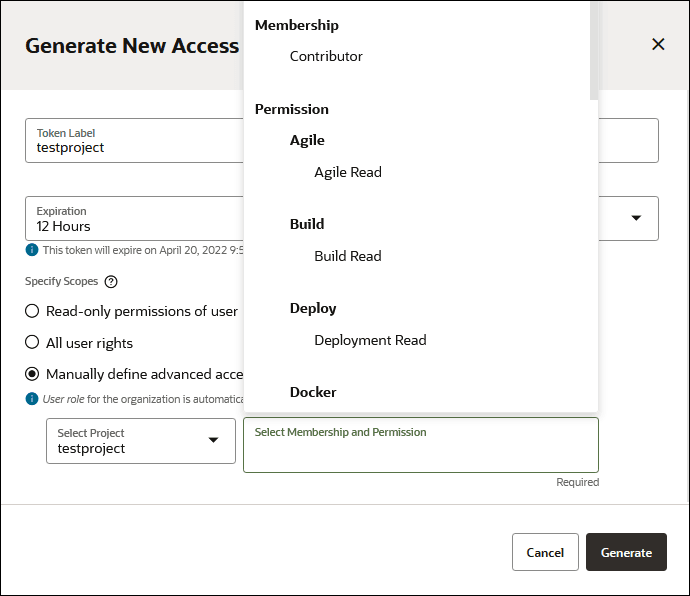
In Token Label, add a label for the token.
-
In Expiration, choose the expiration time period. You can choose from the list or set a custom time.
-
Specify the permission scope:
-
Read-only permissions of user: Gives you read-only access to all projects you are part of.
-
All user rights: Applies the token to all of your current project user permissions. This doesn’t include ability to create or delete tokens or modify any other profile preferences.
-
Manually define advanced access level: Select a project and click in the Membership and Permission field to select permissions that you want to assign to the token.
-
-
Click Generate. An email notification will be sent to the address of the user registered for the account. This notification is sent for both expiring and non-expiring tokens.
-
Copy the token and paste it in a text file that you can access later. You won’t be able to access the token after the dialog is dismissed.
-
Click Dismiss.
You can view the details for each token you’ve created by selecting the token from the list shown in the Personal Access Tokens tab and viewing the information in the Basic Details and Scopes tabs.
Delete a Token
From the Basic Details tab, you can press the Delete Token button to delete a Personal Access Token (PAT). This will remove any permissions granted by the token.
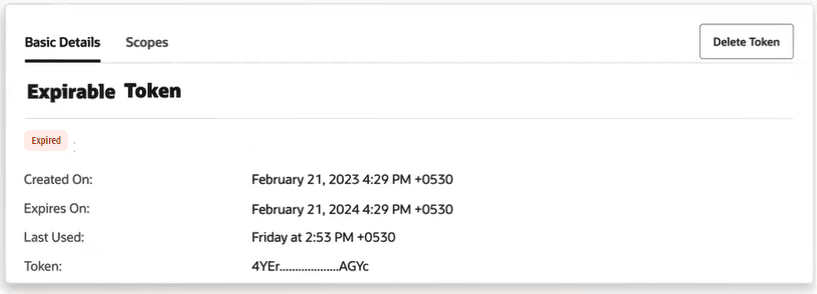
Description of the illustration vbstudio-token-delete.png
After a token has been deleted, applications or scripts that use that token will no longer have access to the VB Studio API.
Automatic Token Maintenance Performed by VB Studio
VB Studio tracks when tokens were last used. You can see this information in the Basic Details tab, next to the Last Used label. If an unexpired token isn’t used for 400 days, VB Studio will automatically delete it. VB Studio also deletes expired tokens 30 days after they expire. In both cases, VB Studio gives token owners plenty of advance notice first:
-
The Basic Details tab for the selected token displays an “Expires Soon” status label 5 days before the actual expiration date. The actual expiration date is listed in the panel.
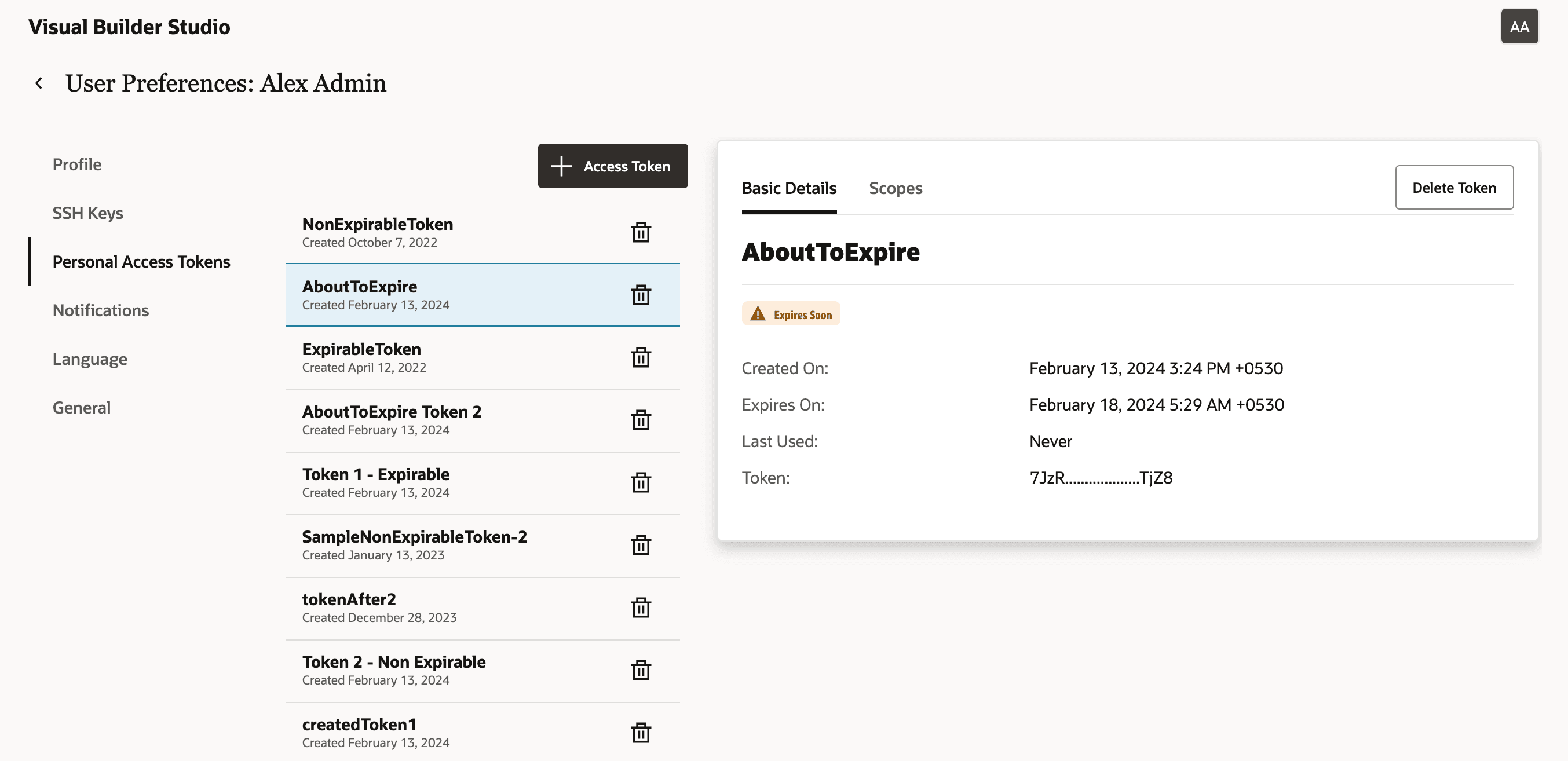
Description of the illustration token-expire-soon-warning-label.png
-
The Basic Details tab for the selected token displays an “Deletion scheduled” status label next to a token that hasn’t been used for 395 days.
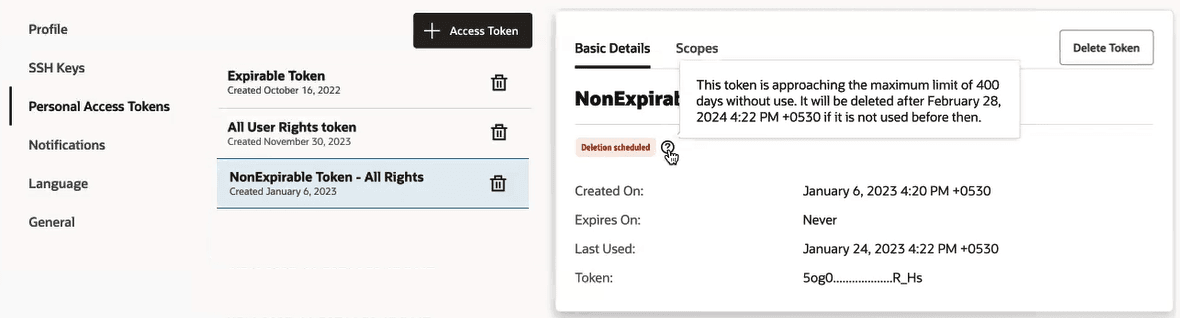
Description of the illustration token-expiring-due-nonuse.png
-
An email notification is sent to the user 5 days before the user’s personal access token is set to expire.
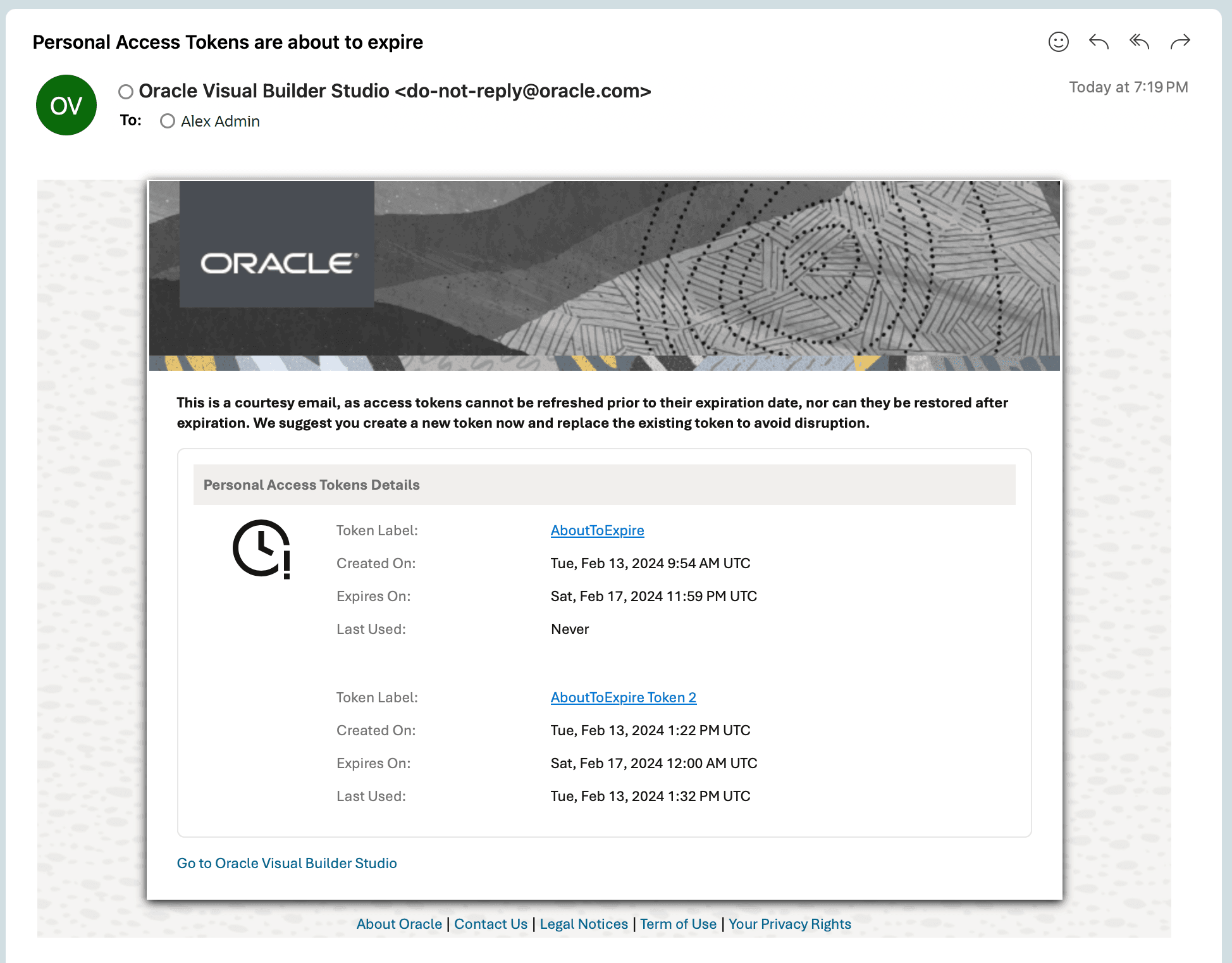
Description of the illustration token-expiration-warning-email.png
Then, if an unused token isn’t used in the allotted time, VB Studio revokes it.
-
An email notification is sent to the user 395 days after its last use (5 days before it will be automatically removed due to 400 days of non-use).
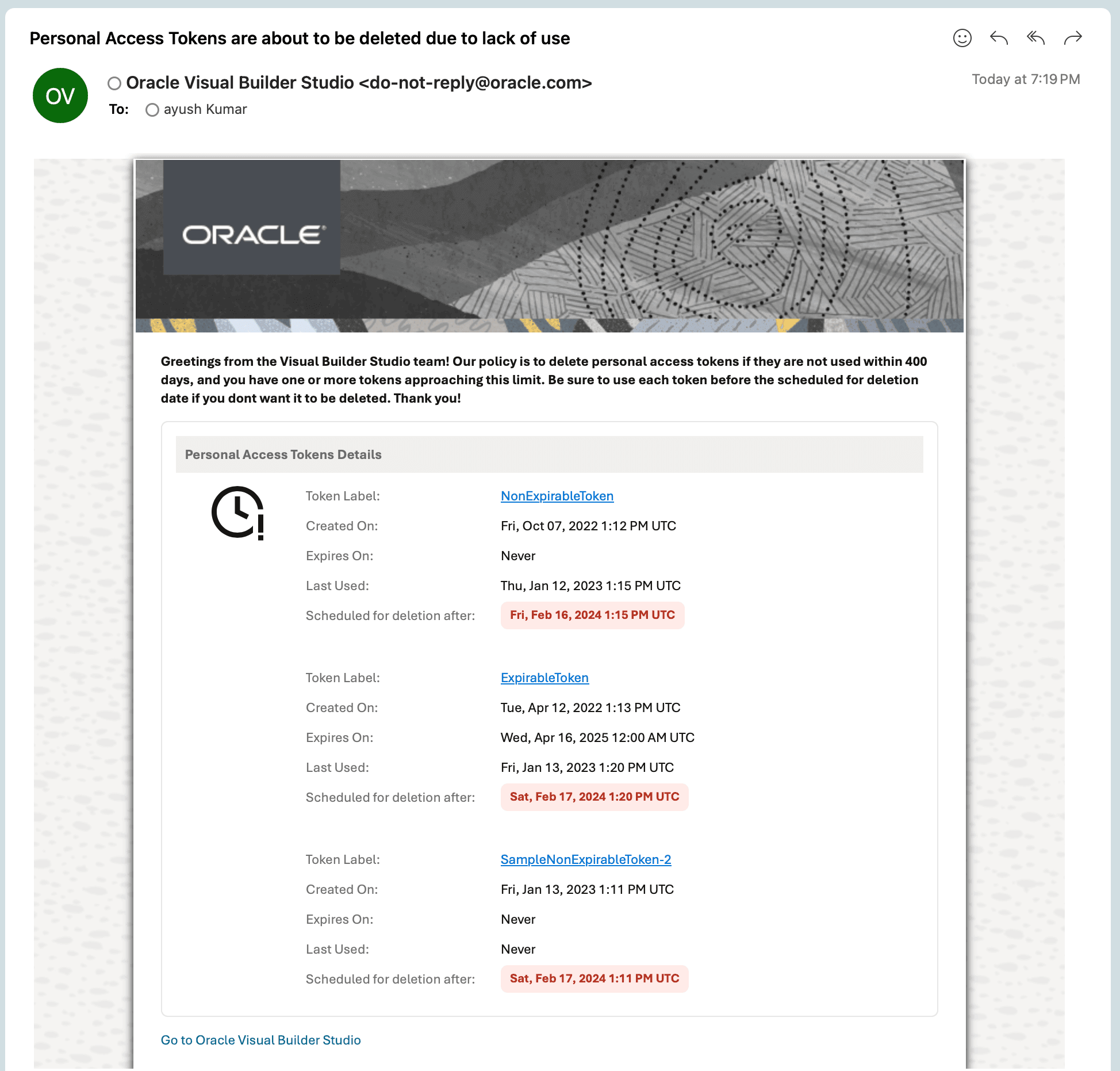
Description of the illustration email-notification-token-delete-nonuse.png