View Commits and Changed Files
You can view commits and changed files from the Commits and the Changed Files tabs.
The Commits tab shows all commits made to the review branch. Here are several common actions you can perform from the Commits tab:
| Action | How To |
|---|---|
|
Compare the files of one commit with another |
Click the button with the first seven characters of the commit’s SHA-1 checksum hash. By default, the page compares the commit with the previous commit. |
|
View all files of the repository when the commit was pushed to the branch |
Click Code. |
|
View files that were updated in the commit |
Click Show Details. To compare a file with its parent commit, click the file name to compare the file changes with its previous commit. |
The Changed Files tab shows the files in the compare mode. Here are some common actions you can perform from the Changed Files tab:
| Action | How To |
|---|---|
|
Select the Changed Files tab to open the tree view and show changed files |
Click Changed Files Tree |
|
View the compare options |
Click Diff Preferences |
|
Add a comment to a code line or reply to one |
Mouse over the line number of the file and click Add Comment |
 .
. .
.Tips for Working with Merge Requests that Have Large Numbers of Changed Files
If you’re working with merge requests that have a large number of changed files, you have several ways to narrow your view and focus in on just the files or commits that you are interested in examining:
-
On the upper left side of the Merge Request window, above the tree view, VB Studio prominently displays the number of changed files shown in the tree and, if the number is very large, the number of files that aren’t shown in the tree.
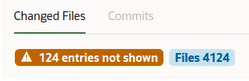
The maximum number of files that can be displayed is 4,000.
-
You can use the directional arrows to traverse the tree. Use the
 or
or  left arrows to ascend the tree and the right arrows
  or
or  to descend it.
-
You can enter a search term (perhaps a file type, such as .css or .js) in the Filter field, to limit your view to a particular file type.
-
You can use the quick filter buttons on the upper right side of the screen to focus in on the files that you want to examine. At the touch of a button, you can:
-
Show modified files

-
Show new files

-
Show removed files

-
Show renamed files

-
-
From the Settings
 menu, you can select a single option or multiple ones that adjust what you see in the tree.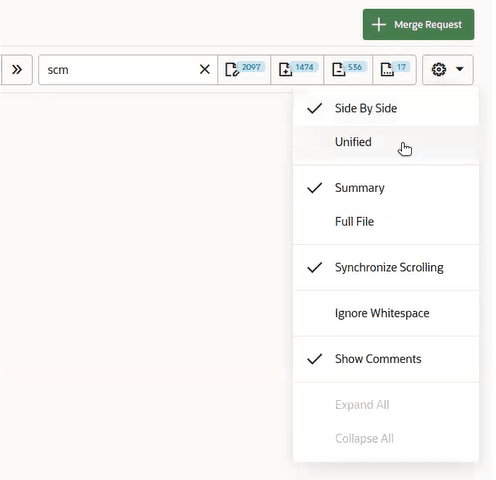
You can also expand all or collapse all files in the tree with one click.
You’ll have access to many similar options in the Conversations tab, so you can see the history of commits, comments, approvals and rejections and focus in on the items that you’re interested in examining when the merge request is a large one.