WebCenter Content Marketplace 14.1.2 Upgrade
Estimated read time: 18 minutes
Table of Contents
- 1. Overview
- 2. Prerequisites
- 3. Pre-Upgrade Tasks
- 4. Install 14c
- 5. Schema Upgrade
- 6. Domain Upgrade
- 7. Post-Upgrade Tasks
- 8. Upgrade Cluster Nodes
1. Overview
This document provides the steps to upgrade WebCenter Content 12.2.1.4, provisioned through Marketplace, to 14.1.2.
Use this procedure for WCC stacks that use either Base Database Service or Oracle Autonomous Transaction Processing (ATP).
2. Prerequisites
2.1. Refresh the Patch Scripts
Run these steps as the oracle user.
Refresh the patch scripts:
cd /u01/scripts/patch
sh patch_tool.sh -h
ls -l /u01/scripts/lcm/sh/webcenter_nm_manager.sh
2.2. Apply the Latest Patches
Apply all available patches using patch_tool.sh.
If the Node Managers and managed servers are not already running after patching, start them. Verify that the instance is working correctly.
Start the Node Managers and managed servers if they are not already running:
cd /u01/scripts/lcm/sh
sh webcenter_nm_manager.sh -a status -s 'all'
nohup sh webcenter_nm_manager.sh -a start -s 'all' &> wc_nm-$(date +%Y%m%d_%H%M%S).log &
sh webcenter_nm_manager.sh -a status -s 'all'

sh webcenter_server_manager.sh -a status -s 'all'
nohup sh webcenter_server_manager.sh -a start -s 'all' &> wc_svr_mgr-$(date +%Y%m%d_%H%M%S).log &
sh webcenter_server_manager.sh -a status -s 'all'
2.3. Shut Down Servers and Node Managers
Run these steps as the oracle user.
Shut down all WebLogic servers and Node Managers before continuing:
cd /u01/scripts/lcm/sh
sh webcenter_server_manager.sh -a status -s 'all'
nohup sh webcenter_server_manager.sh -a shutdown -s 'all' &> wc_svr_mgr-$(date +%Y%m%d_%H%M%S).log &
sh webcenter_server_manager.sh -a status -s 'all'

sh webcenter_nm_manager.sh -a status -s 'all'
nohup sh webcenter_nm_manager.sh -a shutdown -s 'all' &> wc_nm-$(date +%Y%m%d_%H%M%S).log &
sh webcenter_nm_manager.sh -a status -s 'all'
2.4. Back Up the Database and Other Resources
- Database backup for Base Database Service or an ATP point-in-time recovery plan.
- Shared file system content under
/u01/shared/ucm/cs. - Block volume backup for the primary VM.
- Explicit coverage for
/u01/data/applications, because the 12cem.earfile and IPM deployment plans may live there.
2.5. Configure and Start VNC on the Primary Node
Connect to the Primary node on which the Admin Server is running:
<stack>-wls-1Create the following startup file:
/home/oracle/.vnc/xstartupAdd this content to the file:
#!/bin/sh

xrdb $HOME/.Xresources
export DISPLAY=:1
export XDG_SESSION_TYPE=x11
export XDG_RUNTIME_DIR=/run/user/$(id -u)

xsetroot -solid grey
unset DBUS_SESSION_BUS_ADDRESS
gnome-session &
Make the file executable:
chmod +x /home/oracle/.vnc/xstartupSet the VNC password:
vncpasswdStart the VNC server on wls-1 using display :1, which listens on port 5901:
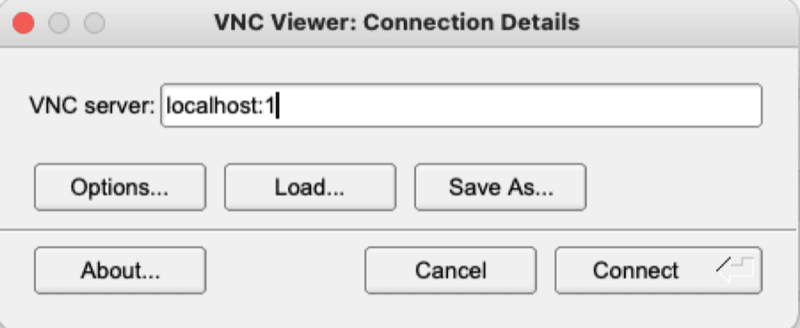
vncserver :1Create an SSH tunnel from your desktop or laptop:
ssh -i <bastion-private-key> \
  -L 5901:<adminserver-private-ip>:5901 \
  opc@<bastion-public-ip>
Start your VNC client and connect through the tunnel.
3. Pre-Upgrade Tasks
WARNING: Do not proceed until all WebLogic servers, Node Managers, and other custom Java processes have been stopped on all WebCenter nodes.
3.1. Validate the Environment
Ensure that the latest scripts have been pulled. Execute:
cd /u01/scripts/patch
sh patch_tool.sh -h
Run the environment validation. This validates the Middleware and Domain versions on all nodes:
[oracle@**-wls-1]$ cd /u01/scripts/lcm/upgrade
[oracle@**-wls-1 upgrade]$ sh wc_1412_upgrade.sh

========================================
        WebCenter 14.1.2 Upgrade
========================================
Available Options:
  1 - Validate Environment
  2 - Upgrade OS Infrastructure
  3 - Backup Middleware and Domain
  4 - Execute Pre Upgrade
  5 - Install 14.1.2 Middleware
  6 - Execute Post Upgrade
  7 - Execute Cluster Upgrade
  8 - Execute Post Cluster Upgrade
========================================
Please select an option (1-8):
1
Sample Output
Executing: Validate Environment
[2025-07-01 00:02:46] [INFO] Executing: validate_env.sh
Enter middleware path (default: /u01/app/oracle/middleware):
[2025-07-01 00:02:48] [INFO] Executing: validate_env.sh
[2025-07-01 00:02:48] [INFO] Reading hostnames from domain: /u01/data/domains/wcc_domain.
[2025-07-01 00:02:58] [INFO] Found hostnames: nvwcc626-wls-1 nvwcc626-wls-2
[2025-07-01 00:02:58] [INFO] Found admin server hostname: nvwcc626-wls-1
[2025-07-01 00:02:58] [INFO] Removing admin server hostname nvwcc626-wls-1 from hosts list.
[2025-07-01 00:02:58] [INFO] Found managed server hostnames: nvwcc626-wls-2
[2025-07-01 00:02:58] [INFO] Found [1] to upgrade.
[2025-07-01 00:02:58] [INFO] Executing command to refresh scripts on nvwcc626-wls-2
  % Total    % Received % Xferd  Average Speed   Time    Time     Time  Current
                                 Dload  Upload   Total   Spent    Left  Speed
100 10932    0 10932    0     0  3558k      0 --:--:-- --:--:-- --:--:-- 3558k
[2025-07-01 00:03:01] [INFO] nvwcc626-wls-1:
[2025-07-01 00:03:01] [INFO] Middleware path: /u01/app/oracle/middleware
[2025-07-01 00:03:01] [INFO] Middleware version: 12.2.1.4.0
[2025-07-01 00:03:01] [INFO] Domain version: 12.2.1.4.0
[2025-07-01 00:03:01] [INFO] nvwcc626-wls-2:
[2025-07-01 00:03:01] [INFO] Middleware path: /u01/app/oracle/middleware
[2025-07-01 00:03:01] [INFO] Middleware version: 12.2.1.4.0
[2025-07-01 00:03:01] [INFO] Domain version: 12.2.1.4.0
[2025-07-01 00:03:01] [INFO] validate_env.sh executed successfully.
3.2. Set Up the Environment for Upgrade
Copy the SSH key used by the opc user to wls-1.
This key is required as input during environment setup.
Change the key permissions:
chmod 600 <ssh_key_path>Run the upgrade utility:
[oracle@**-wls-1]$ cd /u01/scripts/lcm/upgrade
[oracle@**-wls-1 upgrade]$ sh wc_1412_upgrade.sh
Select:
2 - Upgrade OS InfrastructureProvide the opc key path when prompted.
Note: Passphrases are not supported for the
opckey.
This step installs any missing software packages.
Sample output:
INFO: Installation verification completed successfully
INFO: Infra patch completed successfully!
Installation completed successfully!
<Aug 10, 2026 10:47:40 AM GMT> <SUCCESS> <install_infra_packages> <Execution on [wccmig12c3lon-wls-1] as privileged user completed successfully>
<Aug 10, 2026 10:47:40 AM GMT> <INFO> <install_infra_packages> <===========================================================>
<Aug 10, 2026 10:47:40 AM GMT> <INFO> <install_infra_packages> <================= Execution Summary =================>
<Aug 10, 2026 10:47:40 AM GMT> <INFO> <install_infra_packages> <Passed Hosts: wccmig12c3lon-wls-1>
<Aug 10, 2026 10:47:40 AM GMT> <INFO> <install_infra_packages> <Failed Hosts: >
<Aug 10, 2026 10:47:40 AM GMT> <INFO> <install_infra_packages> <====================================================>
<Aug 10, 2026 10:47:40 AM GMT> <INFO> <install_infra_packages> <Infra package setup completed successfully on all hosts>
[2026-08-10 10:47:40] [INFO] install_infra_packages.sh executed successfully.
3.3. Back Up Middleware and Domain
Take a full backup of the Middleware and Domain.
Run:
cd /u01/scripts/lcm/upgrade
sh wc_1412_upgrade.sh
Select:
3 - Backup Middleware and DomainExample:
- Provide the correct Middleware path. Press Enter to accept the default.
- When prompted, provide the correct Object Storage bucket name. Press Enter to accept the default.
========================================
        WebCenter 14.1.2 Upgrade
========================================
Available Options:
  1 - Validate Environment
  2 - Upgrade OS Infrastructure
  3 - Backup Middleware and Domain
  4 - Execute Pre Upgrade
  5 - Install 14.1.2 Middleware
  6 - Execute Post Upgrade
  7 - Execute Cluster Upgrade
  8 - Execute Post Cluster Upgrade
========================================
Please select an option (1-8):
3
Executing: Backup Middleware and Domain
[2026-08-10 10:52:18] [INFO] Executing: wc_backup.sh
Enter middleware path (default: /u01/app/oracle/middleware):
Enter storage bucket name for backup (default: wccmig12c3lon-webcenter-bucket):
Enter log path (default: /u01/data/domains/logs/wc_backup.log):
[2026-08-10 10:52:24] [INFO] Executing: wc_backup.sh
[2026-08-10 10:52:24] [INFO] Found input value for -m: /u01/app/oracle/middleware
[2026-08-10 10:52:24] [INFO] Found input value for -b: wccmig12c3lon-webcenter-bucket
...
...
3.4. Execute Pre-Upgrade
The pre-upgrade step includes fixes for database issues in the Schema Registry and STB schema.
Run:
cd /u01/scripts/lcm/upgrade
sh wc_1412_upgrade.sh
Select:
4 - Execute Pre Upgrade4. Install 14c
4.1. Install 14c Middleware
Run:
cd /u01/scripts/lcm/upgrade
sh wc_1412_upgrade.sh
Select:
========================================
        WebCenter 14.1.2 Upgrade
========================================
Available Options:
  1 - Validate Environment
  2 - Upgrade OS Infrastructure
  3 - Backup Middleware and Domain
  4 - Execute Pre Upgrade
  5 - Install 14.1.2 Middleware
  6 - Execute Post Upgrade
  7 - Execute Cluster Upgrade
  8 - Execute Post Cluster Upgrade
========================================
Please select an option (1-8):
5
Executing: Install 14.1.2 Middleware
...
...
4.2. Validate the Middleware Installation
Check the Middleware home:
cd /u01/app/oracle
ls -ltr
Expected directories include:
jdk
oraInventory
middleware
Example:
total 4
drwxrwxr-x.  9 oracle oracle  136 Aug 10 11:22 jdk
drwxrwx---.  6 oracle oracle   64 Aug 10 11:23 oraInventory
drwxrwxr-x. 20 oracle oracle 4096 Aug 10 11:30 middleware
Validate the applied patches:
cd /u01/app/oracle/middleware/OPatch/
./opatch lspatches
Example output:
37494710;One-off
37997416;OWEC Bundle Patch 14.1.2.0.250526
37966041;Webcenter Content Marketplace 14.1.2.0.0 Bundle patch June 2025
39368276;ADF BUNDLE PATCH 14.1.2.0.260513
39431706;WLS PATCH SET UPDATE 14.1.2.0.260524
36990807;One-off
36964826;One-off

OPatch succeeded.
5. Schema Upgrade
This process requires a GUI. Start the VNC server on the WebCenter primary node before continuing.
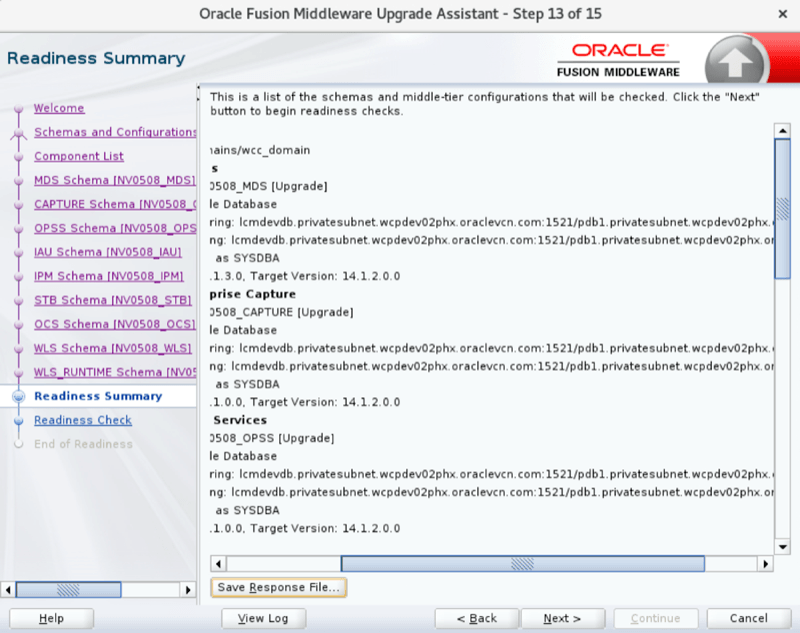
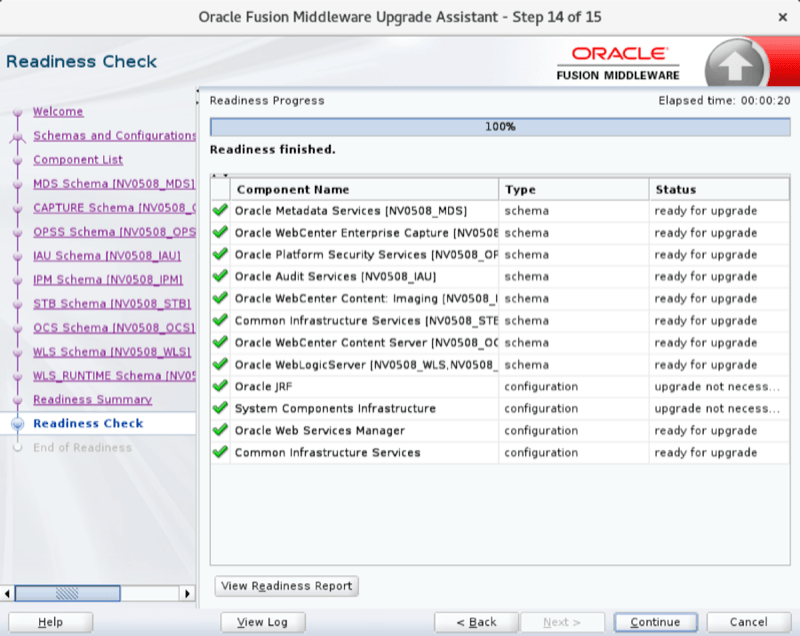
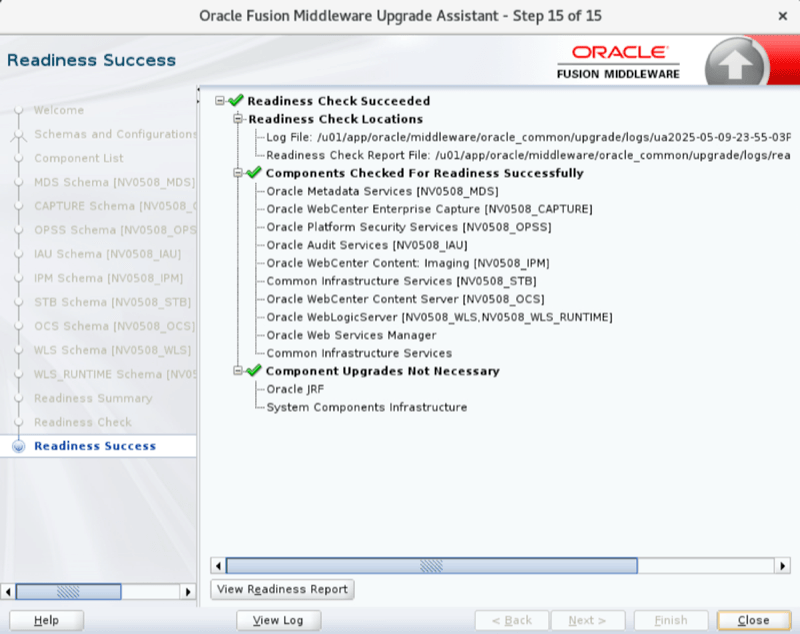
5.1. Check Schema Readiness
Connect to the WebCenter node using a VNC client.
Launch a terminal inside the vnc viewer. If the WebCenter instance uses ATP, export TNS_ADMIN before running Upgrade Assistant:
export TNS_ADMIN=/u01/data/atp/walletThis setting is not required for a traditional database. If it is not set for ATP, the upgrade can fail.
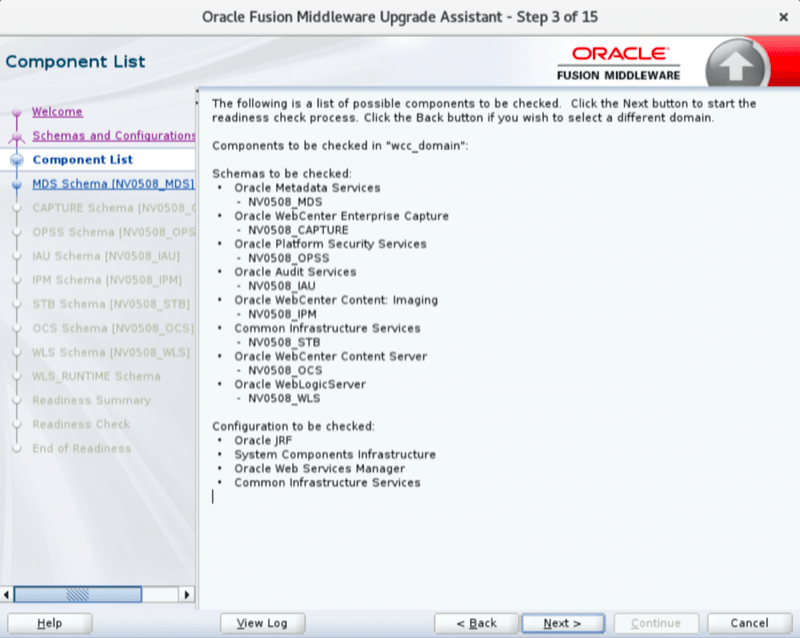
Run the readiness check:
cd /u01/app/oracle/middleware/oracle_common/upgrade/bin
./ua -readiness
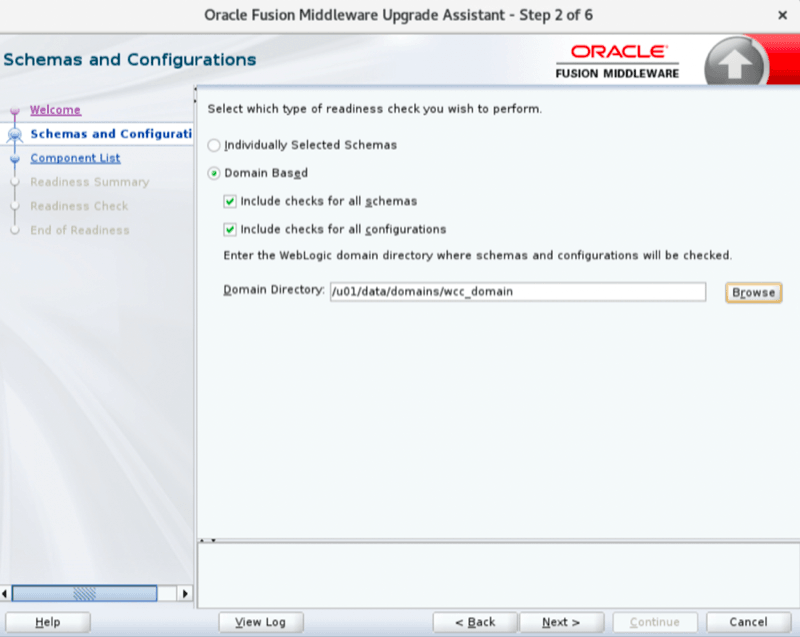
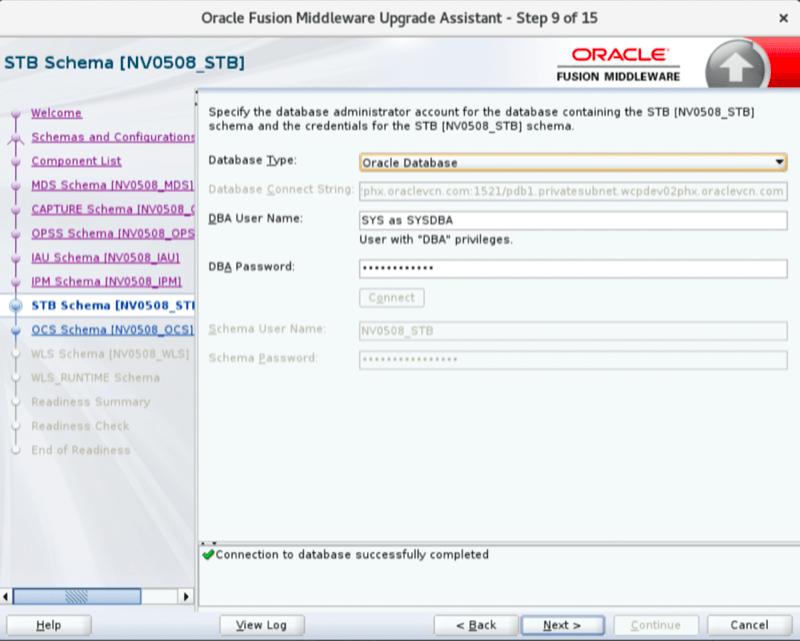
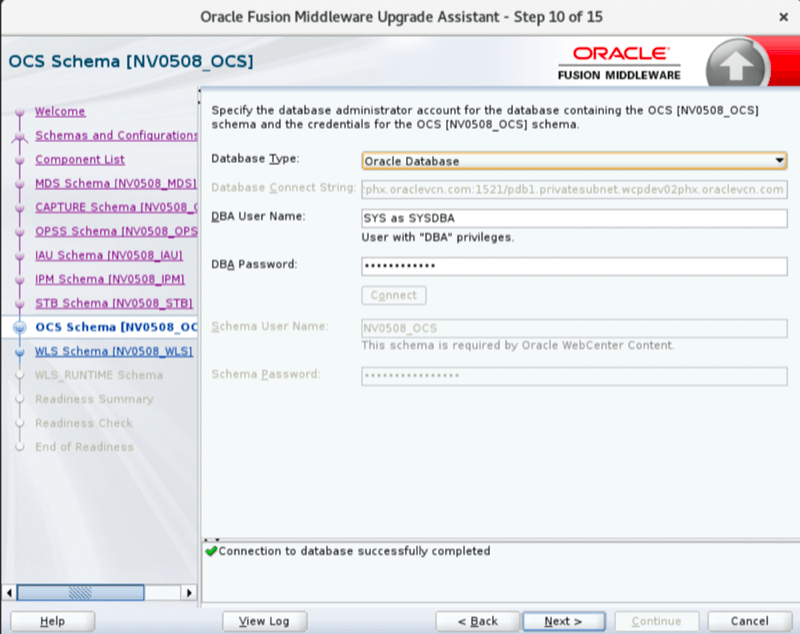
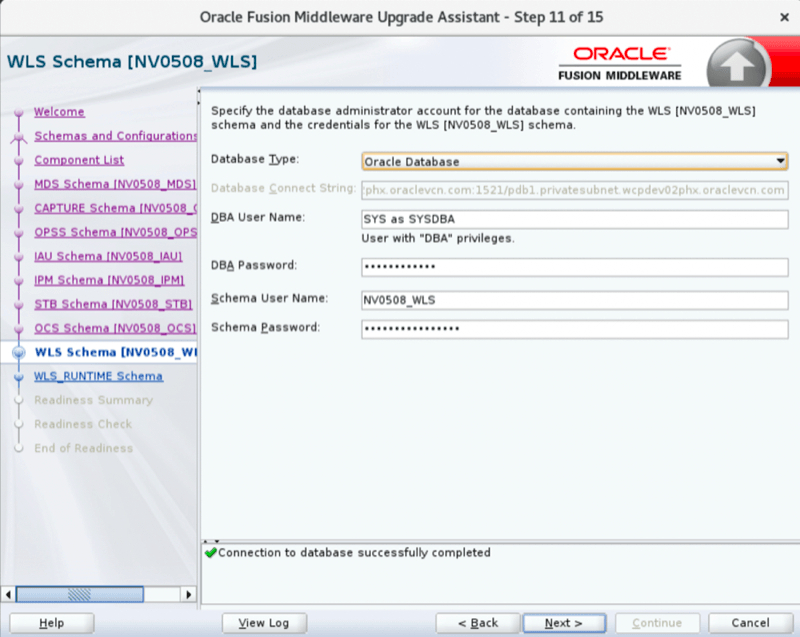
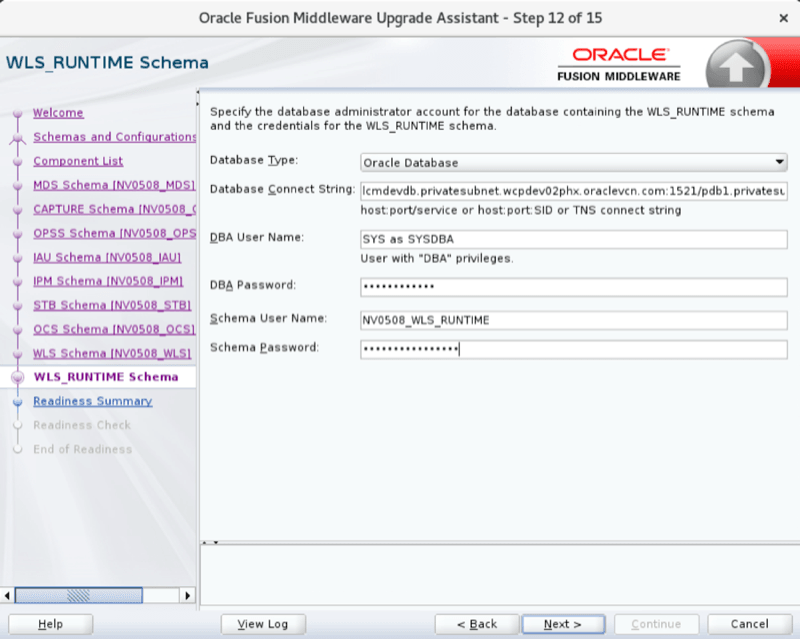
On Step 2, select Domain Based. Select both checkboxes under that option, and enter the domain path without a trailing slash.
Example domain path:
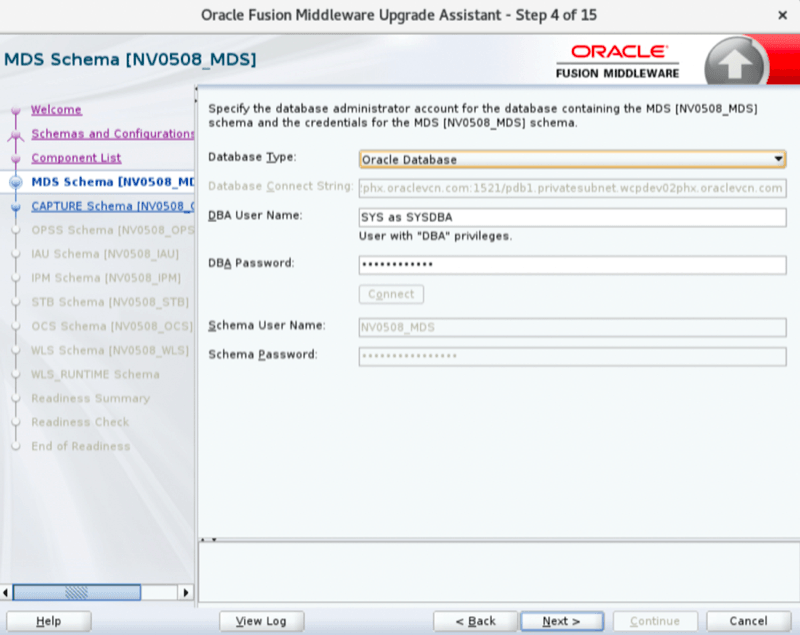
/u01/data/domains/wcc_domainOn Step 4, provide the appropriate database user:
- For Base Database Service, provide the
SYSorSYSTEMuser and password. - For Oracle Autonomous Database (ATP) or Exadata, provide the
ADMINuser and password.
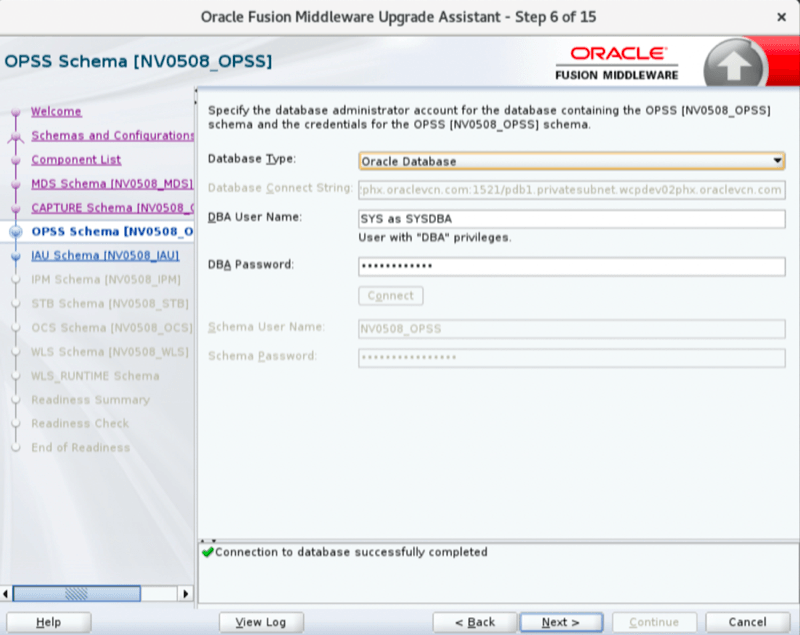
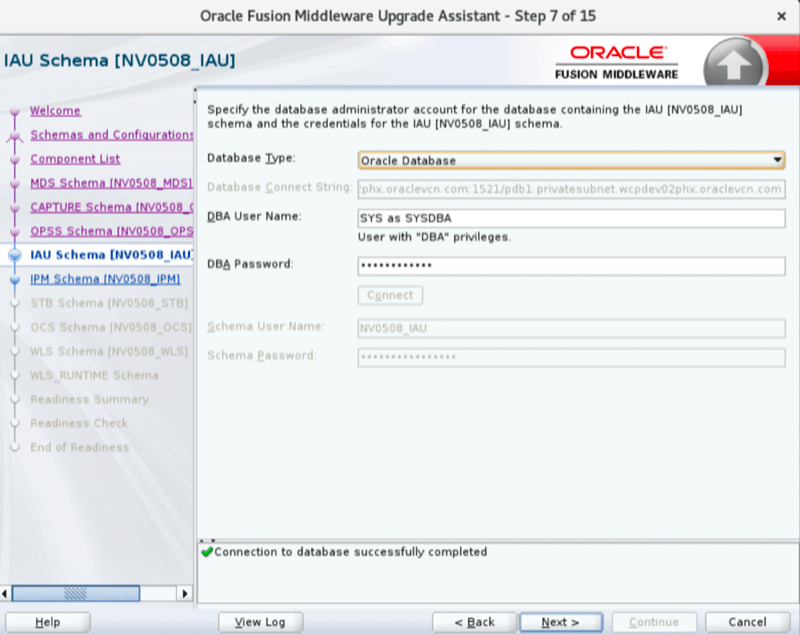
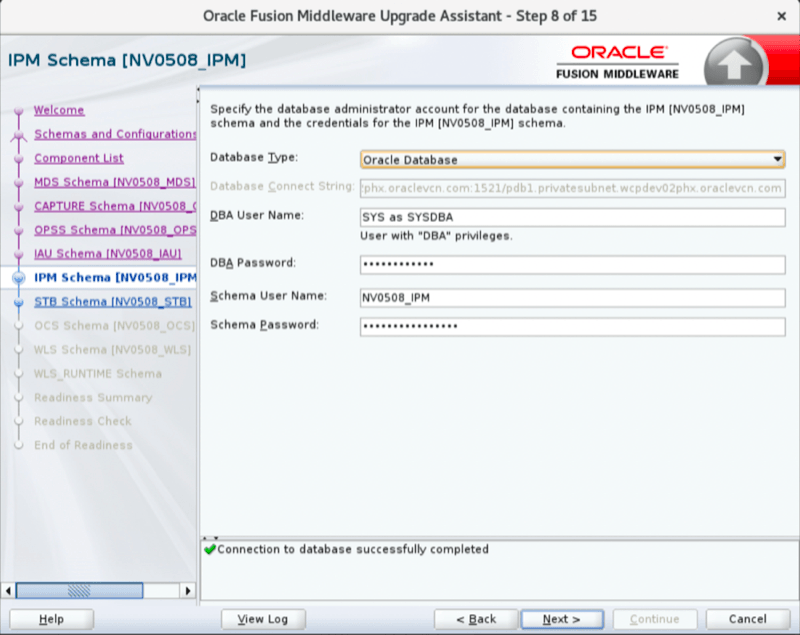
When prompted for the IAU, IPM, WLS, and WLS_RUNTIME schema passwords, use the password stored in the wcc-schema-password secret in the WCC OCI Vault.
To recover this password, run:
oci secrets secret-bundle get --secret-id $(curl -s -H "Authorization: Bearer Oracle" http://169.254.169.254/opc/v2/instance/ | jq -r '.metadata.webcenter_schema_password_id') --stage CURRENT --output json --auth instance_principal | jq -r '.data."secret-bundle-content".content' | base64 -dFollow the Upgrade Assistant screens to complete the readiness check.
Upgrade Assistant logs are created under:
/u01/app/oracle/middleware/oracle_common/upgrade/logs/ua<timestamp>.log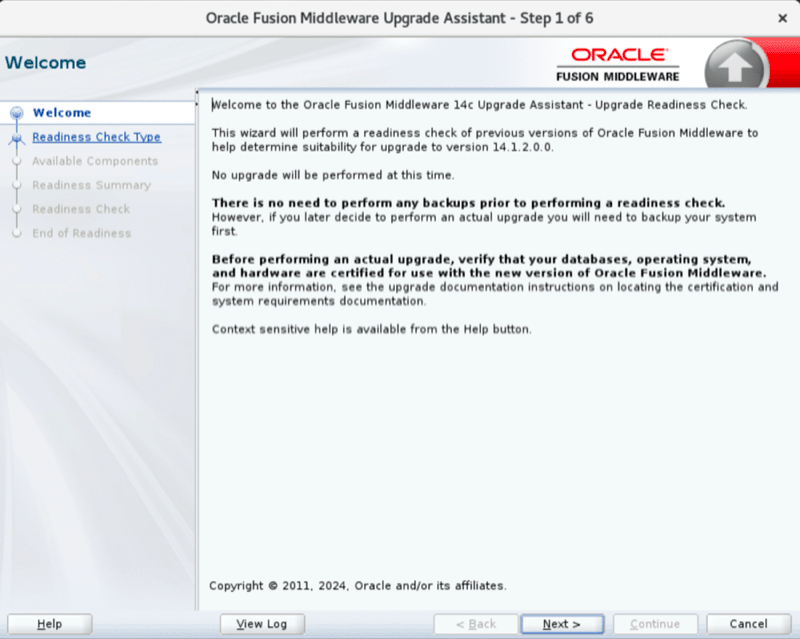 |
 |
 |
 |
 |
 |
 |
 |
 |
 |
 |
 |
 |
 |
5.2. Upgrade Schemas
Launch a terminal inside the vnc viewer. If the WebCenter instance uses ATP, export TNS_ADMIN before running Upgrade Assistant:
export TNS_ADMIN=/u01/data/atp/walletThis setting is not required for a traditional database. If it is not set for ATP, the upgrade can fail.
Run Upgrade Assistant:
cd /u01/app/oracle/middleware/oracle_common/upgrade/bin
export UA_PROPERTIES="-Dfile.encoding=UTF-8 ${UA_PROPERTIES}"
./ua
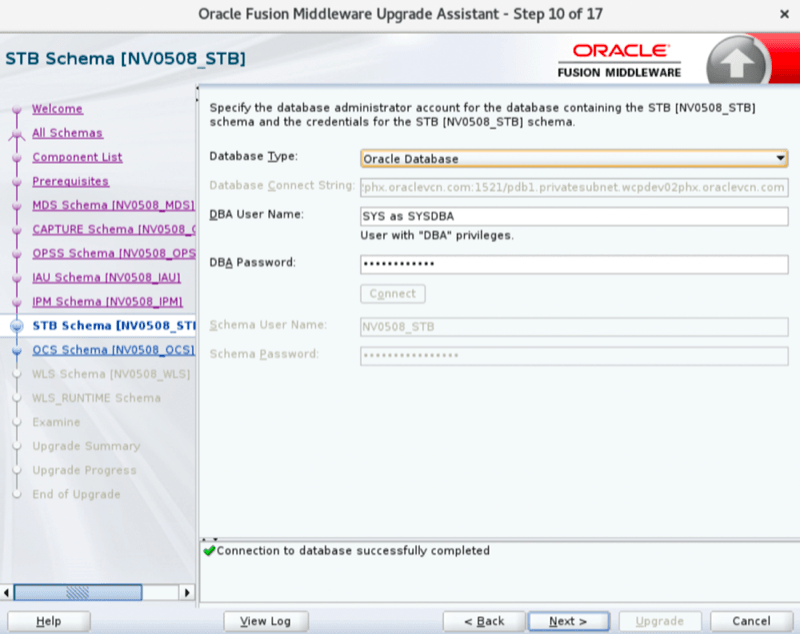
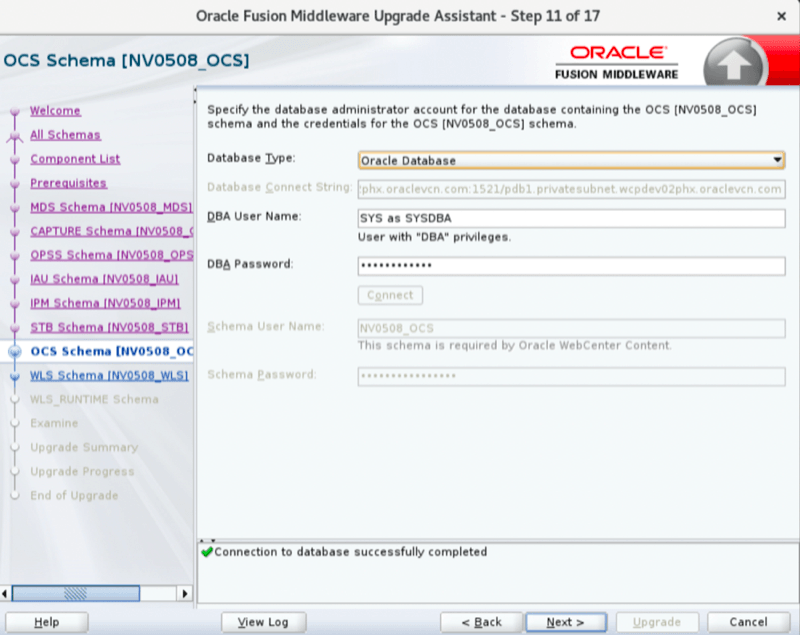
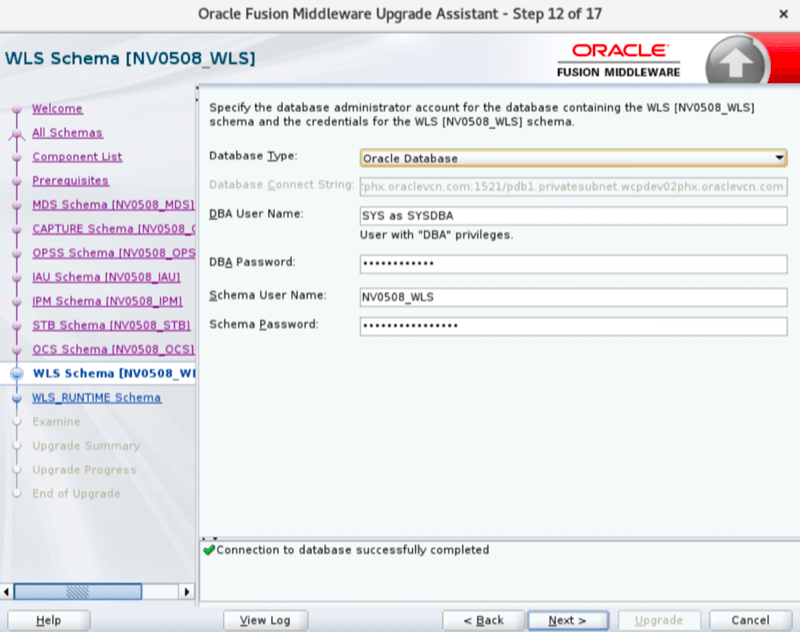
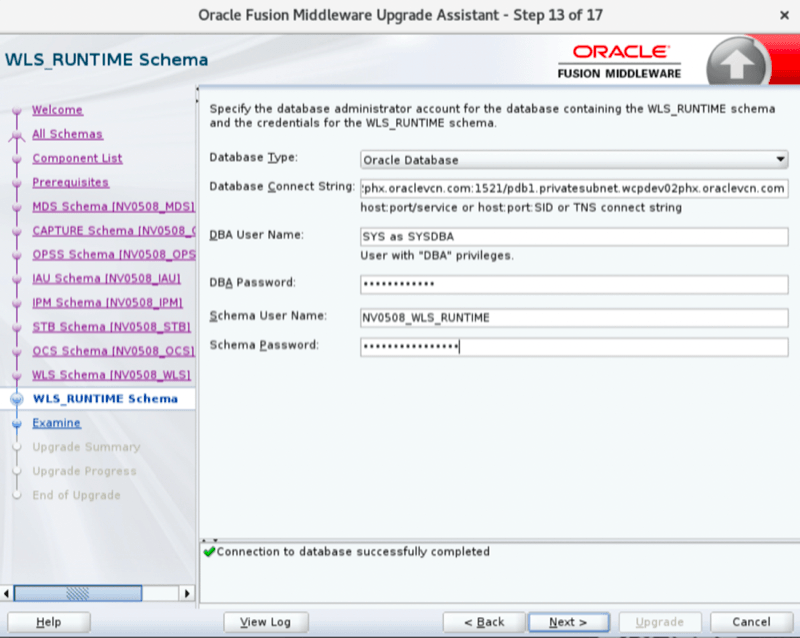
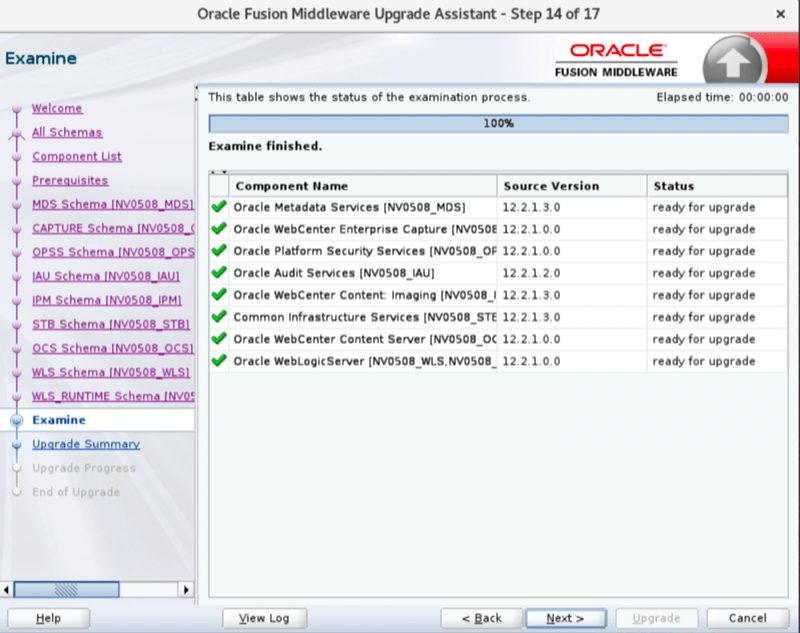
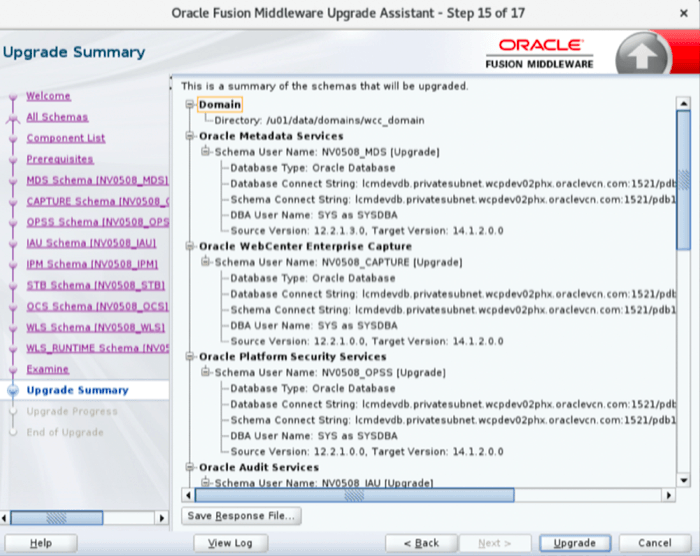
Follow the Upgrade Assistant screens.
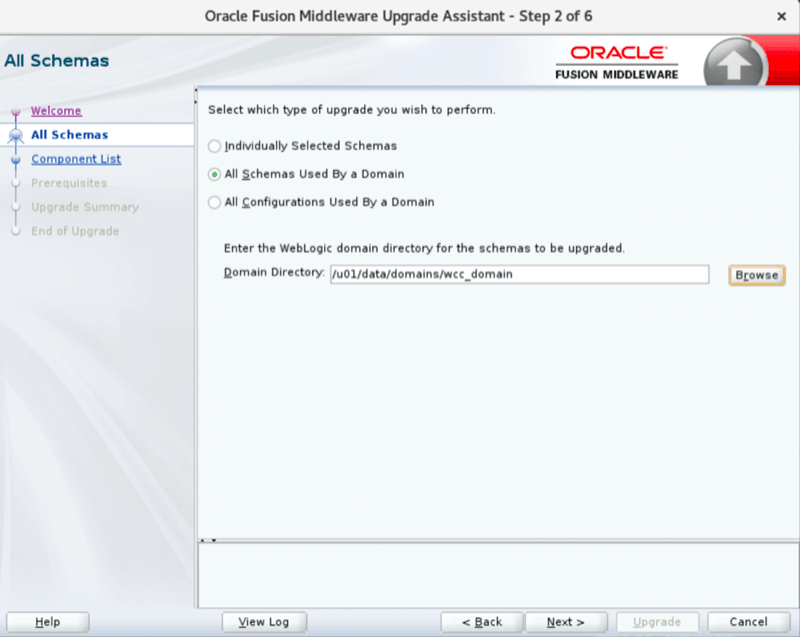
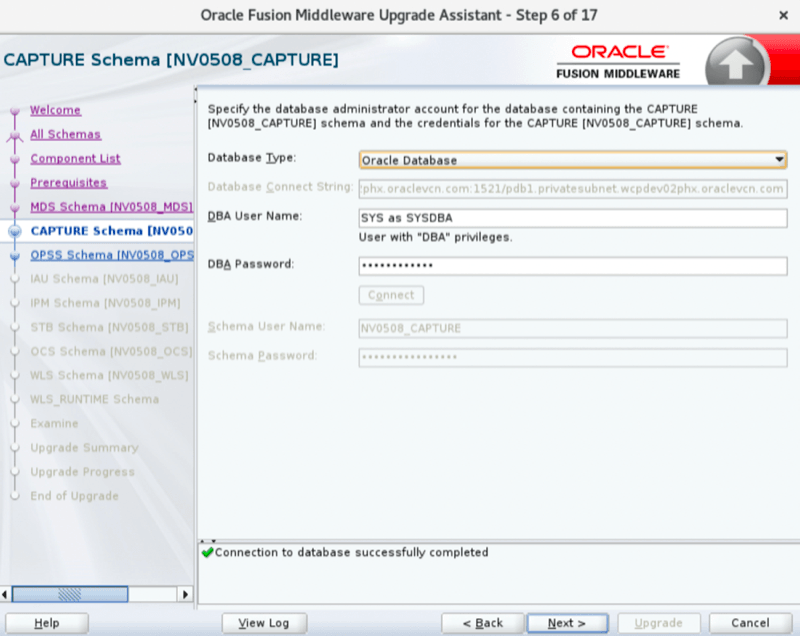
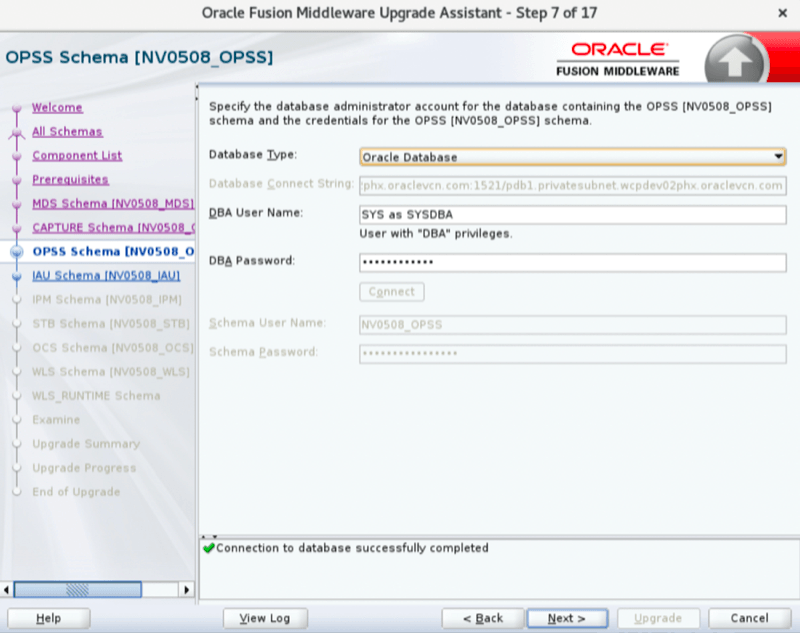
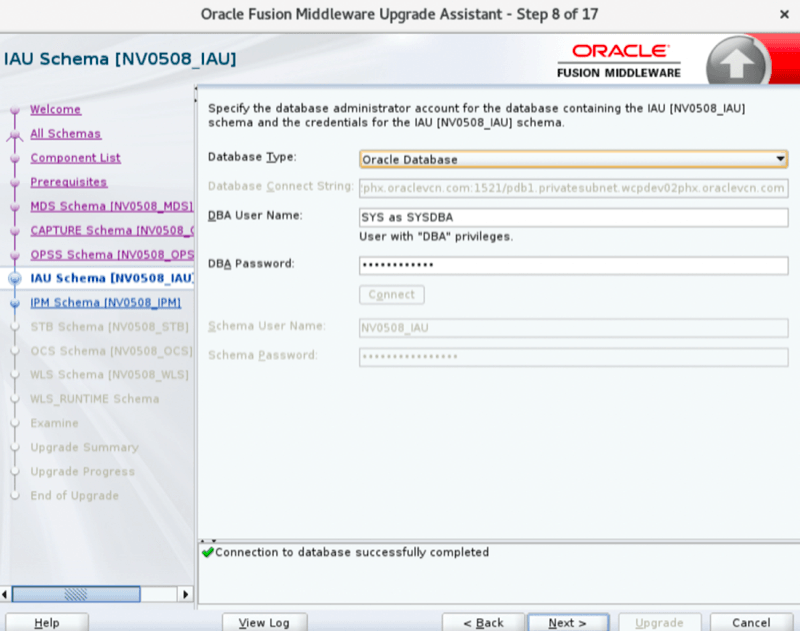
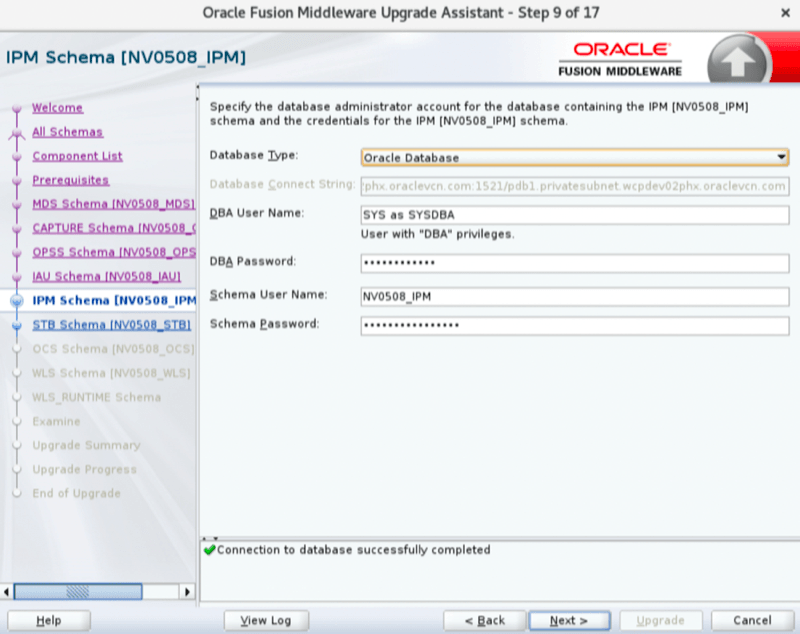
On Step 2, select All Schemas Used By a Domain and enter the same domain path used in the readiness check.
Example domain path:
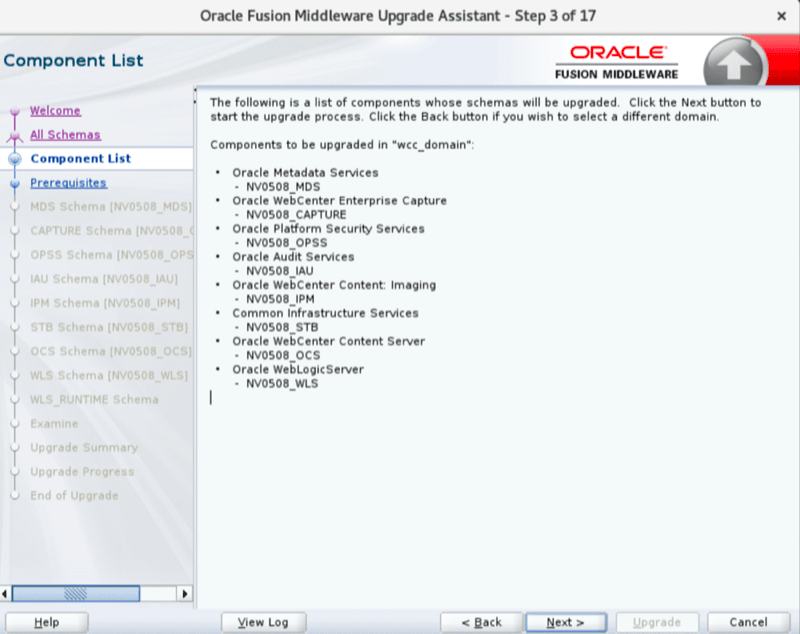
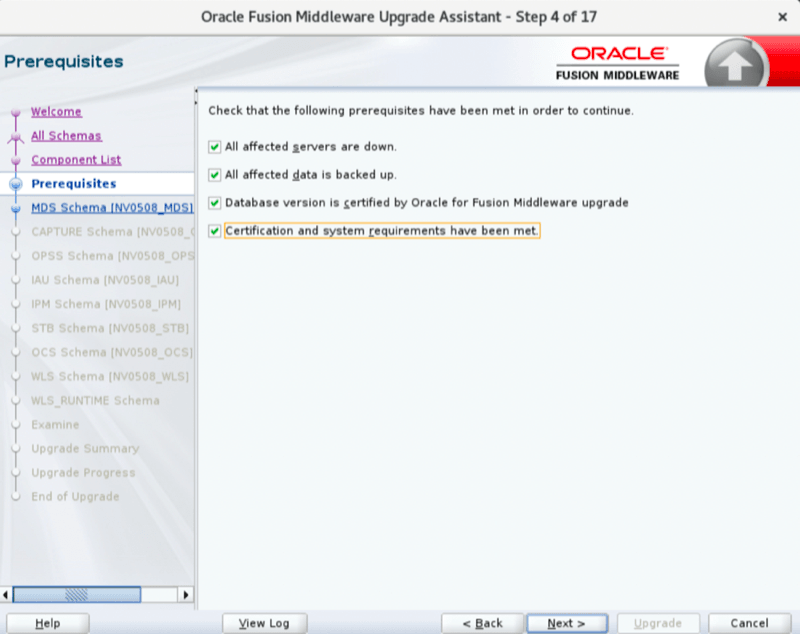
/u01/data/domains/wcc_domainOn Step 4, check all four options and click Next.
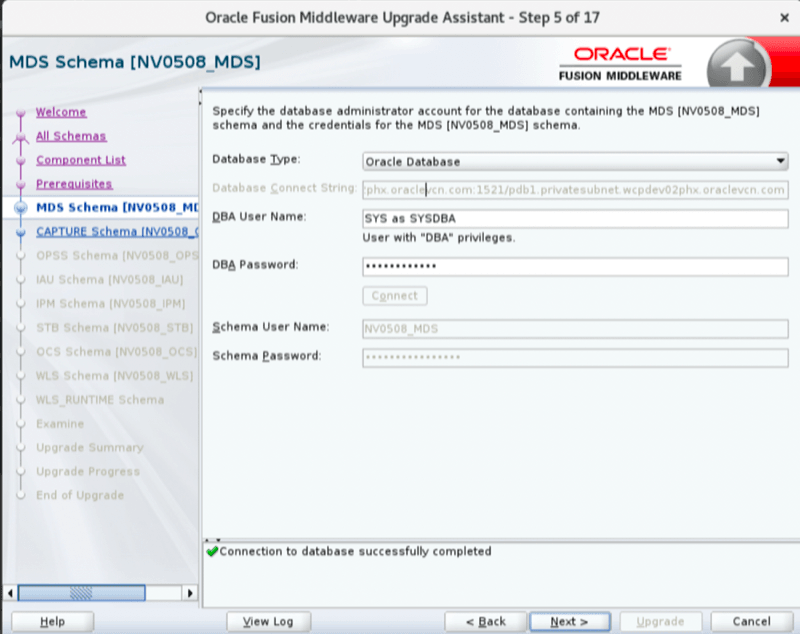
On Step 5, provide the appropriate database user:
- For Base Database Service, provide the
SYSorSYSTEMuser and password. - For Oracle Autonomous Database (ATP) or Exadata, provide the
ADMINuser and password.
On Step 13, provide the schema password for the WLS_RUNTIME schema.
When prompted for the IAU, IPM, WLS, and WLS_RUNTIME schema passwords, use the password stored in the wcc-schema-password secret in the WCC OCI Vault.
To recover this password, run:
oci secrets secret-bundle get --secret-id $(curl -s -H "Authorization: Bearer Oracle" http://169.254.169.254/opc/v2/instance/ | jq -r '.metadata.webcenter_schema_password_id') --stage CURRENT --output json --auth instance_principal | jq -r '.data."secret-bundle-content".content' | base64 -d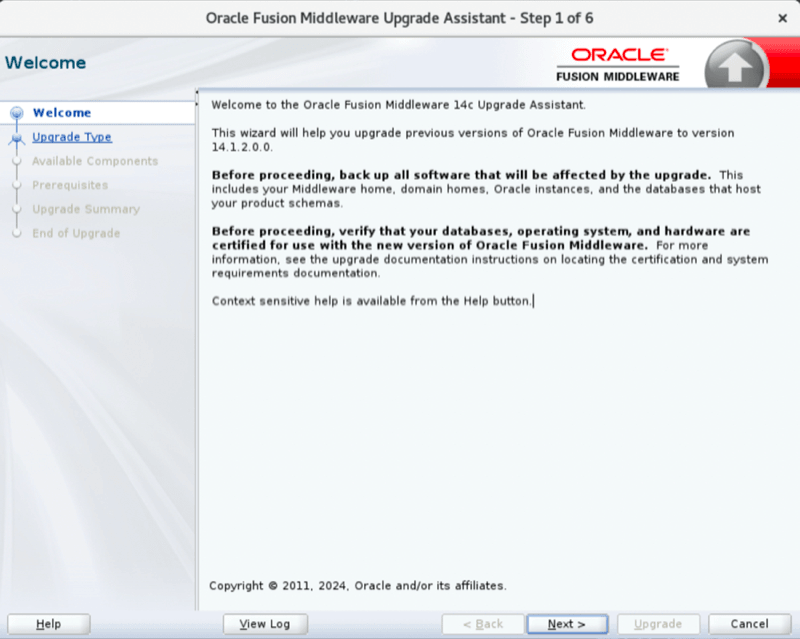 |
 |
 |
 |
 |
 |
 |
 |
 |
 |
 |
 |
 |
 |
 |
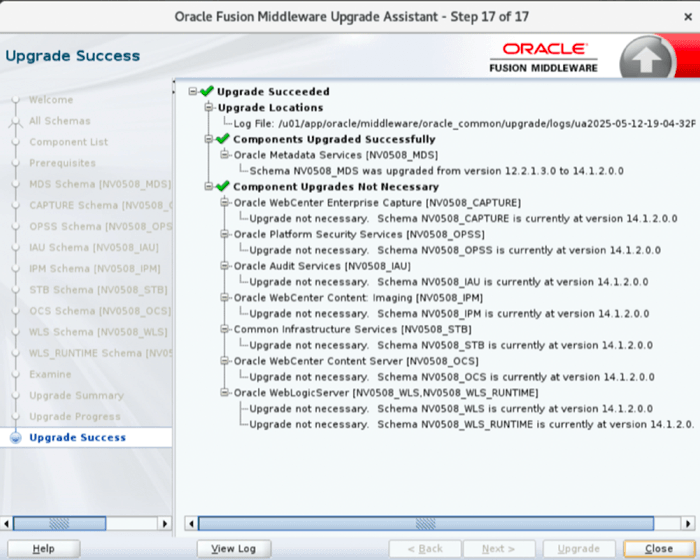 |
Confirm Schema Version Upgrade
Connect to the database as SYSDBA and execute:
SELECT
    MRC_NAME,
    COMP_ID,
    OWNER,
    EDITION AS NAME,
    VERSION,
    STATUS,
    UPGRADED
FROM SCHEMA_VERSION_REGISTRY
WHERE OWNER LIKE UPPER('<db_schema_prefix>\_%') ESCAPE '\';
Example schema prefix:
NVWCC626Example query:
SELECT
    MRC_NAME,
    COMP_ID,
    OWNER,
    EDITION AS NAME,
    VERSION,
    STATUS,
    UPGRADED
FROM SCHEMA_VERSION_REGISTRY
WHERE OWNER LIKE UPPER('NVWCC626\_%') ESCAPE '\';
Example output:
MRC_NAME   COMP_ID      OWNER                  NAME       VERSION      STATUS  UPGRADED
---------- ------------ ---------------------- ---------- ------------ ------- --------
NVWCC626   CAPTURE      NVWCC626_CAPTURE       ORA$BASE   14.1.2.0.0   VALID   Y
NVWCC626   IAU          NVWCC626_IAU           ORA$BASE   14.1.2.0.0   VALID   Y
NVWCC626   IAU_APPEND   NVWCC626_IAU_APPEND    ORA$BASE   14.1.2.0.0   VALID   Y
NVWCC626   IAU_VIEWER   NVWCC626_IAU_VIEWER    ORA$BASE   14.1.2.0.0   VALID   Y
NVWCC626   IPM          NVWCC626_IPM           ORA$BASE   14.1.2.0.0   VALID   Y
NVWCC626   MDS          NVWCC626_MDS           ORA$BASE   14.1.2.0.0   VALID   Y
NVWCC626   OCS          NVWCC626_OCS           ORA$BASE   14.1.2.0.0   VALID   Y
NVWCC626   OPSS         NVWCC626_OPSS          ORA$BASE   14.1.2.0.0   VALID   Y
NVWCC626   STB          NVWCC626_STB           ORA$BASE   14.1.2.0.0   VALID   Y
NVWCC626   WLS          NVWCC626_WLS           ORA$BASE   14.1.2.0.0   VALID   Y
NVWCC626   WLS_RUNTIME  NVWCC626_WLS_RUNTIME   ORA$BASE   14.1.2.0.0   VALID   Y

11 rows selected.
6. Domain Upgrade
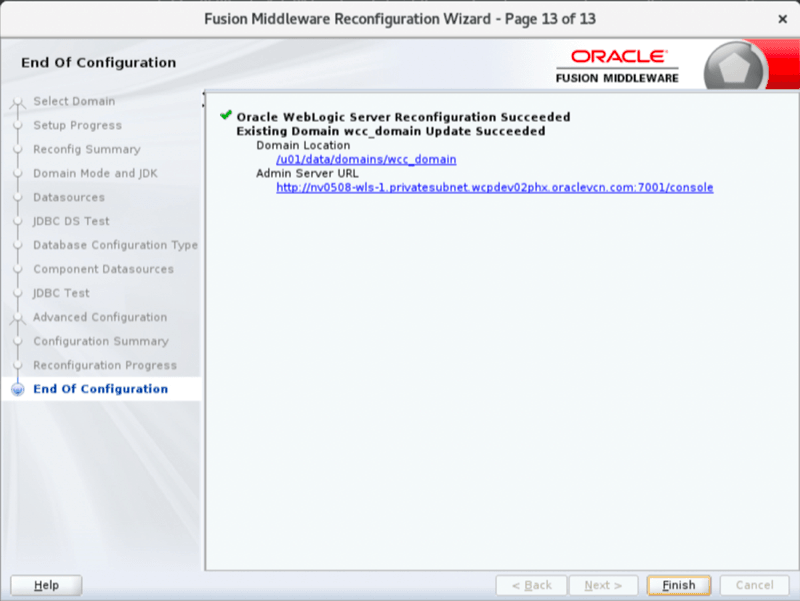
6.1. Reconfigure the Domain
If the source is a clustered environment, run the Reconfiguration Wizard on the primary node only.
When you reconfigure a WebLogic Server domain, the following items are automatically updated depending on the applications in the domain:
- WebLogic Server core infrastructure
- Domain version
Launch a terminal inside the vnc viewer. If the WebCenter instance uses ATP, export TNS_ADMIN before running the Reconfiguration Wizard:
export TNS_ADMIN=/u01/data/atp/walletThis setting is not required for a traditional database. If it is not set for ATP, the upgrade can fail.
Run the Reconfiguration Wizard:
cd /u01/app/oracle/middleware/oracle_common/common/bin

./reconfig.sh \
  -log=/u01/data/domains/logs/reconfig.log \
  -log_priority=ALL
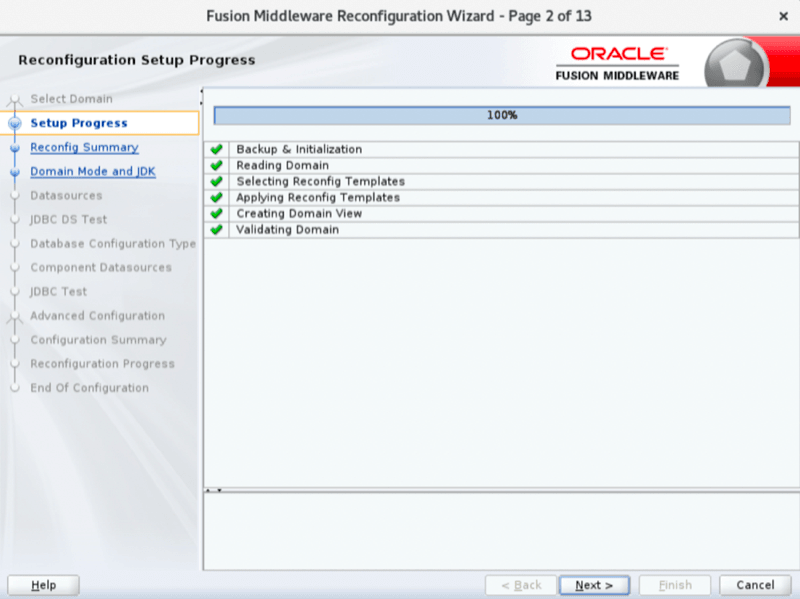
Follow the Reconfiguration Wizard screens.
On Page 1, enter the domain path without a trailing slash.
Example:
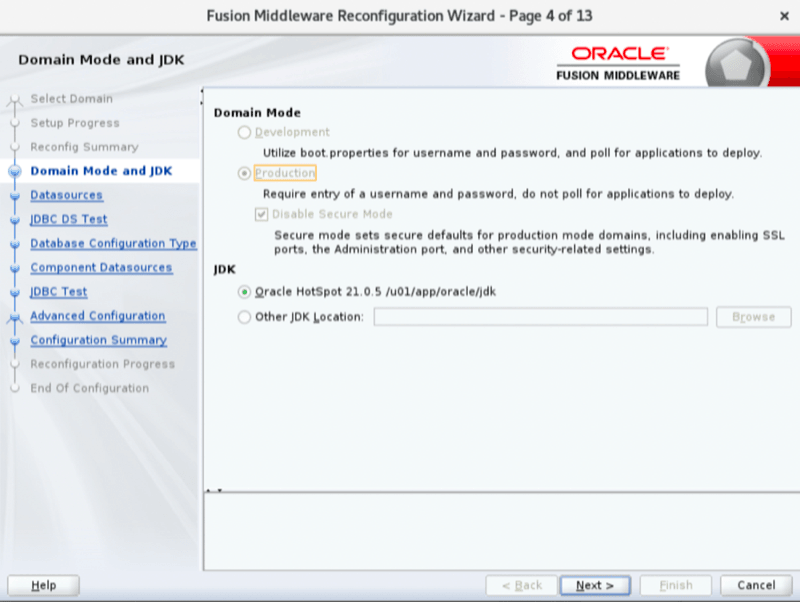
/u01/data/domains/wcc_domainOn Page 4 of 13, when prompted for the Domain Mode and JDK, keep the defaults:
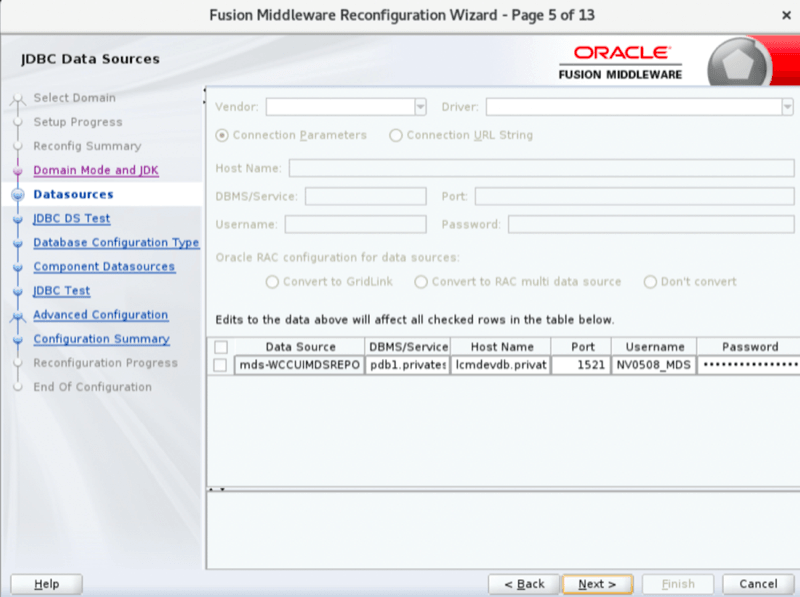
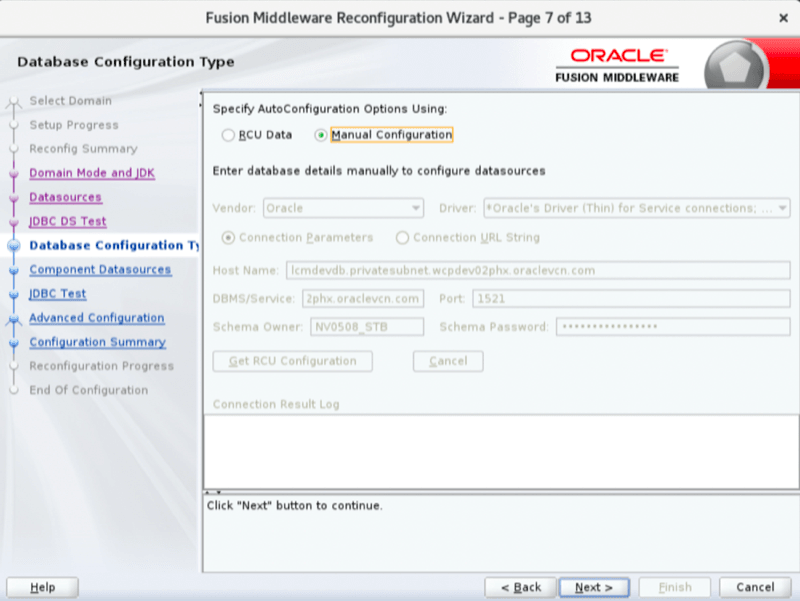
Production / Oracle HotSpot 21.0.5 at /u01/app/oracle/jdkOn Page 7 of 14, when prompted to choose AutoConfiguration Options, select Manual Configuration and click Next.
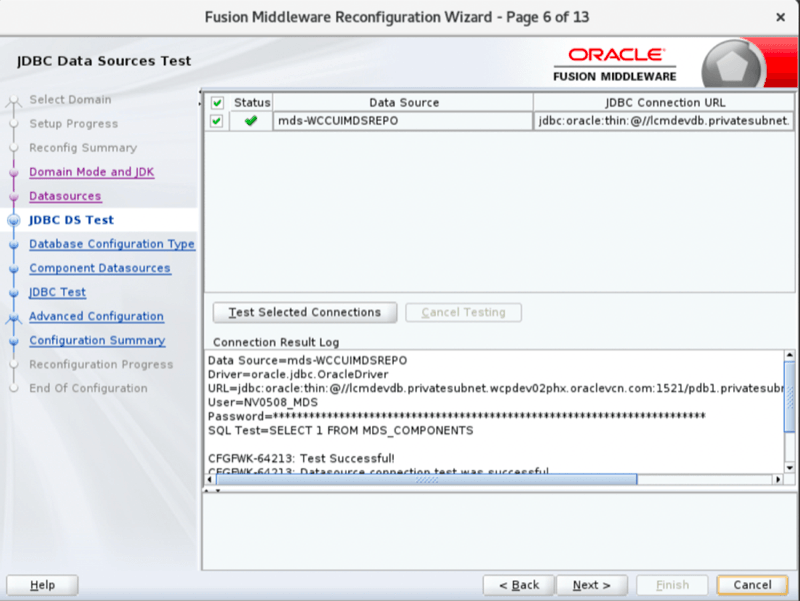
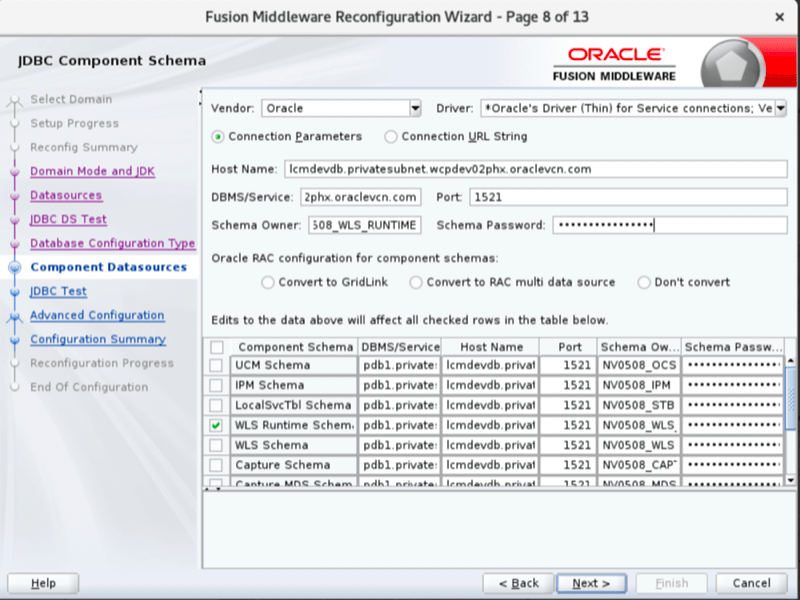
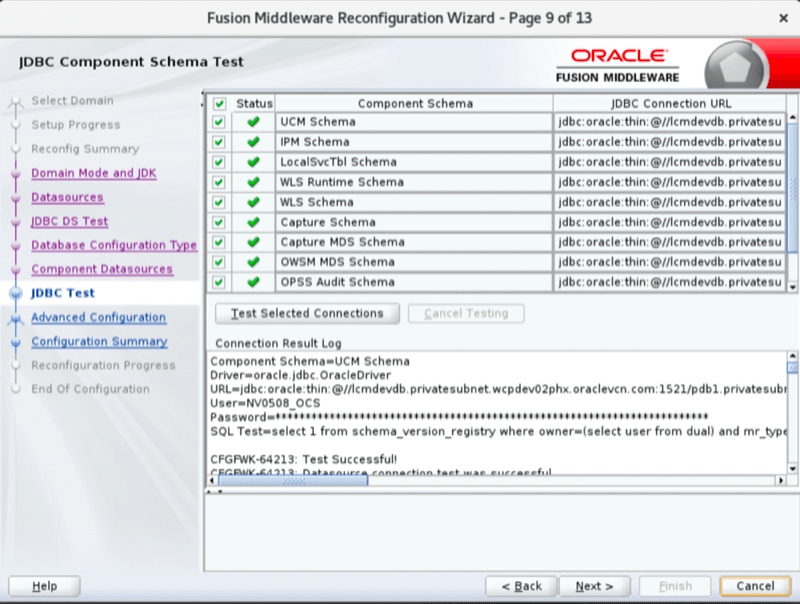
On Page 8 of 13, select the checkbox for WLS Runtime Schema and make these updates:
- Choose Oracle’s Driver (Thin) for Instance connections: Versions ANY from the Driver list.
- Adjust the URL so that it matches the URL value for the other component schemas, for example
jdbc:oracle:thin:@_tpurgent. - Adjust the schema owner to
<schema_prefix>_WLS_RUNTIME. - Provide the schema password. This password should be identical to the password stored in the
wcc-schema-passwordsecret in the OCI Vault.
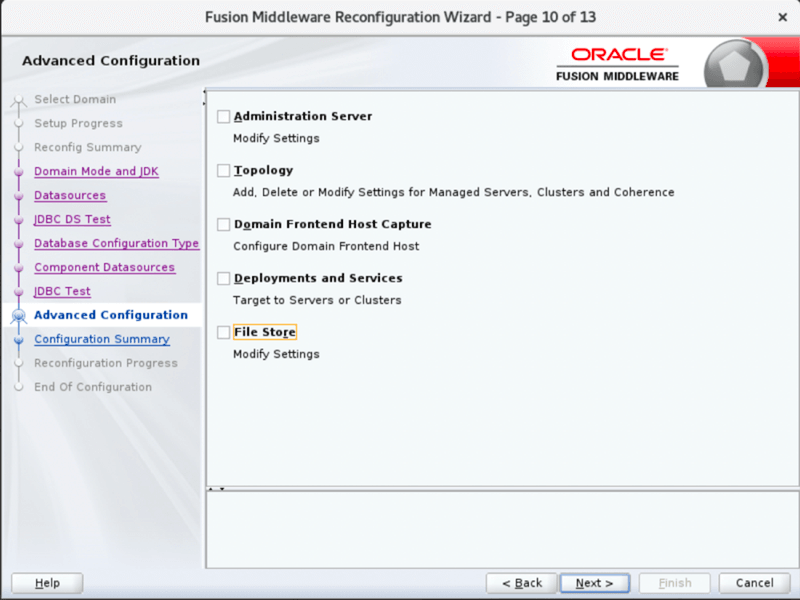
On Page 10 of 13, Advanced Configuration, leave all checkboxes unchecked.
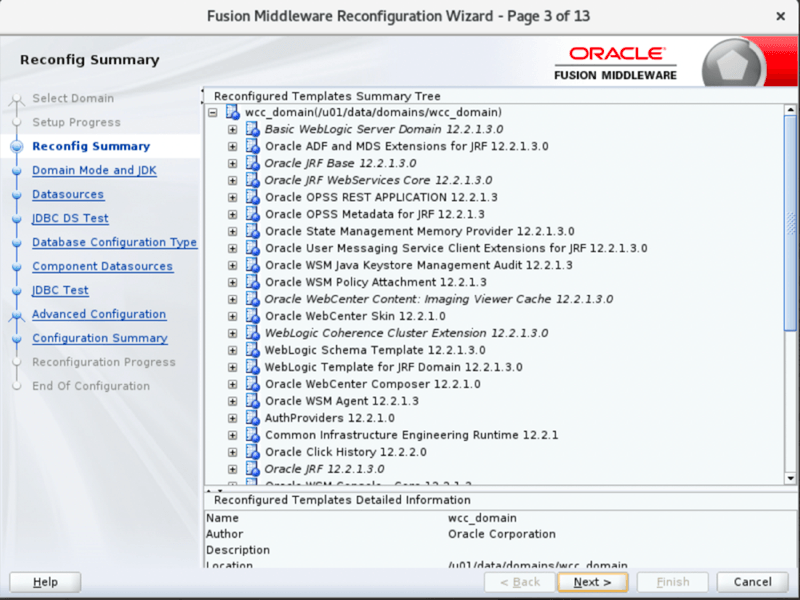
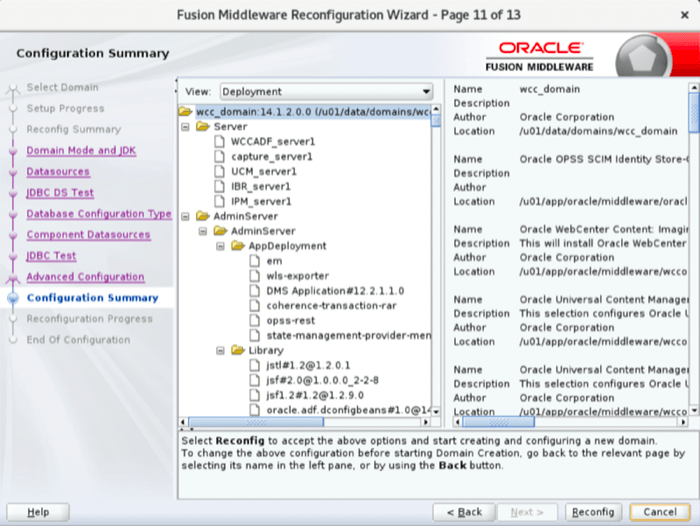
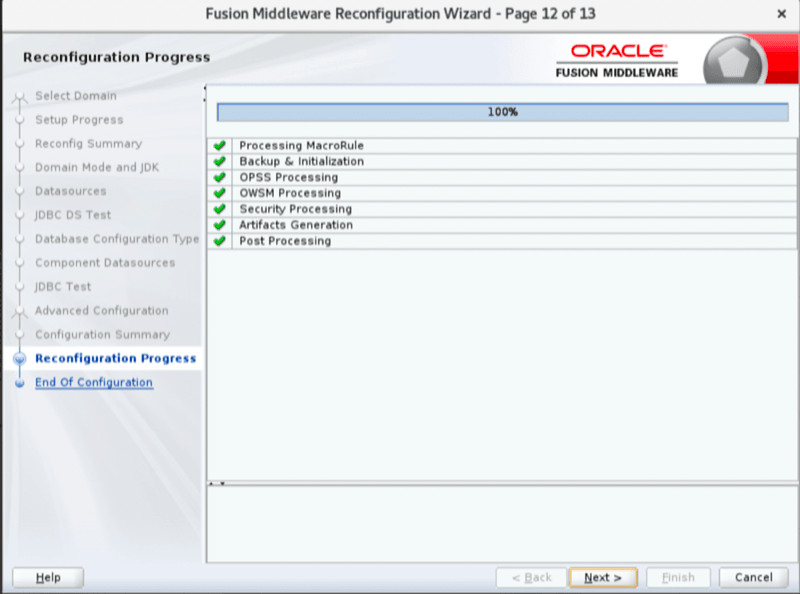
On Page 11 of 13, click Reconfig.
 |
 |
 |
 |
 |
 |
 |
 |
 |
 |
 |
 |
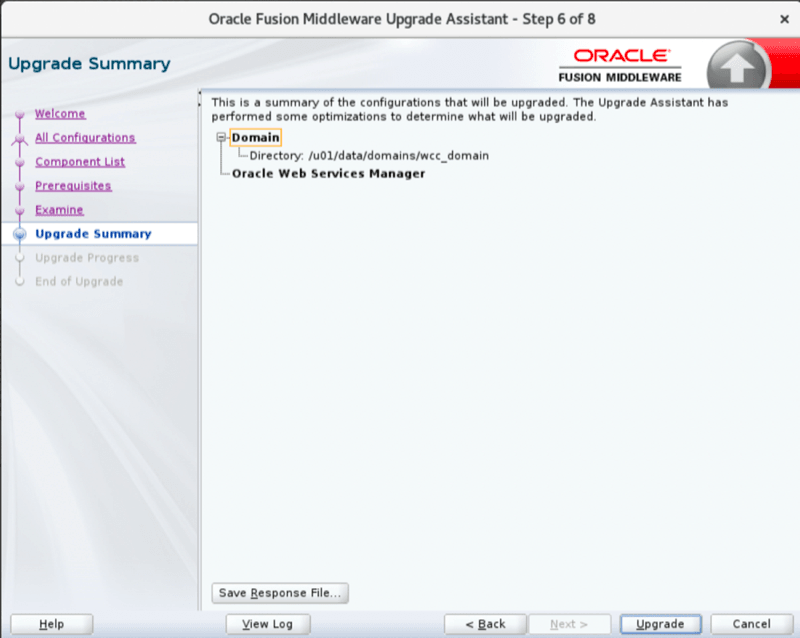
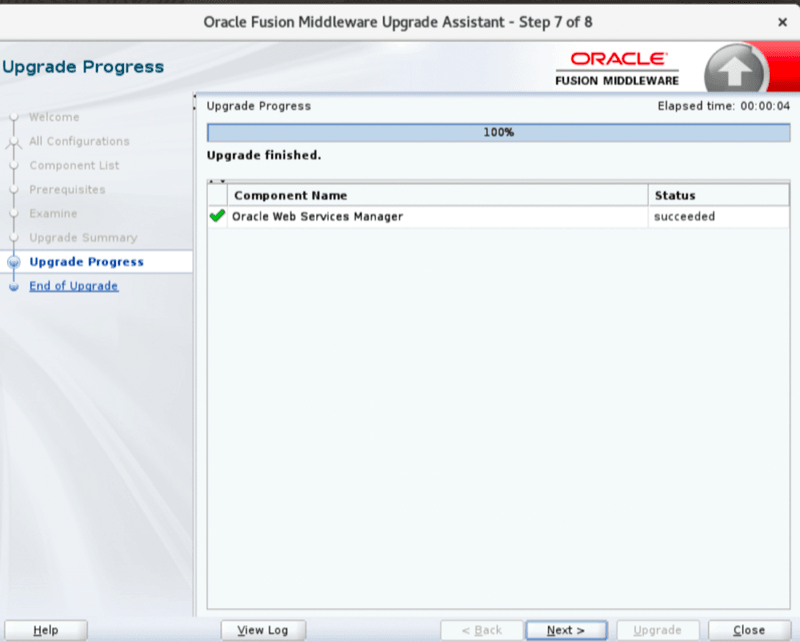
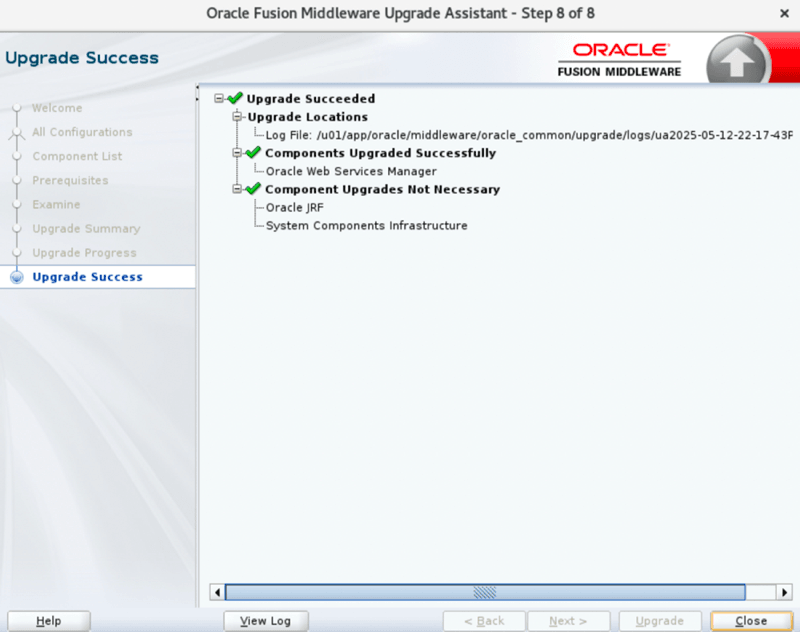
6.2. Upgrade Domain Component Configurations
Launch a terminal inside the vnc viewer. If the WebCenter instance uses ATP, export TNS_ADMIN before running Upgrade Assistant:
export TNS_ADMIN=/u01/data/atp/walletThis setting is not required for a traditional database. If it is not set for ATP, the upgrade can fail.
Run Upgrade Assistant again to upgrade component configurations:
cd /u01/app/oracle/middleware/oracle_common/upgrade/bin
export UA_PROPERTIES="-Dfile.encoding=UTF-8 ${UA_PROPERTIES}"
./ua
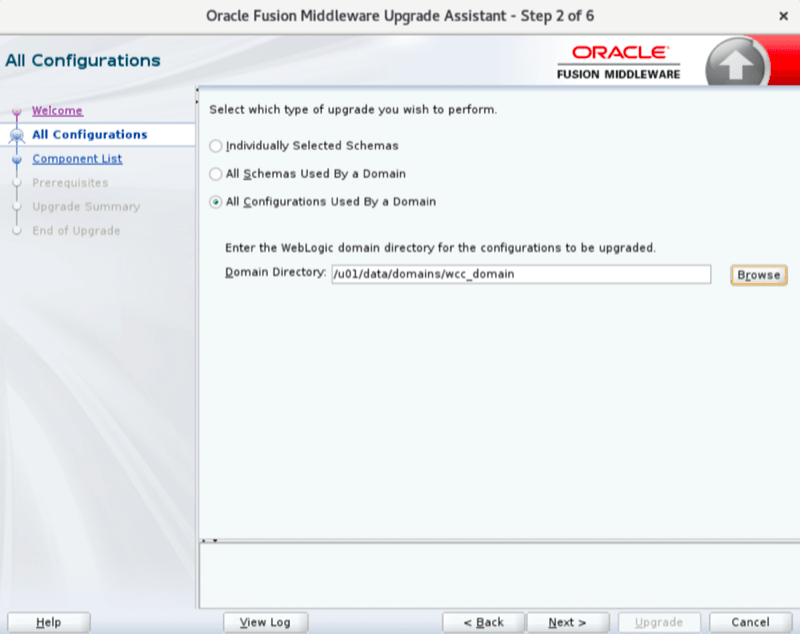
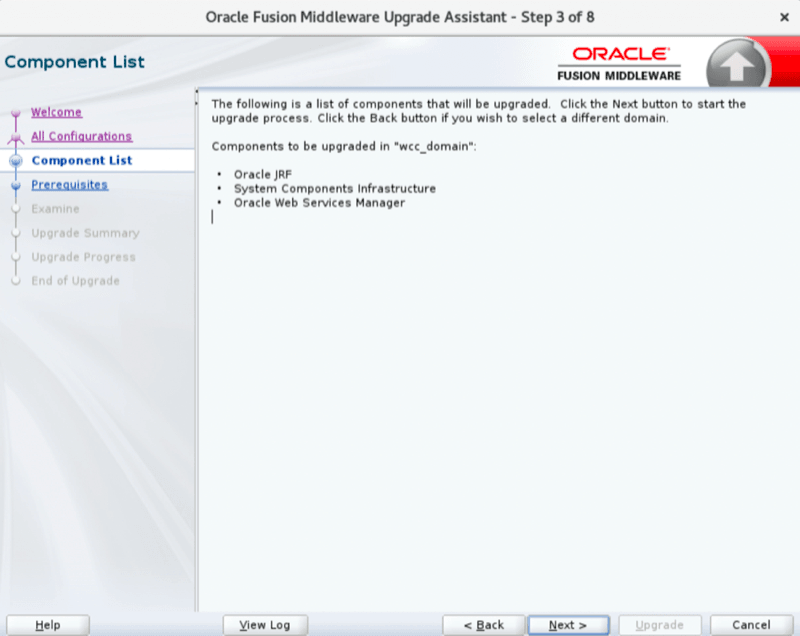
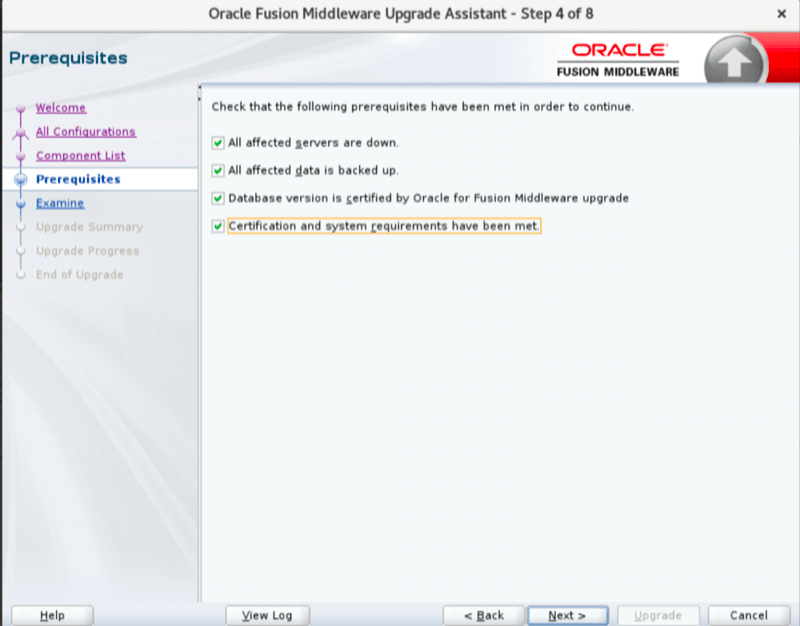
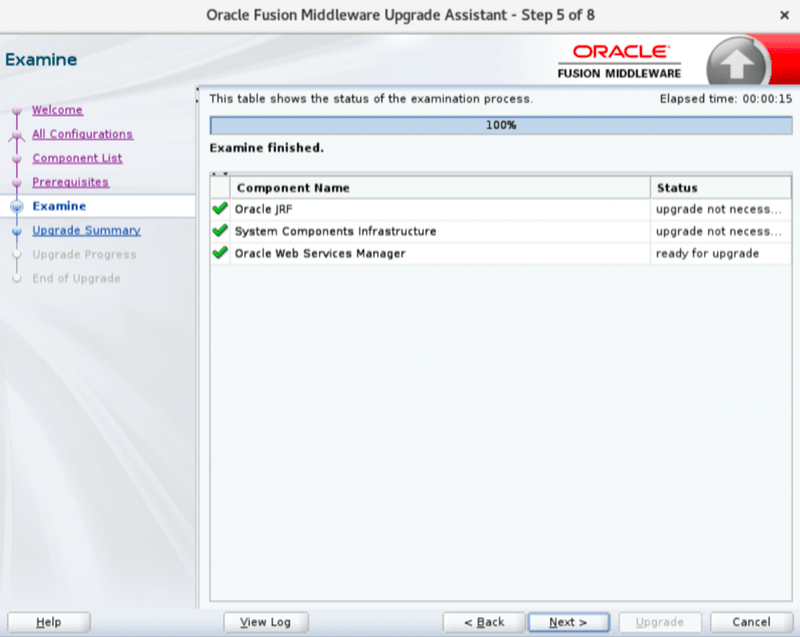
Follow the Upgrade Assistant screens.
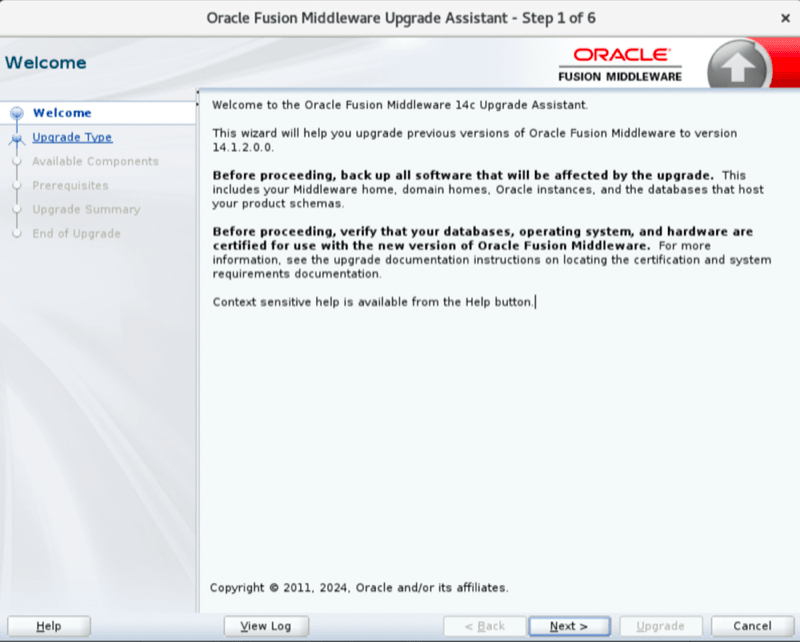
On Page 2 of 6, select All Configurations Used By a Domain and enter the domain path without a trailing slash.
Example:
/u01/data/domains/wcc_domainOn Page 4 of 8, check all checkboxes and click Next.
 |
 |
 |
 |
 |
 |
 |
 |
7. Post-Upgrade Tasks
7.1. Execute Post-Upgrade
This step applies various post-upgrade changes, such as updating instance metadata to 14c, restoring datasource configuration settings, and configuring WebCenter Reports. Logs are written to /u01/data/domains/logs/wc_1412_post_upgrade.log.
Launch a terminal. If the WebCenter instance uses ATP, export TNS_ADMIN before running the post-upgrade task:
export TNS_ADMIN=/u01/data/atp/walletThis setting is not required for a traditional database. If it is not set for ATP, the upgrade can fail.
Run:
cd /u01/scripts/lcm/upgrade
sh wc_1412_upgrade.sh
Select:
6 - Execute Post UpgradeExample:
Executing: Execute Post Upgrade

[2025-07-01 17:36:11] [INFO] Executing: wc_1412_post_upgrade.sh

Enter middleware path (default: /u01/app/oracle/middleware):
7.2. Start Servers on the Primary Node
Run:
/u01/scripts/lcm/sh/webcenter_server_manager.sh -a start -s vm1Verify that all servers are up and the application is working.
8. Upgrade Cluster Nodes
Note: Upgrade other cluster nodes only after confirming that
wls-1was upgraded successfully.
This section applies to stacks containing more than one instance.
8.1. Stop Servers and Node Managers
Run these steps as the oracle user.
Shut down all WebLogic servers and Node Managers before continuing:
cd /u01/scripts/lcm/sh
sh webcenter_server_manager.sh -a status -s 'all'
nohup sh webcenter_server_manager.sh -a shutdown -s 'all' &> wc_svr_mgr-$(date +%Y%m%d_%H%M%S).log &
sh webcenter_server_manager.sh -a status -s 'all'

sh webcenter_nm_manager.sh -a status -s 'all'
nohup sh webcenter_nm_manager.sh -a shutdown -s 'all' &> wc_nm-$(date +%Y%m%d_%H%M%S).log &
sh webcenter_nm_manager.sh -a status -s 'all'
Verify that no WebLogic processes are running:
ps -ef | grep weblogicThis should return zero relevant WebLogic processes. Stop any remaining Java processes before proceeding.
8.2. Execute Cluster Upgrade
WARNING: Do not start the cluster upgrade until all servers and Java processes have been stopped.
Run:
cd /u01/scripts/lcm/upgrade
sh wc_1412_upgrade.sh
Select:
7 - Execute Cluster UpgradeExample:
Executing: Execute Cluster Upgrade

[2025-07-01 18:35:02] [INFO] Executing: cluster_upgrade.sh

Enter middleware path (default: /u01/app/oracle/middleware):

Enter log path (default: /u01/data/domains/logs/cluster_upgrade.log):
Sample output:
...
[2025-07-01 18:43:57] [INFO] Instance metadata updated successfully.
[2025-07-01 18:43:57] [INFO] /u01/scripts/props/webcenter.properties deleted.
[2025-07-01 18:43:57] [INFO] Cluster upgrade completed successfully on nvwcc626-wls-2.
[2025-07-01 18:43:57] [INFO] Executing cleanUp().
[2025-07-01 18:43:58] [INFO] cluster_upgrade_remote.sh: Exiting with code: 0.
[2025-07-01 18:43:58] [INFO] Cluster upgrade successful on nvwcc626-wls-2.
[2025-07-01 18:43:58] [INFO] Executing cleanUp().
[2025-07-01 18:43:58] [INFO] cluster_upgrade.sh: Exiting with code: 0.
[2025-07-01 18:43:59] [INFO] cluster_upgrade.sh executed successfully.
8.3. Start Servers
Start servers after all nodes have been upgraded:
cd /u01/scripts/lcm/sh
sh webcenter_server_manager.sh -a status -s 'all'
nohup sh webcenter_server_manager.sh -a start -s 'all' &> wc_svr_mgr-$(date +%Y%m%d_%H%M%S).log &
sh webcenter_server_manager.sh -a status -s 'all'

sh webcenter_nm_manager.sh -a status -s 'all'
nohup sh webcenter_nm_manager.sh -a start -s 'all' &> wc_nm-$(date +%Y%m%d_%H%M%S).log &
sh webcenter_nm_manager.sh -a status -s 'all'
8.4. Regenerate webcenter.properties
On every managed server node, delete the existing webcenter.properties file:
rm /u01/scripts/props/webcenter.propertiesRegenerate webcenter.properties:
python /u01/scripts/python/utils/webcenter_props_generator.py8.5. Apply the Latest Patches
Apply all available patches to the upgraded 14c instance using patch_tool.sh.
If the Node Managers and managed servers are not already running after patching, start them. Verify that the instance is working correctly.
Start the Node Managers and managed servers if they are not already running:
cd /u01/scripts/lcm/sh
sh webcenter_nm_manager.sh -a status -s 'all'
nohup sh webcenter_nm_manager.sh -a start -s 'all' &> wc_nm-$(date +%Y%m%d_%H%M%S).log &
sh webcenter_nm_manager.sh -a status -s 'all'

sh webcenter_server_manager.sh -a status -s 'all'
nohup sh webcenter_server_manager.sh -a start -s 'all' &> wc_svr_mgr-$(date +%Y%m%d_%H%M%S).log &
sh webcenter_server_manager.sh -a status -s 'all'Oracle WebCenter Content Upgrade from 12.2.1.4 to 14.1.2 on Marketplace, 14c (14.1.2.0.0)
G60280-01