Viewing Balance Load Information
The Balance Loads tab displays details of the balance loads that were run during the selected period, a summary of the mapping exceptions generated when loading these balances, and Profile Creation Rules that will be run when new profiles are automatically added.
Use the filters on the tab to display balance loads that you need. Click the name of a balance load to view the settings used for this balance load and the result. The chart on the right of the tab shows the mapping exceptions generated by location. For each currency bucket, the sum of balances that are not reconciled because of mapping exceptions is displayed below the chart. The chart and the sums are dynamic and are updated as you take actions on the generated exceptions.
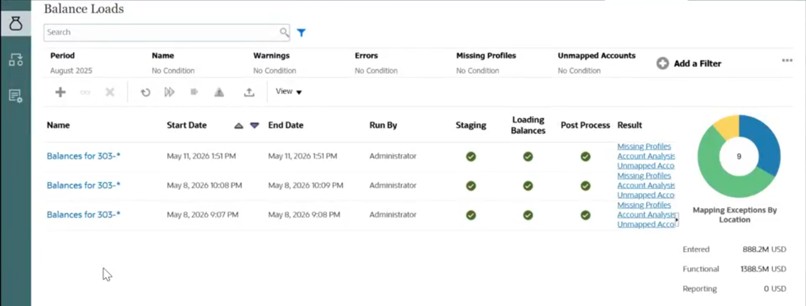
For each balance load, the subprocesses and their results as well as the result of the balance load operation is displayed.
-
Staging—The staging process extracts balances from the source system, assigns the profile ID and balance type, and stores the balances in a temporary staging table. In the staging table, there is a one-to-one relationship to balances in the source system (no summarization has occurred). The staging table is refreshed with every balance load; balances of prior loads are not maintained.
-
Loading Balances—The load process summarizes the balances by profile, balance type, currency bucket, and currency code and loads the balances into Account Reconciliation . These balances are permanently stored but are updated if changed balances are imported in the future.
-
Post-Processing—Performs these actions:
-
Changes the status of reconciliations "Open with Reviewer" or "Closed" to "Open with Preparer" if balances changed
-
Runs the auto-reconciliation routines
-
Flags reconciliations containing normal balance violations (cases in which an expected debit balance is a credit balance, or when an expected credit balance is a debit balance.
-
Post-processing may run certain rules.
-
-
Mode — Describes the type of balance load.
See About Modes of Importing Balances for information about the import modes.
Available Actions for Balance Loads
Following are the actions that you can perform on the Balance Loads tab:
- Create a new balance load
- Delete a balance load from the tab
- Rerun a balance load
- Resume a paused balance load job
- Force close a balance load job
- Export the balance loads details in this tab to a Microsoft Excel file
In addition to the predefined filters, you can create new filters.