Example: Using Reconciliation Assignment Assistance to Predict Attribute Values
This example creates a predicted attribute, trains it, and then uses it to predict attribute values for the October 2025 period.
Prerequisites
- You must be a Service Administrator or a user with the Profiles and Reconciliations - Manage granular role.
- Ensure that the Enable Predictive AI configuration setting is selected.
Step 1: Create Predicted Attribute PredictRiskRating
Create a predicted attribute named Risk Rating that is based on the Risk Rating attribute. The parameters used to train this predicted attribute are Account, Account Type, and Source System Balance (Functional).
- From Home, click Application and then Configuration.
- Click Attributes, and then the Predicted tab.
- Click the New icon to display the New Predicted Attribute dialog.
- In the Properties tab:
- Name: Enter PredictRiskRating.
- Target: Select Risk Rating.
- Repeat on Training: Select No Training.
- In the Parameters tab:
You may see some parameters already listed. In this example, the Account and Company parameters have already been added. Delete the parameters that are not required.
- Select the Company row and click the Delete icon.
- Click Add to add a new row. Under Name, select Account Type.
- Click Add to add a new row. Under Name, select Source System Balance (Functional).
- Click Ok to save the predicted attribute.
An attribute named PredictRiskRating (Confidence) is automatically created. For each PredictRiskRating attribute value, PredictRiskRating (Confidence) represents the percentage of confidence in the predicted value.
Step 2: Train Predicted Attribute PredictRiskRating
- From Home, click Application and then Configuration.
- Click Attributes, and then the Predicted tab.
- Select the PredictRiskRating row and click the Train Now icon.
The Train Predicted Attribute dialog appears.
- In Period, select September 2025.
Note that we want to predict attribute values for the October 2025 period. So, selecting September 2025 trains the prediction model using historical data of the last one year.
- Click Apply.
The Train Attribute: PredictRiskRating dialog appears. The following screenshot shows this dialog after the training completes:
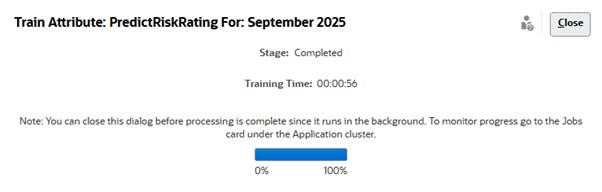
Notice that the Training Time shows that the prediction model was trained in 50 seconds.
- Click Close.
- Select the PredictRiskRating row and click the Edit icon. The Edit Predicted
Attribute dialog displays, as shown below.
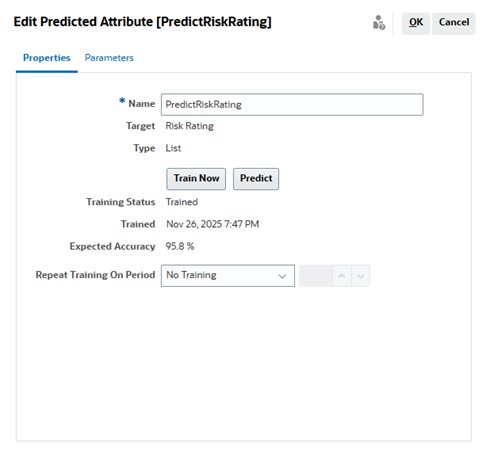
The Training Status shows as Trained, with the most recent training time. The Expected Accuracy for the prediction model is 95.8%.
Step 3: Predict Attribute Values for the October 2025 Period
- From Home, click Application and then Configuration.
- Click Attributes, and then the Predicted tab.
- Select the PredictRiskRating row and click the Predict icon.
The Predict Predicted Attribute dialog appears.
- In Period, select October 2025 and click Apply.
The Predict Attribute: PredictRiskRating For: October 2025 displays, as shown below:
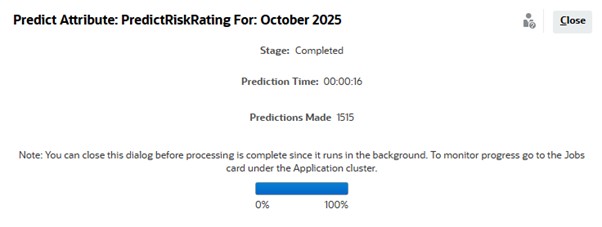
The Prediction Time shows that the time taken by this prediction job is 16 seconds. The Predictions Made represents the number of attribute values predicted for the October 2025 period.
- Click Close.
Step 4: View the Predicted Attribute Values in the Reconciliation List
- From Home, select Reconciliations.
- In the Period filter, select October 2025 to display the reconciliation for this period.
- Click Actions, and then Select Columns.
- In the Select Columns dialog, select PredictRiskRating and PredictRiskRating (Confidence) and move these to the Selected section, and click Ok.
-
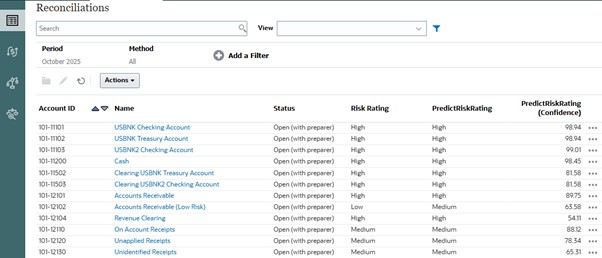
The reconciliations for the selected period are displayed, along with the values of the predicted attribute and its confidence score.