Create a Bundle
Create a snapshot of your application artifacts to save their current state. You can view the bundles that you created on the Bundles page.
While creating a bundle in your source instance, ensure that you select only the data sources that are also available in the target instance to avoid deployment failures in the target instance.
If there aren't any key metrics to back up in the bundle, then you can only select the OAC Content option from the user interface.
- On the Bundles page, click Create.
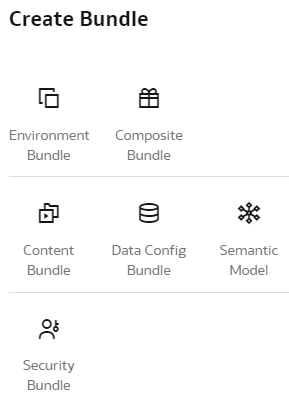
- In Create Bundles, select the type of bundle that you want to create. For example, Content Bundle.
- Depending on the type of bundle, select the applicable option and then click Save:
- For a content bundle, select the Include All Content
check box, or select the applicable Oracle
Analytics Cloud content, workbooks, and key metrics using the corresponding toggles and
buttons. You can select the Include Reporting
Parameters and Include Configurable Account
Analysis check boxes, if applicable.
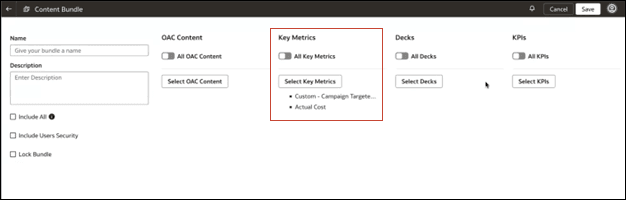
- For a key metrics content bundle, select the key metrics you want to bundle using the corresponding toggles and buttons. Key metrics are also included with Environment Bundles. To improve performance, select the specific key metrics you want to bundle.
Note:
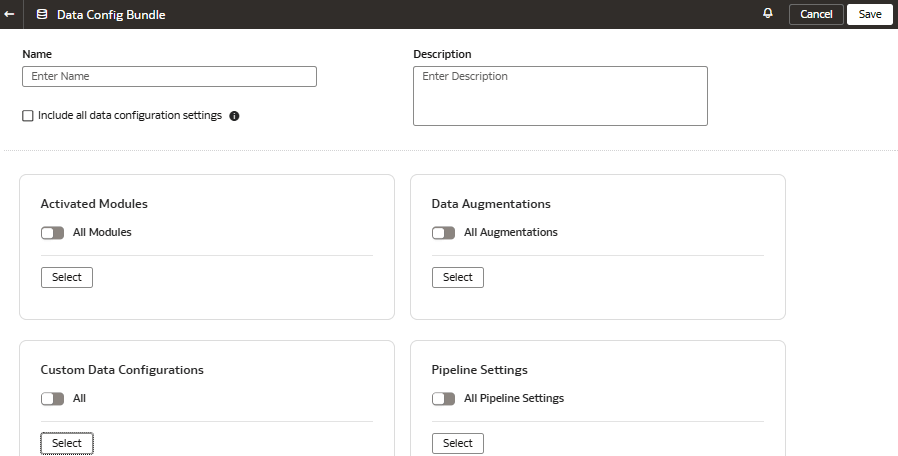
To import key metrics, you must deploy a key metric bundle into a new instance with key metrics enabled. You can import key metrics in datasets however the entire dataset won't be imported due to security limitations. Datasets without key metrics aren't included in key metrics. - For a data configuration bundle, select the Include all data configuration settings check box, or select the applicable modules, augmentations, custom data configurations, and pipeline settings using the corresponding toggles and Select buttons.
Note:
The Include all data configuration settings selects only the deployed custom data configurations, the activated data augmentations, and the activated functional areas. After activating the data augmentation and functional area (Activation Completed status), you may experience a slight delay in viewing the data augmentations and functional areas with Activation Completed status on the data configuration bundle page. - For a Sandbox Semantic Extensions Bundle, you can select:
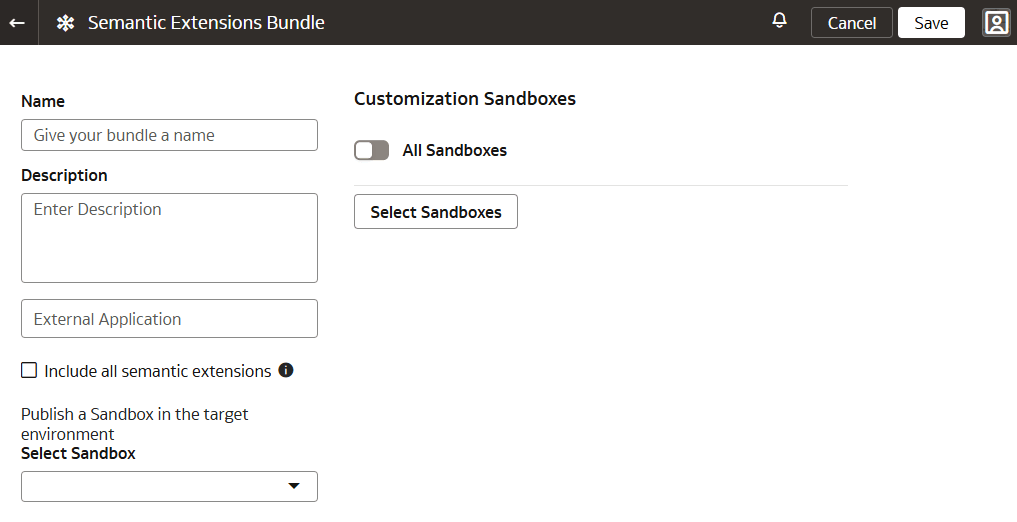
- Include all semantic extensions: Select Include all semantic extensions to deploy and publish all semantic model components, including external semantic models. Note that if you select Include All Semantic Extensions or All Sandboxes, or any custom sandbox, you must also select a specific sandbox for publishing.
- External application: Use the External Application drop-down to select the external application you want to include and publish.
- Customization sandboxes: Use the All Sandboxes toggle to select all or specific sandboxes for deployment to non-Production instances. Selecting any custom sandbox automatically includes the main sandbox.
- Sandbox to publish: Use the drop-down to choose the specific sandbox to publish.
Selection Rules:
- Selecting a customization Sandbox automatically includes the Main Sandbox for deployment.
- To make a sandbox available for publishing, you must first apply changes to the sandbox.
- Any sandboxes selected to be published will also be deployed.
- If you select Include All Semantic Extensions or select a customization Sandbox, you must also specify a Sandbox to be published.
- You may selectively migrate external applications only. This action will also deploy security.
- Unchecking All Sandboxes will retain the selection of Publish a Sandbox that was previously chosen.
- For a Branch Semantic Extensions Bundle, you can select:
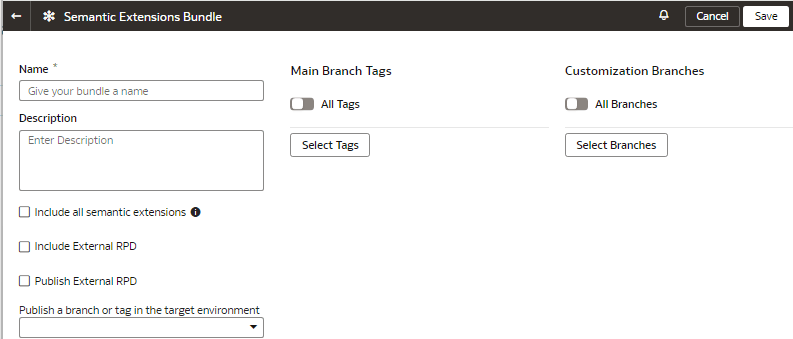
- Include all semantic extensions: Select Include all semantic extensions to deploy and publish all semantic model components, including external semantic models. Note that if you select Include All Semantic Extensions or All Branches, or any custom branch, you must also select a specific branch for publishing.
- Include external RPD: Select Include External RPD to include external RPD.
- Publish external RPD: Select Publish External RPD to publish the external RPD.
- Main branch tags: Use the All Tags toggle to select all or specific tags to deploy.
- Customization branches: Use the All Branches toggle to select all or specific branches for deployment to non-Production instances. Selecting any custom branch automatically includes the main branch.
- Tag or branch selection: Use the drop-down to choose the specific tag or branch to publish.
- If you have tagged a step in your branch, you must select Include External RPD or select the applicable branch or tag in the Publish a branch or tag in the target environment drop-down or select your applicable tags and branches. See Tag the Main Branch's Steps.
- For a security bundle, select the Include all security settings check box or select all the application roles. If the number of application roles exceed 1000, then you may encounter an error. In such a case, use the Select Application Roles button to select specific roles.
Note:
If you've uptaken the enhanced security capability of Oracle Fusion Data Intelligence, then you no longer can specifically select groups as part of the Security bundle. See About Managing Users, Groups, Application Roles, and Data Access. - For an environment bundle, provide a name.
- For a composite bundle, select any of the other bundles.
- For a content bundle, select the Include All Content
check box, or select the applicable Oracle
Analytics Cloud content, workbooks, and key metrics using the corresponding toggles and
buttons. You can select the Include Reporting
Parameters and Include Configurable Account
Analysis check boxes, if applicable.