Configure Frequent Data Refresh V2 (Preview)

Configure the frequency of data refresh by selecting the refresh schedule, modules, and data tables.

You can specify data to be refreshed at specific times in a day. For example, you could set refreshes at 10AM, 2PM, and 5PM because that's when you want the intra-day data to be refreshed. The number of times you can do intra-day refresh is based on certain limits.  See About Data Processing Limits.

Select only the modules and tables you actually need because each additional module or table increases the volume of data the system must extract, load, and validate. Start with the minimum required modules and tables, then expand only when business needs justify the added refresh time and system impact.

Ensure that Frequent Refresh is enabled in Pipeline Features under the Preview Features tab on the Enable Features page prior to scheduling frequent data refreshes. See Make Preview Features Available.

  1. On the Oracle Fusion Data Intelligence Console click Data Configuration, then Pipeline Settings.
  2. Click the Frequent Data Refresh tab.
  3. Under Schedule Information, click Update to change the schedule.
  4. In Update Schedule, specify these:
    1. Timezone: Select your time zone.

      Note:

      While specifying the timezone, use city names to handle the daylight savings. For example, instead of selecting timezone such as EST or PST, select Europe/Bucharest or America/Los_Angeles. In this case, the data refresh process calculates the value mentioned in the Time field based on the local time irrespective of daylight savings. For additional details for Timezone, refer to TimeZoneID
    2. In Active Schedules, click the Add Schedule icon, enter a time, and click Update.
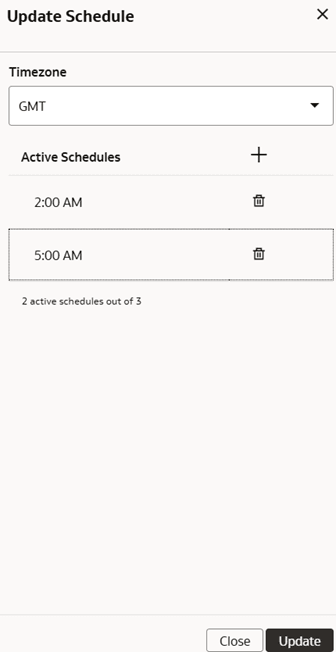
    Update Schedule dialog

  5. To refresh specific modules, view the Modules tab, and select the desired function areas and custom data configurations. If you don’t see an expected functional area, first ensure that it is activated. You must also include any functional areas on which the selected functional areas depend on. For Fusion Accounting Hub, additional steps are required to enable it for Frequent Data Refresh. See Enable Frequent Data Refresh Modules for Fusion Accounting Hub (Preview)
    1. Enter the name of a Functional Area, Application, or Offering in the Search field to find a desired entry to select for Frequent Data Refresh. You can select three functional areas for Frequent Data Refresh.
  6. To refresh specific tables, select the Data Tables tab and click to select the desired tables. If you don't see an expected table, make sure you've activated the related subject area..
    1. Filter by warehouse table name and use the Select Entity dropdown to find specific tables.
    2. Use the filters to only show Module tables, Custom Data Configuration tables, Data Augmentation tables, or Not Certified tables, as well as Selected Tables/All Tables, as needed, to find specific items to be included for Frequent Data Refresh.
    3. Select all applicable tables you want to be updated during each Frequent Data Refresh run.
    4. Click Add Table to add tables of type Recommended, Certified or non-Certified. See Table Certification Values for Frequent Data Refresh (Preview) for more details. If you add a Non-certified table, it'll be indicated in the Table Certification column. Certain tables, such as tables that contain aggregate and snapshots, aren't allowed for Frequent Data Refresh. If you attempt to add such tables, you'll get an error.
    5. If you need to share the details of the Frequent Data Refresh configuration, click the Download icon to download a list of selected Data Modules and Tables as CSV.
  7. Optionally edit the Oldest Data to Report field. This option affects the data fetched by the Lambda View. The default value is 4 months. Increasing the value may impact performance on reports and any custom processing you may have based on Lambda views. See Frequent Data Refresh Delta Tables and Lambda View Details (Preview).
  8. To save your progress at any point during configuration, click the Save button.
  9. When you're finished making changes, click Publish. Each change to Frequent Data Refresh settings includes a Warning dialog that requires you to enter the name of the person making changes as well as the name of the person authorizing the change.
  10. See the Status column for information on specific tables or modules. See Frequent Data Refresh Module and Table Statuses (Preview).
  11. View the Audit log to review Frequent Data Refresh configuration details. See View the Audit Log.