Connect with Your Oracle Eloqua Data Source (Preview)

If you’ve subscribed for Oracle Fusion CX Analytics and want to load data from your Oracle Eloqua source into Fusion Data Intelligence, then create a connection using the Eloqua connection type.

The Oracle Eloqua data that you load into Fusion Data Intelligence enables you to augment the data in your warehouse and create varied customer experience-related analytics. Ensure that Oracle Eloqua is enabled on the Enable Features page prior to creating this connection. See Make Preview Features Available.

  1. In Oracle Fusion Data Intelligence Console, click Data Configuration under Application Administration.
  2. On the Data Configuration page, select Oracle Eloqua in Data Source, then click Manage Connections under Configurations.
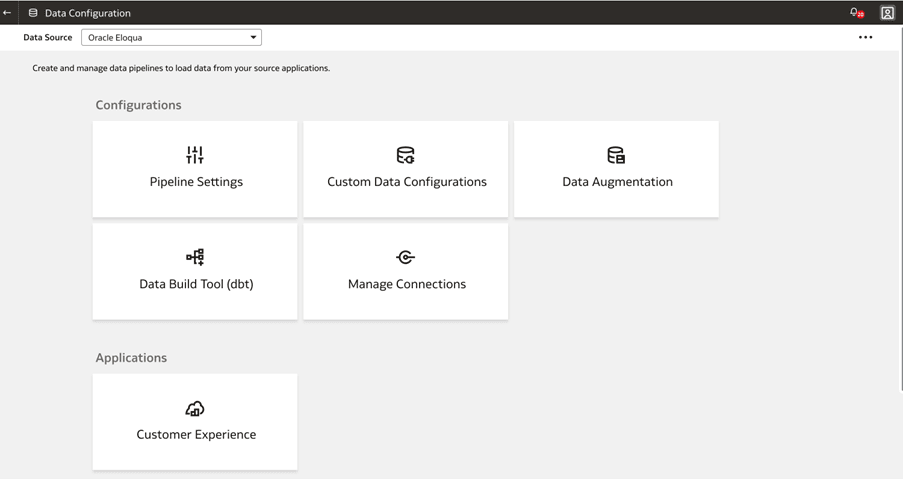
    Select Oracle Eloqua as the Data Source

  3. On the Manage Connections page, click Create and then click Connection.
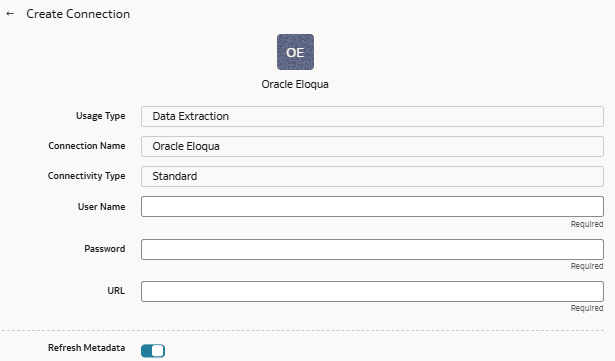
  4. In Create Connection, select Data Extraction in Usage Type, choose Connectivity Type as Standard and enter a Connection Name.
  5. Enter an email address to receive notifications in Notification Email and the credentials to connect with the Eloqua source in User Name and Password.

    Note:

    Enter the username as "CompanyName\UserName", where "CompanyName" is the name of your company in the Eloqua instance and "UserName" is the user name in the Eloqua instance. Ensure that the username that you provide here has the Analyzer license in Eloqua. See Getting started with reporting API.
  6. In URL, enter the URL for your Eloqua server in this sample format: https://<your eloqua server>/api/odata.Description of fawag-eloqua-create-connection.png follows
    Description of the illustration fawag-eloqua-create-connection.png
  7. Verify that the Refresh Metadata toggle is enabled to ensure that the metadata is refreshed when you save the connection.
    You can later refresh the metadata from the Actions menu on the Manage Connections page, if required.

    Note:

    You can’t create augmentations for Eloqua unless you perform a metadata extract.
  8. Click Save.
  9. On the Manage Connections page, select Actions for the Eloqua connection and then select Test Connection.
  10. To delete a connection, on the Manage Connections page, click Actions for the applicable connection and select Delete.

    Note:

    Ensure that you delete the data augmentations and custom data configurations related to the data connection before deleting it. You can't update or load data from deleted data connections to the warehouse.
  11. After the connections are successfully established, navigate to the Data Configuration page, select the connection in Data Source, then click the Data Augmentation tile, and create a data augmentation using the Eloqua data. Select the applicable Eloqua source tables. See Augment Your Data.