Load Data from Oracle Analytics Publisher into Fusion Data Intelligence
As a service administrator, you can use the Fusion Data Intelligence extract service to acquire data from the Oracle Analytics Publisher reports and use it to create data augmentations for various use cases.
- The Oracle Analytics Publisher in Oracle Fusion Cloud Applications for data augmentation.
- Only those reports that complete within the Oracle Analytics Publisher report execution timeout limit that's typically 300 seconds.
- The connector only supports CSV file formats with a comma-separated delimiter. Other delimiters aren't currently supported.
The Oracle BI Publisher connector workflow must observe the security rules of Oracle Fusion Cloud Applications. You must ensure that the password rotation and update are done on time before executing the Oracle BI Publisher connector pipeline. Otherwise, those pipeline refreshes hang and eventually get deleted, and the data source is disabled until you update the password and resubmit the refresh request.
Ensure that Oracle BI Publisher is enabled on the Enable Features page prior to creating this connection. See Enable Generally Available Features.
- In Fusion Data Intelligence, create the data connection to the Oracle Analytics Publisher reports using these instructions:
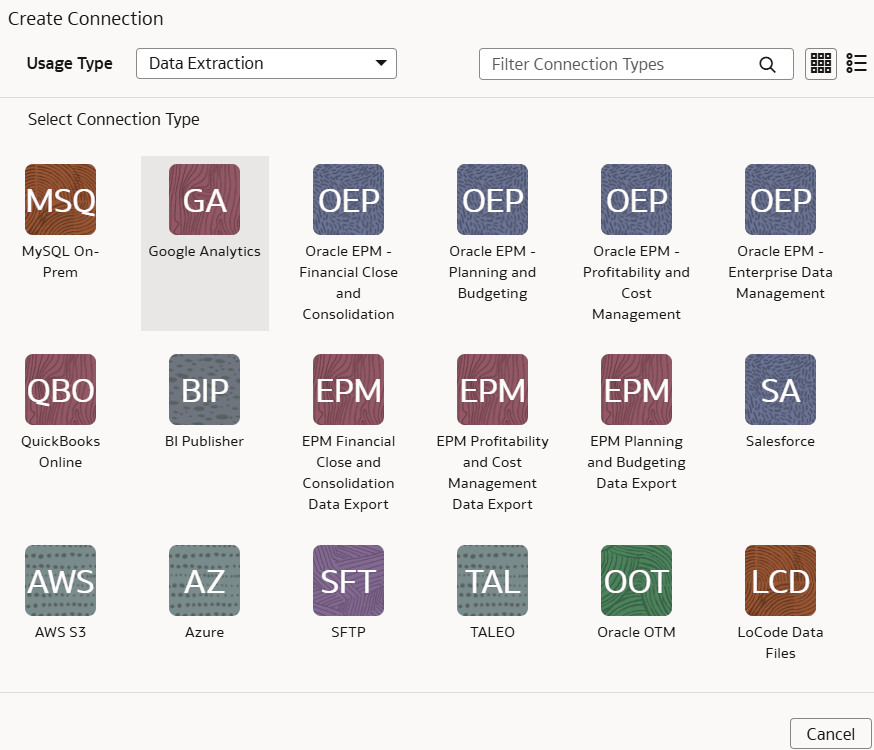
- In Create Connection, select Data Extraction in Usage Type and then select BI Publisher as the connection type.
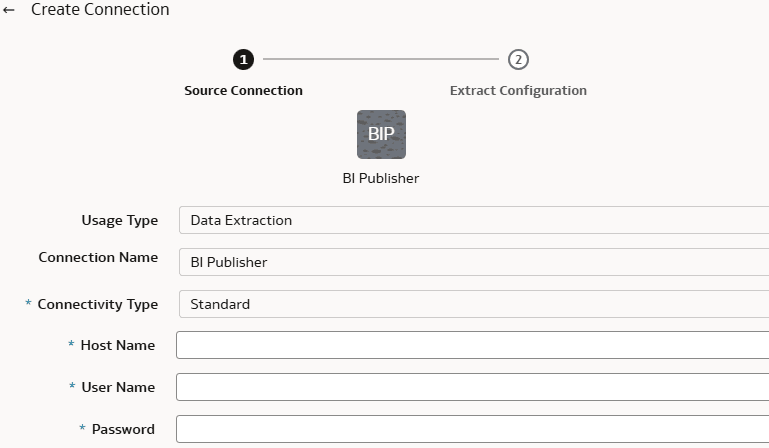
- In the dialog for the BI Publisher connection, provide these details in Source Connection and then click Save and Next:
- Host name of the Oracle Analytics Publisher instance in Host Name.
- Credentials to access your Oracle Analytics Publisher instance in User Name and Password
- In the dialog for the BI Publisher connection, provide these details in Extract Configuration and then click Save:
- In Reports Configuration, provide the path of the report in Oracle Analytics Publisher using the
https://<server:port>/xmlpserver/<ReportDirectory>/<ReportName>.xdo formatand:- Select Run Asynchronously if the report takes a long time to execute.
- Select Run In Chunk Mode if the report has huge data and can potentially time out. With this option, you can specify chunk filters such as “chunk days” to prevent timeouts for the Oracle Analytics Publisher reports with large data sets.
Note:
You must ensure that the Oracle Analytics Publisher reports have the appropriate "where" clause filter to apply the chunking filter. Also, ensure that the startDate and endDate parameters are defined for the report with value as __fromrangedate__ and __torangedate__. - Select Download in Chunk Mode if the report has a large volume of data (more than 7 MB in size). This option enables you to download the report in chunks of data.
- If the report has parameters defined, then click Add to provide the name and value of the parameter. For reports with list of values (LOV) parameters, you can enter comma-separated parameter values to return data from various categories.
Note:
"ALL" isn't a supported value for the parameter.
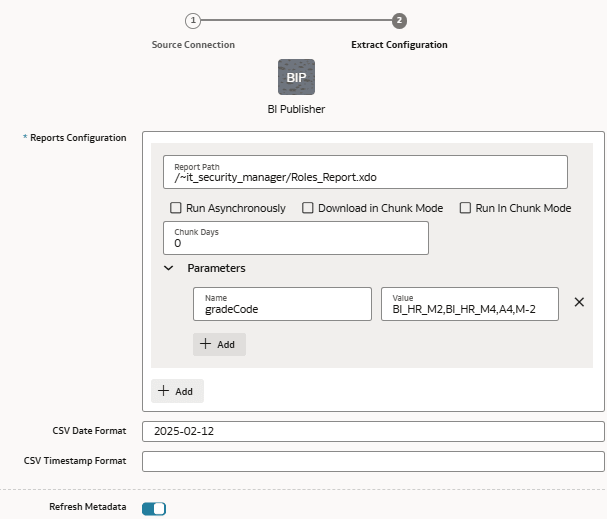
- For CSV Date Format and CSV Timestamp Format, see About Date and Timestamp Formatting for CSV File-based Extractors.
Note:
Ensure that the date format used in Oracle Analytics Publisher and Fusion Data Intelligence match.
- In Reports Configuration, provide the path of the report in Oracle Analytics Publisher using the
- In Create Connection, select Data Extraction in Usage Type and then select BI Publisher as the connection type.