Connect to Claude Desktop

Install Claude Desktop and connect to MCP tool.

Make sure you have installed Python 3.10 or later version.
  1. Download Claude Desktop from the official Claude website and install it on your local machine.
  2. Download the MCP Connect tool for Claude Desktop.
    1. Sign in to your service.
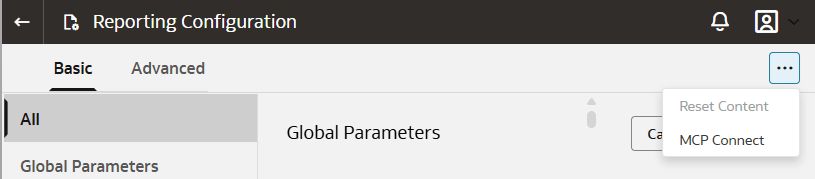
    2. In Oracle Fusion Data Intelligence Console, click Reporting Configuration under Application Administration.
    3. On the Reporting Configuration page, on the right corner of the page, click the Menu Actions icon, and then select MCP Connect.
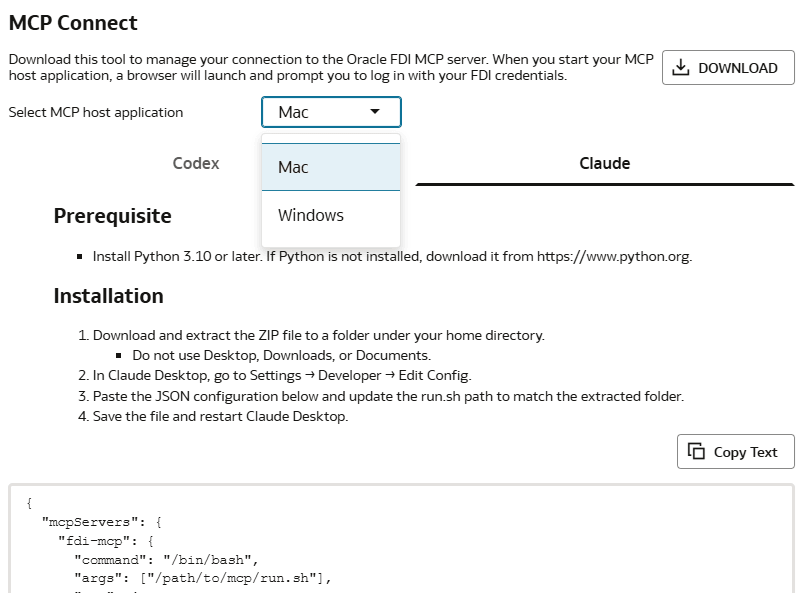
    4. Select the MCP host application: Mac or Windows.
    5. Click Claude.
      The MCP Connect dialog lists the prerequisite and the installation instructions.
    6. Click Download and download the zip file.
    7. Extract the ZIP file to a folder under your home directory.
      Don't use Desktop, Downloads, or Documents folder.
    8. Copy the JSON configuration text provided in the MCP Connect dialog.
  3. Open the Claude Desktop configuration file.
    1. Launch Claude Desktop.
    2. Go to Profile and navigate to Settings, then to Developer.
    3. Click Edit Config.
  4. Update the Claude Desktop configuration file.
    1. Open the claude_desktop_config.json configuration file using any text editor such as VS Code, Notepad++, or Sublime.
    2. Add the JSON configuration text you copied from the MCP Connect dialog to the claude_desktop_config.json configuration file. For example, add the following text.
      {
        "mcpServers": {
          "fdi-mcp": {
            "command": "/bin/bash",
            "args": ["/path/to/mcp/run.sh"],
        
    3. Replace /path/to/mcp/run.sh with the actual path where you extracted the MCP Connect tool zip file.
    4. Save the configuration file.
  5. Close and restart Claude Desktop to apply the changes.
  6. Sign in to Fusion Data Intelligence.
    When Claude Desktop starts, it automatically opens a browser window for authentication.
    1. Log in using your Fusion Data Intelligence user ID and password.
    2. Keep the browser window open while the system completes the MCP authorization process.
      After the authorization completes, the browser window closes automatically.
  7. Verify MCP tool access.
    1. In Claude Desktop, locate the + icon below the chat input box, and click + Connectors .
    2. Confirm that Fusion Data Intelligence MCP is listed and enabled.
  8. Start using Claude Desktop with MCP tool.
    For example, you can ask the following question in Claude Desktop:
    Example prompt: What tools are provided by Fusion Data Intelligence? 

    Claude will return the list of available tools and you can get guidance on how to use each one.

    Note:

    Claude Desktop displays a permission prompt requesting approval before running the tool. Choose the appropriate permission option.