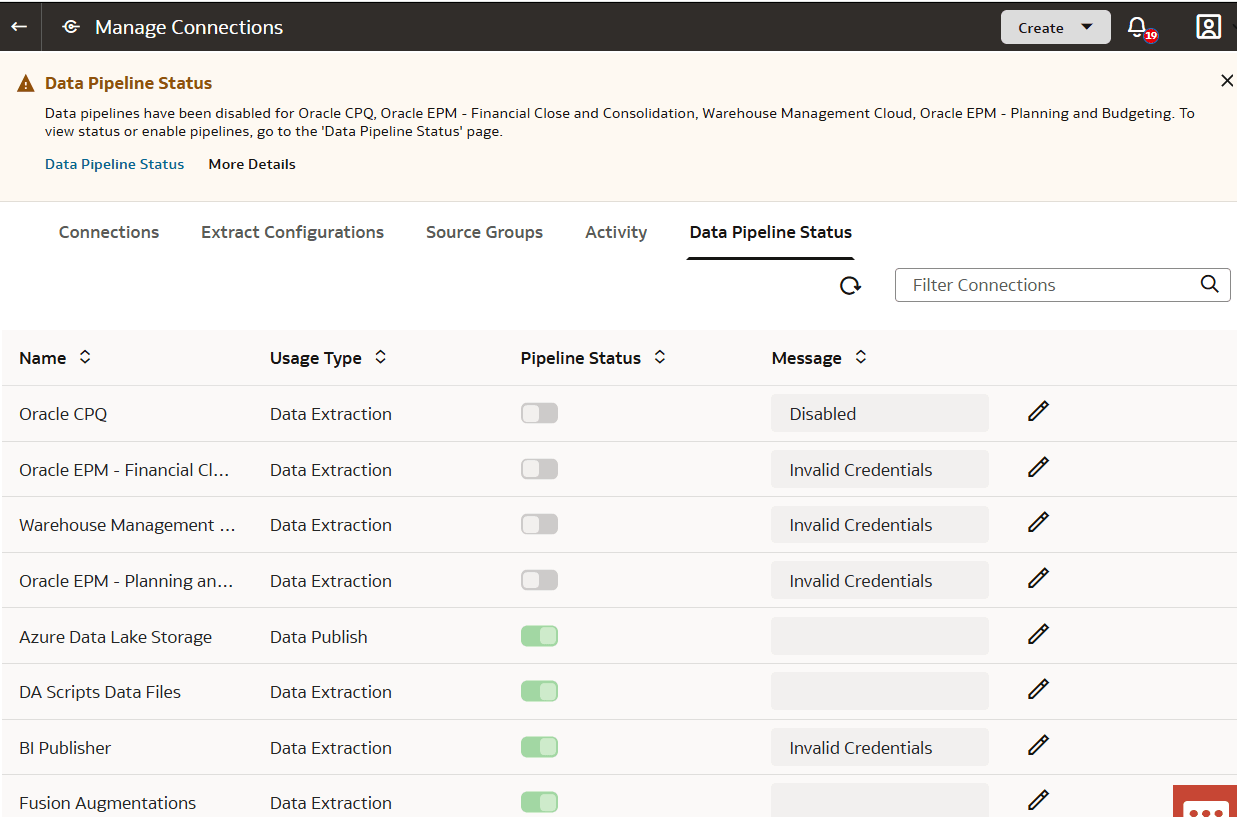
View the Data Pipeline Status
Use the Data Pipeline Status page to view all sources for extraction and targets for publish.
- While updating the Oracle Fusion Cloud Applications password or the JWT credentials.
- While upgrading to a new Oracle Fusion Cloud Applications version.
- If you don’t want to run pipeline jobs for a particular source.
- If you don’t want to run pipeline jobs for a particular duration such as a quiet time in your business activities.
In cases where the pipeline jobs are failing due to issues, Oracle disables the data pipeline to investigate and resolve. On the Pipeline Parameters page, Oracle provides a reason and action for you, if the resolution needs to be done from your side. You can resolve the issue and as an administrator you can enable the data pipeline yourself using the Data Pipeline Disabled toggle.
Note:
The previously visible Enable/Disable Pipeline option on the Pipeline Settings page is no longer available. If a data source is disabled, the data source appears in the global notification banner that also displays the link to the Data Pipeline Status tab. When you enable a disabled data source, the system tests the connection and removes the disabled notification for the data source after the test is successful.When you create a new connection from Manage Connections and then switch to the Data Pipeline Status tab, the newly created connection may not be shown right away. Click Refresh on the Data Pipeline Status tab to reload the data; after refreshing, you can see the new connection.
- On the Data Configuration page, click Manage Connections, and then click the Data Pipeline Status tab.