Connect to Claude Desktop
Install Claude Desktop and connect to MCP tool.
Make sure you have installed Python 3.10 or later version.
- Download Claude Desktop from the official Claude website and install it on your local machine.
- Download the MCP Connect tool for Claude Desktop.
- Sign in to your service.
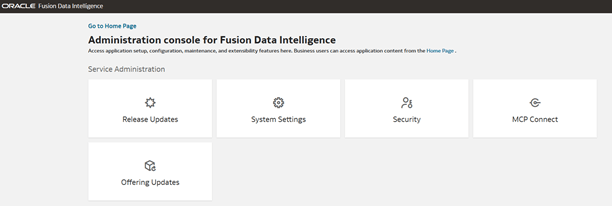
- In Oracle Fusion Data Intelligence Console, click MCP Connect under Service Administration.
- In the MCP Connect dialog, enable MCP Connect to make MCP Connect available to consumers and authors.
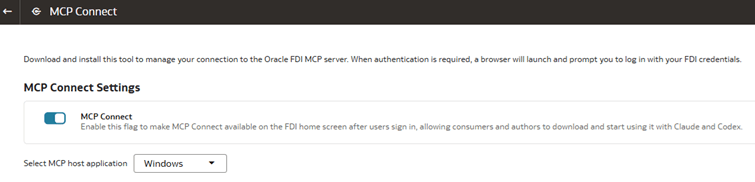
- Select the MCP host application: Mac or Windows.
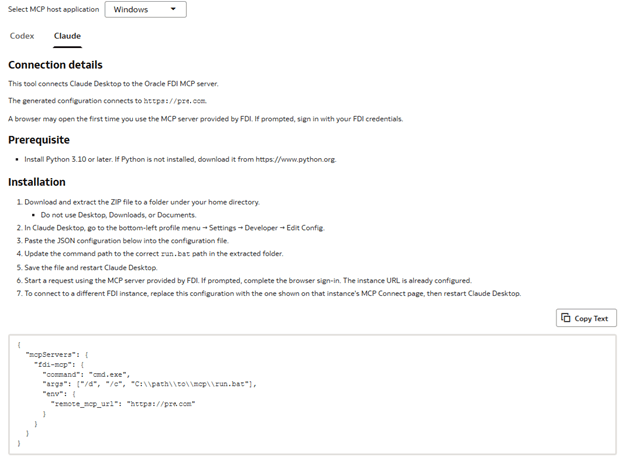
- Click Claude.The MCP Connect dialog lists the prerequisite and the installation instructions.
- Click Download and download the zip file.
- Extract the ZIP file to a folder under your home directory.Don't use Desktop, Downloads, or Documents folder.
- Copy the JSON configuration text provided in the MCP Connect dialog.
- Open the Claude Desktop configuration file.
- Launch Claude Desktop.
- Go to Profile and navigate to Settings, then to Developer.
- Click Edit Config.
- Update the Claude Desktop configuration file.
- Open the claude_desktop_config.json configuration file using any text editor such as VS Code, Notepad++, or Sublime.
- Add the JSON configuration text you copied from the MCP Connect dialog to the claude_desktop_config.json configuration file.
- Replace
/path/to/mcp/run.shwith the actual path where you extracted the MCP Connect tool zip file. - Save the configuration file.
- Close and restart Claude Desktop to apply the changes.
- Sign in to Fusion Data Intelligence.When Claude Desktop starts, it automatically opens a browser window for authentication.
- Log in using your Fusion Data Intelligence user ID and password.
- Keep the browser window open while the system completes the MCP authorization process.After the authorization completes, the browser window closes automatically.
- Verify MCP tool access.
- In Claude Desktop, locate the + icon below the chat input box, and click + Connectors .
- Confirm that Fusion Data Intelligence MCP is listed and enabled.
- Start using Claude Desktop with MCP tool. If prompted, complete the browser sign-in. For example, you can ask the following question in Claude Desktop:
Example prompt: What tools are provided by Fusion Data Intelligence?Claude will return the list of available tools and you can get guidance on how to use each one.
Note:
Claude Desktop displays a permission prompt requesting approval before running the tool. Choose the appropriate permission option. - To connect to a different Fusion Data Intelligence instance, replace the configuration with the configuration shown on that Fusion Data Intelligence instance's MCP Connect page, and then restart Claude Desktop.