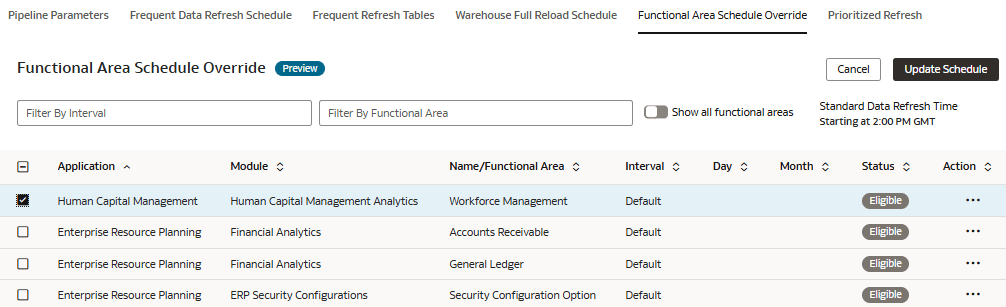
Override Data Pipeline Schedules for Functional Areas (Preview)
You can remove selected functional areas from the standard incremental refresh schedule and run their incremental refresh on a separate daily schedule. This lets you prioritize the timing of selected data pipelines.
Functional area schedule override is supported only when the standard data refresh interval is set to Daily. Weekly, Monthly, Quarterly, and Yearly intervals aren't supported for functional area schedule overrides.
When the standard data refresh interval isn't set to Daily, the Functional Area Schedule Override page displays a message that custom overrides are disabled. The Update Schedule action is unavailable until you set the data refresh interval to Daily in Pipeline Parameters.
An override runs an incremental refresh; it doesn't run a full data reload. If a functional area has dependencies, include its dependent functional areas in the relevant override to maintain consistent data.
Ensure that Functional Area Schedule Override is enabled in Pipeline Features under the Preview Features tab on the Enable Features page . See Make Preview Features Available.
In Pipeline Parameters, set the standard data refresh interval to Daily. If it isn't set to Daily, custom overrides are disabled.
Note:
Make sure to select all dependent functional areas to avoid data inconsistencies after a data refresh occurs. For more information about dependencies between functional areas, see:- On the Pipeline Settings page, click Functional Area Schedule Override.