Define the Step Flow of an Approval Type
You can edit a step or add a new one to specify which approvers or groups are assigned the task for approval, and how tasks are resolved if they don’t meet any of the rules you define to represent your organization’s policies. For example, you might use separate steps to implement the requirements of different parts of your organization, say Human Resources or Finance.
Steps contain rules with conditions that must be met for the task to be assigned to approvers, and the actions that result from applying those rules. You can define rules based on your business processes and decisions, such as whether to route to approvers in serial or parallel, whether approvals should be based on job levels or approval groups, or other routing patterns.
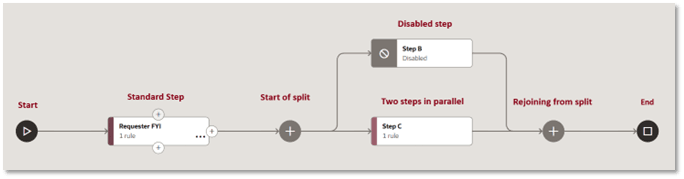
Each step flow must have one step and can have as many serial or parallel steps as needed, based on your requirements. You can also delete, disable, or cut and paste steps in your step flow.
Create or Edit a Step
- Currency: If your rules are based on a price, values assigned to amount attributes are converted to this currency when necessary.
- Routing to Assignees: Determines whether rules are evaluated for each rule in sequence or all at once.
- Catch-All Action: Default outcome if no rules are met.
Catch-all action Description Raise error Raise an error. Approve automatically Approve the task. Reject automatically Reject the task. Skip This Step Skip to the next step in the step flow. Obtain Approval Obtain approval from a user, role, or an approval pattern. Select a user or object to obtain approval from, for example, a chosen user, approval group, or a supervisory hierarchy, among others. Send FYI Send an FYI notification or email to a user, role, or an approval pattern, for example members of an approval group or a supervisory hierarchy.
Add or Edit Rules
Edit a step to add rules, each with a name, condition, and action. You can disable rules so that they’re not used, or alternatively require them to always be applied before a step is completed.
Click Conditions and select transactional attributes or named conditions used to evaluate the outcome of an approval. Each condition attribute is represented in the grid as a column. To define the rule’s condition, click in the condition attributes’ column cells and specify an operator, value type, and value.
Click Add Rule, give the rule a name, and set the Always apply this rule option, if applicable. To define the rule’s condition, click in the condition attributes’ column cells and specify an operator, value type, and value. The value can be either manually entered, or in cases where a condition attribute has a list of values, selected. To disable a rule, select it and click Disable Rule.
In the grid, click the Action cell for a rule to specify to specify what happens when the rule is met.| Action | Description |
|---|---|
| Obtain Approval | Obtain approval from a user, user from attribute, role, or an approval pattern. |
| Approve automatically | Approve the task. |
| Reject automatically | Reject the task. |
| Skip Remaining Rules | Skip to the next step in the step flow. |
| Send FYI | Send an FYI notification or email to a user, role, or an approval pattern. |