roleAssignmentAuditReport
Creates an audit report that lists the changes made to application and granular role assignments over a period of time corresponding to the audit data retention period specified for your environment. The retention period is 14 days for application role assignments and unassignments and 120 days for granular role assignments and unassignments. To retain the audit data for longer durations, periodically download and archive this report and the Invalid Login Report.
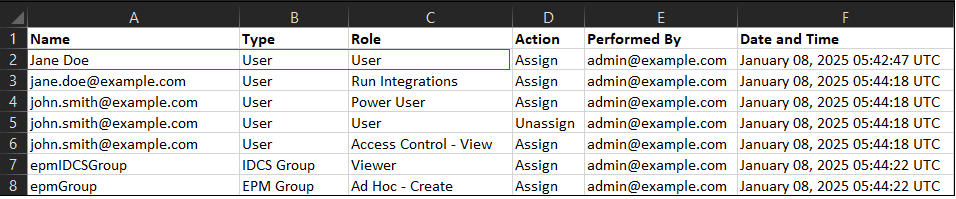
The Role Assignment Audit Report lists the User Login Name, IDCS Group Name, or EPM Group Name for which a role change (in Action column) was made. It also includes the application or granular role that was assigned or unassigned, the user who performed the role change (Performed By column), and the timestamp (UTC) in 24-hour format when the action was completed. The Type column indicates what Name column represents. It can have one of these three values: User (if the Name column identifies a login name of a user), IDCS Group (if the Name column displays an IDCS group name), or EPM Group (if the Name column lists an EPM group name).
Note:
If the role assignment was performed using oAuth2 (instead of Basic Authentication), the Performed By column displays the Client ID of the Oracle Fusion Cloud Enterprise Performance Management application instead of the user name of the user who performed the operation.
Information on deleted users who were previously assigned to application roles in the environment is listed with the display name (first and last name) of the user in the Name column. In such cases, the Role column indicates the application role that the user had before the user's account was deleted. This change does not apply to granular roles, if any, that was assigned to the deleted user; such assignments are shown with the User Login Name of the user. For an example, see the information in the red box in the following illustration.
Applies to
Planning, Planning Modules, FreeForm, Financial Consolidation and Close, Tax Reporting, Account Reconciliation, Profitability and Cost Management, Enterprise Profitability and Cost Management,Oracle Fusion Cloud Enterprise Data Management, Narrative Reporting, Strategic Workforce Planning, and Sales Planning.
Required Roles
- Service Administrator
- Any application role and the Identity Domain Administrator role
- Any application role and the Access Control - Manage granular role
- Any application role and the Access Control - View granular role
Usage
epmAutomate roleAssignmentAuditReport [nDays=NUMBER_OF_DAYS]
                        [from_date=FROM_DATE to_date=TO_DATE]
                        report_name=REPORT_NAME.CSV
, where:
nDays, optionally, is the number of days, starting from today's date, for which the report is to be generated. Use this option to generate the report for a specific number of days.from_date, optionally, is the start date of the period, inYYYY-MM-DDformat, for which the report is to be generated.to_date, optionally, is the end date of the period, inYYYY-MM-DDformat, for which the report is to be generated.Note:
Cloud EPM ensures that only valid date range is used during report generation. These validations are performed for thenDays,from_date, andto_datevalues:- You must specify either
ndaysor a date range using thefrom_dateandto_dateparameters. - The
from_datecannot be earlier than the allowed maximum retention period (120 days) from the current date. - The
to_datecannot be later than the maximum retention period from thefrom_date. - The
to_datecannot be earlier than thefrom_date.
- You must specify either
report_nameis the name of a CSV file for the report. You can download the generated report using thedownloadFilecommand.
Examples
- Generating the report for a number of days:
epmAutomate roleAssignmentAuditReport ndays=45 RoleAuditReport.CSV - Generating the report for a date range:
epmAutomate
                            roleAssignmentAuditReport from_date=2026-06-01 to_date=2026-09-30
                            RoleAuditReport.CSV