Creating Available Content Using the Available Content Button in Reference Doclets
You can create available content quickly and easily using the Available Content button in the Narrative Reporting ribbon in Oracle Smart View for Office.
Using the Available Content button , the underlying named range is automatically created for you based on the range you select in Excel. You have only to apply a name and optional description to the new content.
Note:
- This feature requires the 24.02+ version of the Narrative Reporting extension
- You can also create available content using Excel named ranges that you define, as described in Creating Available Content from Excel Named Ranges in Reference Doclets.
To add available content using the Available Content
button:
-
Click the Available Content button:

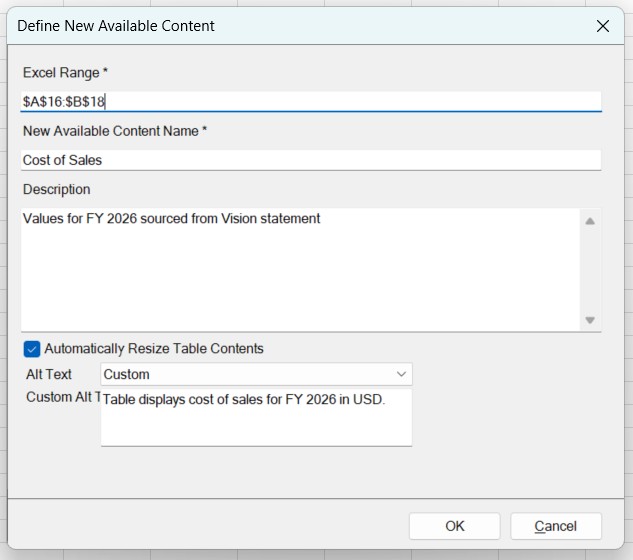
This launches the Define New Available Content dialog box.
-
In the Define New Available Content dialog box, provide
the following details for the new available content.
- Excel Range: The range you selected is entered by default in the Excel Range text box. Or, you can type a valid range.
- New Available Content Name: Enter a name for the available content.
- Description: Enter a description for the available content.
- Alt Text Options: Select what should appear as
alt text when the available content embedded in reports is accessed in
Word and PowerPoint. By default, the None option
is selected.
- Select Name to display the New Available Content Name as the alt text.
- Select Description to display the Description of the available content as the alt text.
- Select Custom and enter the desired alt text in the Custom Alt Text field.
In the following example, the "Cost of Sales" is the name provided for the available content, along with description and custom alt text.