Working with Doclet Notes
You can use doclet notes to add commentary and discussion notes to doclets during the development and approval process.
You can use doclet notes to add commentary and discussion notes to all types of doclets during the doclet authoring and approval process. Authors add key context when submitting a doclet for approval, and approvers provide feedback when returning it for revision or rejecting it. Once the doclet is marked complete, the authors and approvers can no longer add, edit, delete, or reply to a note.
In Oracle Smart View for Office, you can view doclet notes, add new notes, reply to existing notes, mention other users in notes, edit or delete your notes, and change note status.
Viewing and Filtering Doclet Notes
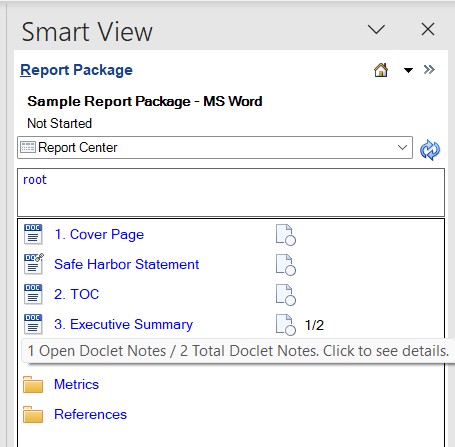
If a doclet contains notes, you can see the total number of notes and the number of open notes in the Report Center next to the doclet. In the following example, 1/2 indicates that the doclet has 2 notes, out of which 1 is in Open status. You can double-click this number to open the Doclet Notes dialog box.
Alternatively, you can open the doclet, and from the Narrative Reporting ribbon, click View Notes in the Properties section to open the Doclet Notes dialog box.
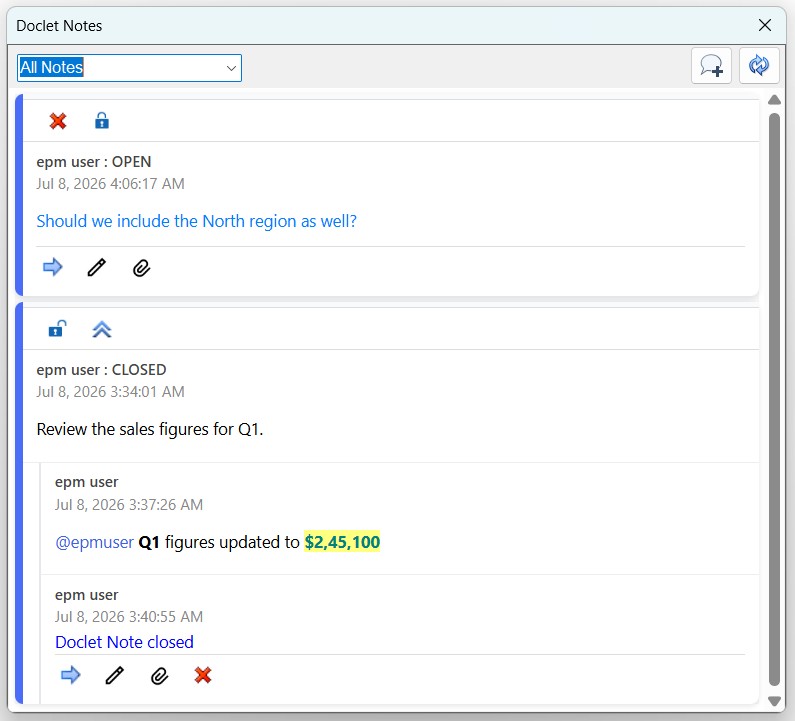
You can use the drop-down list at the top to view all notes or filter them based on
their status, that is Open Notes or Closed Notes. You can click  to refresh the Doclet Notes dialog box and view the
latest notes.
to refresh the Doclet Notes dialog box and view the
latest notes.
The most recently added note is displayed at the top of the list. The replies to each note are nested under the note and you can click to expand or collapse a note. For each note, you can view the note's status, that is Open or Closed, the user who added it, and the date and time when it was added.
Adding Doclet Notes
You can add notes to a doclet using the Doclet Notes dialog box. You can add text, URLs, and mention other users in your notes.
To add a note to a doclet:
- Open the doclet.
- In the Narrative Reporting ribbon, click View Notes.
- In the Doclet Notes dialog box, click
 .
.
- In the Doclet Note Post dialog box, type your note.
Note:
You can add text up to 1000 characters in a note.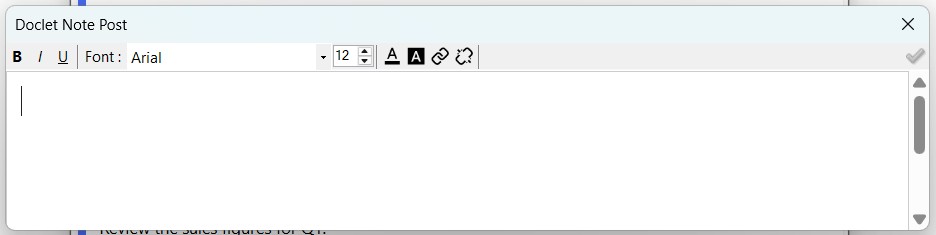
- Optional: Apply rich text formatting to your note as follows:
- Apply formatting (bold, italics, underline).
- Select font and font size.
- Select font color and background color.
- Optional: Add URLs in your note.
- Type the link text and select it.
- Click
 .
.
- Enter the URL in the Insert Link dialog box, and click OK.
- Optional: To remove a link, select the link text and click
 .
.
- Optional: Mention other users in your note by typing @ and selecting the required user from the displayed list. A notification is sent to the mentioned users after the note is posted.
- After entering your note, click
 in the Doclet Note Post dialog box to post the
note.
in the Doclet Note Post dialog box to post the
note.
The newly added note appears at the top of the list in the Doclet Notes dialog box. Click
in the Report Center to view the updated notes count next to the
doclet. When a note is added to a doclet, a notification is sent to the user
who entered the note and to all authors and approvers on the
doclet.
Adding Attachments to Doclet Notes
You can attach files to your doclet notes and replies.
To add an attachment to doclet note:
- In the Doclet Notes dialog box, click
 in the note to which you want to add an attachment.
- In the Attach File dialog box, browse and enter the file path in the Location field.
- In the Attachment Name field, enter a name for the attached file, and click Attach. This name is visible in the note.
- Optional: To edit the attachment name after attaching the file, click
 , enter the new name in the Rename Attachment
dialog box, and click OK.
, enter the new name in the Rename Attachment
dialog box, and click OK.
- Optional: To delete an attachment, click
 and select Yes in the confirmation message.
Replying to Doclet Notes
To reply to a doclet note, click  in the note, enter your reply in the Doclet Note
Reply dialog box, and click . You can apply rich text formatting, enter URLs, and add attachments to
your replies the same way you apply and add them in notes. When reply is posted to a
doclet note, a notification is sent to the user who posted the reply and to all
authors and approvers on the doclet.
in the note, enter your reply in the Doclet Note
Reply dialog box, and click . You can apply rich text formatting, enter URLs, and add attachments to
your replies the same way you apply and add them in notes. When reply is posted to a
doclet note, a notification is sent to the user who posted the reply and to all
authors and approvers on the doclet.
Closing and Reopening Doclet Notes
When you create a doclet note, it is in Open status. You can close it by clicking the
 . You can reopen a closed note by clicking
  . You can filter notes on the basis of their status using the drop-down list
at the top of the Doclet Notes dialog box.
. You can filter notes on the basis of their status using the drop-down list
at the top of the Doclet Notes dialog box.
Editing and Deleting Doclet Notes and Replies
You can edit and delete your doclet notes and your replies to doclet notes. Only the doclet note creator can edit their note. The note can be deleted by the doclet note creator or the report package owner.
To edit your doclet note, click , make the changes in the Doclet Note Post dialog
box, and click . To edit a reply, click , make the changes in the Doclet Note Reply dialog
box, and click . You can edit only the last posted reply.
To delete your doclet note, first ensure that all replies to your note are deleted.
Notes containing replies cannot be deleted. To delete a reply, click in the reply and select Yes in the confirmation
message. Once all replies are deleted, click on top of the note to delete the note and select Yes
in the confirmation message.