Updating Excel-based Reference Doclets Using the Panel
You can update the details of the available content such as name, description, alt text, or table column resize option. You can also locate the available content in the doclet and remap it as required.
To update reference doclet content using the Narrative Reporting ribbon:
-
In the Report Package panel, select
Available Content from the drop-down menu.
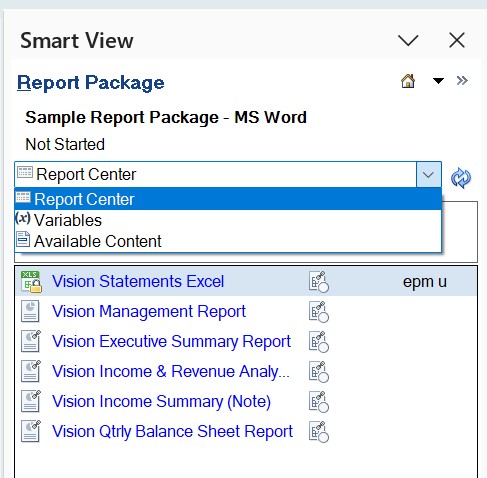
-
Click
 for the available content that you want to update.
In the following example, you can see the Edit icon next to the Revised Summary available content.
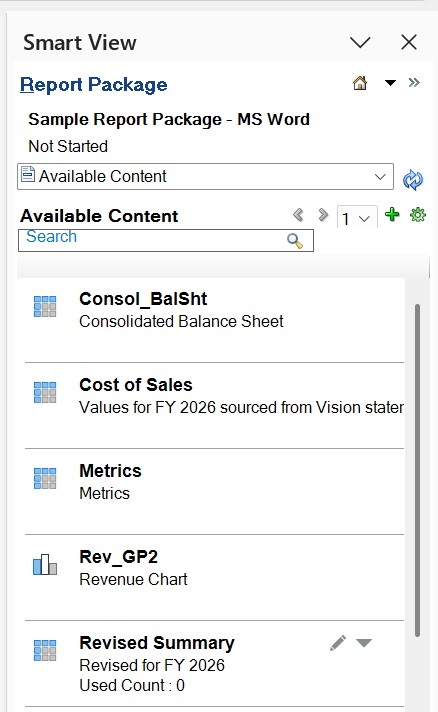
-
Update the name, description, alt text, or table column resize option for the
available content.
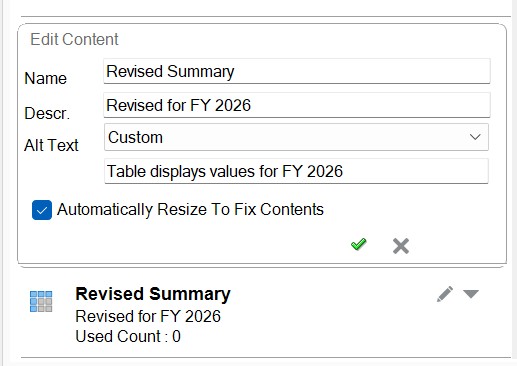
-
When finished, click
 to accept the changes and collapse the edit fields for the selected
available content.
To discard changes, click the Cancel button,
 .
-
Optional: To locate available content within a reference doclet, click the
More Actions button,
 , and select Locate.
For example, using the Vision sample, when you select the Locate action for the "Metrics" available content, the range that makes up the available content is highlighted. As shown in the following example, the range is highlighted in gray and outlined in green.

-
Optional: To remap available content within a reference doclet:
-
Click the More Actions button, , and select Remap.
-
In the Remap dialog, click on the associated
Select link for the content to remap.
A list of available content that is not already mapped is displayed. In the following example, the list for Consol_BalSht contains two items, Net_Income and Summary_IS.
Figure 24-23 Remap Dialog Showing Drop-down with Available Content Not Already Mapped

-
From the Select drop-down list, select an
available content item to remap to, and then click
OK.
After you make a selection, the range you chose is shown in the Replace with column.
In the following example, the Net_Income range is now showing in the Replace with column.
Figure 24-24 Remap Dialog After Making Selection from Drop-down

-
Click the More Actions button,