Viewing Insights for a Specific Form
View the list of IPM insights available for a specific form in Oracle Smart View for Office and insert them in Microsoft Excel.
In Smart View, you can view IPM insights generated for an entire application as well as a specific form from your business process. However, locating and differentiating insights related to a particular form from the full list can be difficult, especially if you are tracking the form regularly. Smart View makes accessing insights easier by making them available directly in context of an open form.
This topic explains how to view and insert insights related to a specific form.
Note:
- Viewing IPM insights for a form is available only in Microsoft Excel.
- An administrator must have already run the Insights job in order to display the IPM insights for the form.
- To view and insert IPM insights at the application level in Microsoft Excel, Microsoft Word, and Microsoft PowerPoint, see Inserting Insights in Smart View.
Viewing Insights for a Form
You can view the list of insights generated for a specific form in Smart View. Open the required form in Smart View and view the insights in the following ways:
- To view all insights for the form, right-click any cell in the form grid. In the right-click context menu, click Smart View and then click Insights AI.
- To view insights for a slice of data, select a range of cells in the form grid and right-click on the range. In the right-click context menu, click Smart View and then click Insights AI.
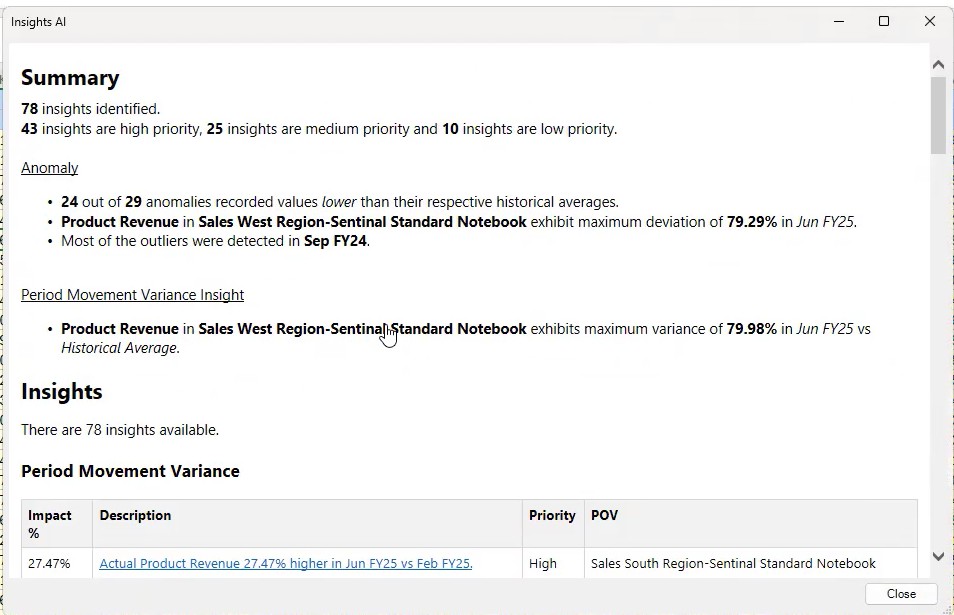
The Insights AI dialog box displays a summary of insights found for the form or the selected cell range. The summary is generated using Generative AI (GenAI), and includes the number of insights categorized by insight type and priority.
- If GenAI is enabled in the web application of the business process, you see a GenAI-enhanced summary of the insights.
- If GenAI is not enabled, you cannot see the summary. You can only see the number of insights available and their categorization by insight type.
The list of available insights are grouped and listed by their insight type. To insert an insight, click the insight description link. Each insight you click is inserted in a new sheet within the existing workbook. Once you have inserted the required insights, you can close the Insights AI dialog box by clicking Close.
If there are no insights available for a form or a selected cell range, then an information message appears stating that no insights are available.