Add Filter Sets and Filters to an Account Set
In an account set, you add filter sets with one or more filters to identify accounts in a ledger.
In each filter, you provide the following details to identify accounts:
- An account segment.
- An operator to specify a range of values, individual values to include or
exclude, or matching criteria. You can select one of these operators:
- Is
- Between
- Is Not
- Matches Any
- Does Not Match Any
- One or more values depending on the selected operator.
The following example shows a filter set with filters for two different segments. Joint Venture Management will use the filter set to identify the following transactions:
-
Transactions in segment HEPPAccount with values that include 24000 through 24999.
-
Transactions in segment HEPPCostcenter with values that include 33000.

You can add more than one filter for the same segment to a filter set, but only in the following scenario:
-
If one filter for the segment uses a Between operator to identify a range of account values.
-
If additional filters for the same segment use an Is Not or Does Not Match Any operator to exclude values within the range of values specified in the Between filter.
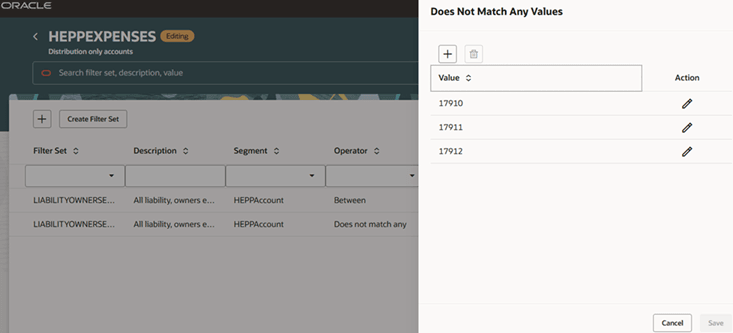
The following image shows an example of using a combination of Between and Does Not Match Any filters in a filter set. Joint Venture Management will use this filter set to identify distribution only transactions with natural accounts between 00000 and 39999, except for accounts 17910, 17911, and 17912.
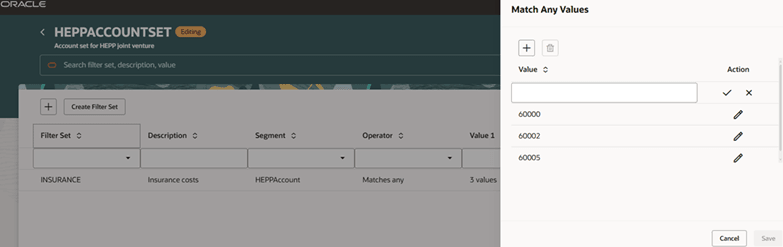
If you need to identify two or more individual values in a segment, and the values can't be identified by a range, use the Matches Any operator as shown in the following example. Joint Venture Management will use this filter set to identify all transactions with natural accounts 60000, 60002, and 60005.
To add a filter set:
- Open the account set from the Account Sets page.
-
Click Create Filter Set and give it a name and description that's descriptive of the category or type of transactions that you're identifying with the filter set. This will help with managing your accounts sets.Caution: Filter set names must be unique across all account sets.
- Click Create.
To add a filter to a filter set:
-
Click Add Filter and then in the row that appears, enter the following details:
- Filter Set. Select the filter set that you created.
- Segment. Select from a list of segments in the ledger.
- Operator. Select Is, Is Not, or Between, Matches Any, or Does Not Match
Any.Tip: Whenever possible, use the combination of filters with Between and Is Not operators. This way, any accounts added in the future that fall within the Between range will be automatically included.
Enter a value or values according to the selected operator.
If you selected the Between operator, enter the start and end range of values in the Value 1 and Value 2 fields respectively.
If you selected the Matches Any or Does Not Match Any operator, click the Value 1 field and then enter the values in the area provided.Note:You can include a primary segment value in a filter. However, before you do, make sure you understand how it will be processed based on the setup of the account set:-
An account set that’s set up for a particular joint venture and the joint venture’s ledger
The account set will automatically use the primary segment values identified in the joint venture definition as filter criteria. If you add a filter that includes one of the primary segment values, the filter overrides the use of any other primary segment values from the joint venture definition. For example, if the joint venture definition includes three primary segment values and you set up a filter with one of those primary segment values, only the single primary segment value will be used to identify transactions for that filter.
-
An account set that’s set up only for a ledger and not a joint venture
If you use a primary segment value in the filter, the filter will only be used if the primary segment is valid for the joint venture that the account set is assigned to.
-
- Click Submit at the end of the filter row.
-
Continue to add filters and additional filter sets as needed.
Your changes are saved automatically.
- When complete, click Go back.