Import and Export Tokenization Setup Data
Your tokenization setup data is made up of values, or keys, that are set up on the Create Payment System and Payment System Accounts pages.
On these pages in your test environment, you enter values for the Secure Acceptance Access Key and the Secure Acceptance Signature Key in the applicable Value fields. Values for the keys come from your CyberSource test account. Both keys are used to authenticate with the CyberSource data center. They're required to perform tokenization.
This figure shows the steps to complete to export tokenization setup data from your test environment, copy tokenization setup data from your production environment to your test environment, and after you complete credit card testing, import the same tokenization setup data that you exported.
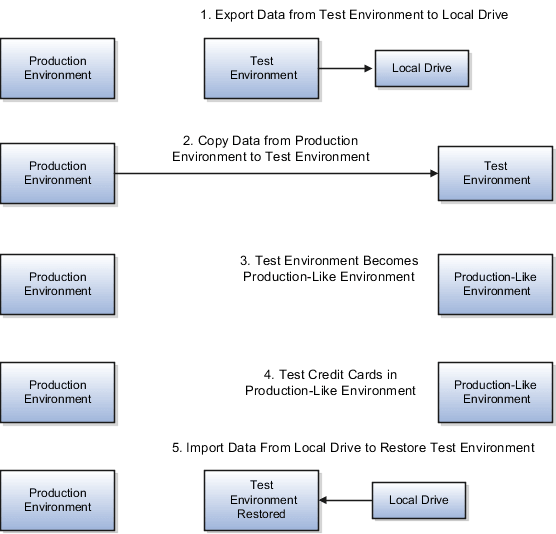
To test credit cards and tokenization setup data in a production-like environment, complete these steps:
-
Export tokenization setup data from your test environment to your local drive and save it as a file.
-
Copy your production tokenization setup data to your test environment, which overwrites the test environment with production-like tokenization setup data.
-
Import the same tokenization setup data file you earlier exported into the production-like environment to restore it to the original test environment.
Exporting Tokenization Setup Data
To export tokenization setup data from your test environment to your local drive, complete these steps:
-
Navigate to Tools > Scheduled Processes.
-
On the Overview page, select Schedule New Process.
-
On the Schedule New Process page, search and select the Import Security Credential Job.
-
From the Credential File Type choice list, select Export Tokenization Setup.
-
Select Submit.
-
Navigate to Tools > File Import and Export.
-
From the Account choice list, select fin/payments/import.
-
Select Search.
-
In the Search Results section, select your file and save it to your local drive.
Copying Production Tokenization Setup Data to Test Environment
To copy your production tokenization setup data to your test environment, follow your standard practice. Your copy procedure overwrites your test environment with production tokenization setup data. Now you can test your credit cards in a production-like environment.
Uploading Exported Tokenization Setup Data
Before you can import the tokenization setup data, you must upload the file you earlier downloaded from your local drive to UCM. To upload the file, complete these steps:
-
Navigate to Tools > File Import and Export.
-
Select on the + icon in the Search Results section.
-
In the Upload File dialog box, select Choose file to browse to the file you want to upload.
-
From the Account choice list, select fin/payments/import.
-
Select Save and Close.
Importing Tokenization Setup Data
To import tokenization setup data from your local drive to your production-like environment, complete these steps:
-
Navigate to Tools > Scheduled Processes.
-
On the Overview page, select Schedule New Process.
-
On the Schedule New Process page, search and select the Import Security Credential Job.
-
From the Credential File Type choice list, select Import Tokenization Setup.
-
From the UCM File Name choice list, select the file that you uploaded.
-
Select Submit.