Create Reversed Distributions and Redistributions
Run the following process to create reversed distributions and redistributions for a joint venture: Process Joint Venture Adjustments process in the Create Joint Venture Distribution Reversals mode.
You can set up this process to automatically run a subsequent process to redistribute transactions whose distributions were reversed. You can also run the two processes separately, which gives you the opportunity to review reversed distributions before creating redistributions.
The reversal process performs these actions:
- Marks the original invoiced distribution as Canceled in the Distribution Line Type column.
- Creates a distribution with a distribution line type of Reversed to offset the
canceled distribution.
Reversed distributions include the reason for the reversal.
- Updates the transaction status to Available to Process so they can be redistributed using a new ownership definition.
Next, when set up to automatically create redistributions, the process calls the Create Joint Venture Distribution process, which performs these actions:
- Creates a distribution with a distribution line type of Redistributed and a status of Available to Process.
- Changes the status of the processed transactions to Process Complete.Note: If transactions have a status of Missing Ownership, then check your joint venture definition and make sure that the ownership definition with the new ownership details is named the same as the original ownership definition name.
The following example shows a canceled, reversed, and redistributed distribution for a stakeholder named BESTRIG.
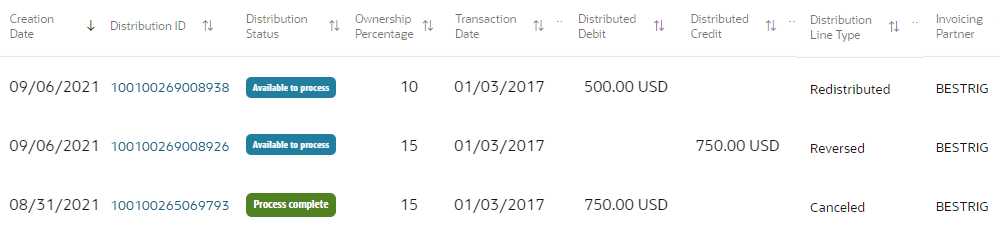
In the example, the original distribution has a distributed debit of $750.00 and is marked as Canceled in the Distribution Line Type column. The reversed distribution created for the canceled line has a distributed credit of $750.00. The new distribution with the Redistributed distribution line type has a new debit amount of $500.00, which was calculated according to the stakeholder’s percentage in the new ownership definition.
You can use the Joint Venture Distributions work area to review and update reversed distributions before processing them to create credit or debit memos. You can also review and update redistributed records before processing them to create invoices or journals. For example, you can mark a redistributed record as “Distribution Only” if no invoice or journal is required for the cost or revenue. For more information about the updates that you can make, see Manage Reversed, Redistributed, and Reassigned Distributions.
Perform these steps to reverse distributions and generate redistributions:
-
Open Scheduled Processes and access the Process Joint Venture Adjustments job.
-
For the Processing Mode, select Create Joint Venture Distribution Reversals.
-
For the Reversal Source, select Distributions identified by ownership definition change.
-
Select the joint venture whose distributions you want to reverse. Or leave the field blank to run the process over all your joint ventures. The process selects only those joint ventures in Active status.
-
Select an ownership definition that’s associated with the specified joint venture. If you haven’t specified a joint venture, the Ownership Definition drop-down list doesn’t display any values. Leave this field blank to process distributions for all ownership definitions associated with the specified joint venture.
-
For the Run Joint Venture Distributions Process option, select Yes to automatically redistribute transactions after reversing the associated distributions. Select No to run the processes separately and redistribute the transactions in the next scheduled run of the Create Joint Venture Distributions process.
-
If you selected to run the joint venture distributions process, use the following fields to select the transactions to redistribute:
-
Process By. Use this field to process reversed distributions by period or accounting date.
- If you select Period, then select the period in the field provided.
- If you select Accounting Date, use these fields to enter a date
range:
From Date. If you complete this field and leave the To Date field blank, the process will select all transactions that have an accounting date starting from the date that you entered to the current date.
To Date. If you complete this field and leave the From Date field blank, the process will select all transactions that have an accounting date before and on the date you entered.
If you select Period or Accounting Date in the drop-down list but don't specify a period or date range, the process will select all transactions with an accounting date that corresponds with the earliest open period.
-
Ledger. Use this field only if you want to redistribute transactions in a ledger other than the primary ledger of the joint venture. If you leave this blank, the primary ledger associated with the business unit of the joint venture will be used.
-
-
Select Submit.
After the process completes, you can review the processing details in a report. To access the report, select the Process Details tab, select the “…more” link next to Attachment, and then select the .txt file.