Enable Virtual Cards
Use the Manage Embedded Banking Configurations task to establish connectivity for virtual cards.
Follow these steps:
- Sign in to Oracle Cloud ERP as Application Implementation Consultant.
- Go to .
- Select the card issuer.
- Select Virtual Cards and proceed.
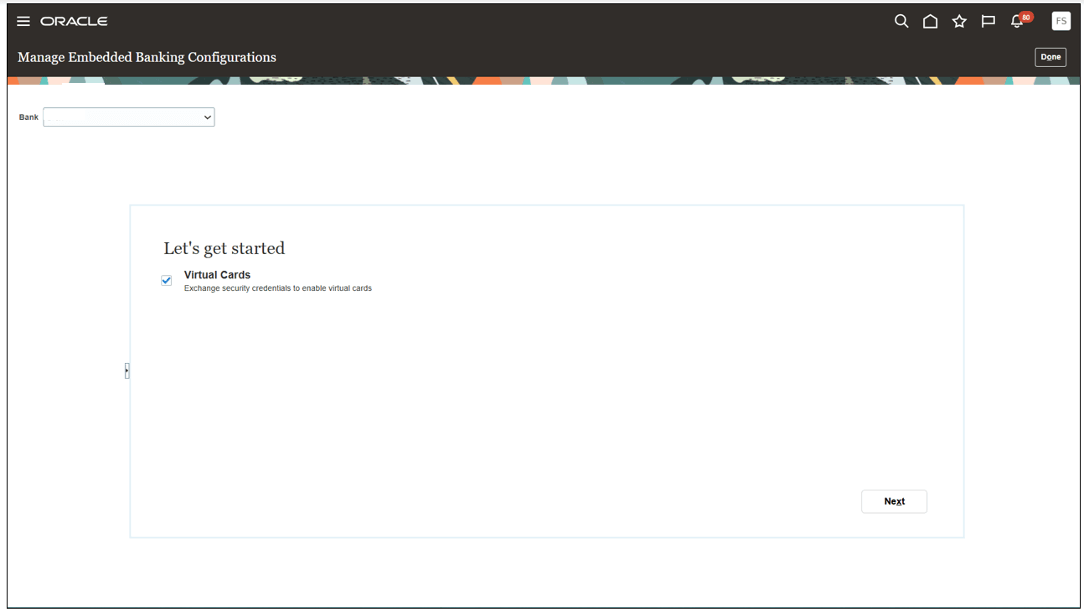
The status changes to In Progress while the application establishes connectivity.
Card issuers other than J.P. Morgan require additional connection details to complete connectivity. Obtain these details from the Mastercard Developers Portal before you proceed:
- Consumer Key
- Signing Key Alias
- Signing Key Password
- Security Key File
Verify Connectivity
After enabling virtual cards, verify that connectivity is successfully established:
- The process may take 24 to 48 hours to complete, after which the status changes to Completed
- Verify the connectivity status in the Manage Embedded Banking Configurations task
- If the status doesn't update within the expected time, contact Oracle Support
Testing Guidelines
Due to how card issuers identify your Oracle account instance on their side, it's recommended to conduct testing in only one environment at a time.
After completing testing in an environment, follow these steps to begin testing in another environment:- Contact the card issuer to establish connectivity
- Use the same promotion code in each instance
- Confirm with the card issuer that all configurations are complete before proceeding
- If testing occurs after an environment refresh with data masking enabled, verify that connectivity to the card network is still established. If connectivity has been impacted, please raise an Oracle Service Request.