Working with Insights in Dashboards 2.0
You can view and work with insights in dashboards when they're embedded as dashboard components.
You see insights based on the criteria your administrator defined.
You can make a dashboard with insights components the default dashboard so it appears on your landing page when you log in, so you can see relevant insights immediately when you log in.
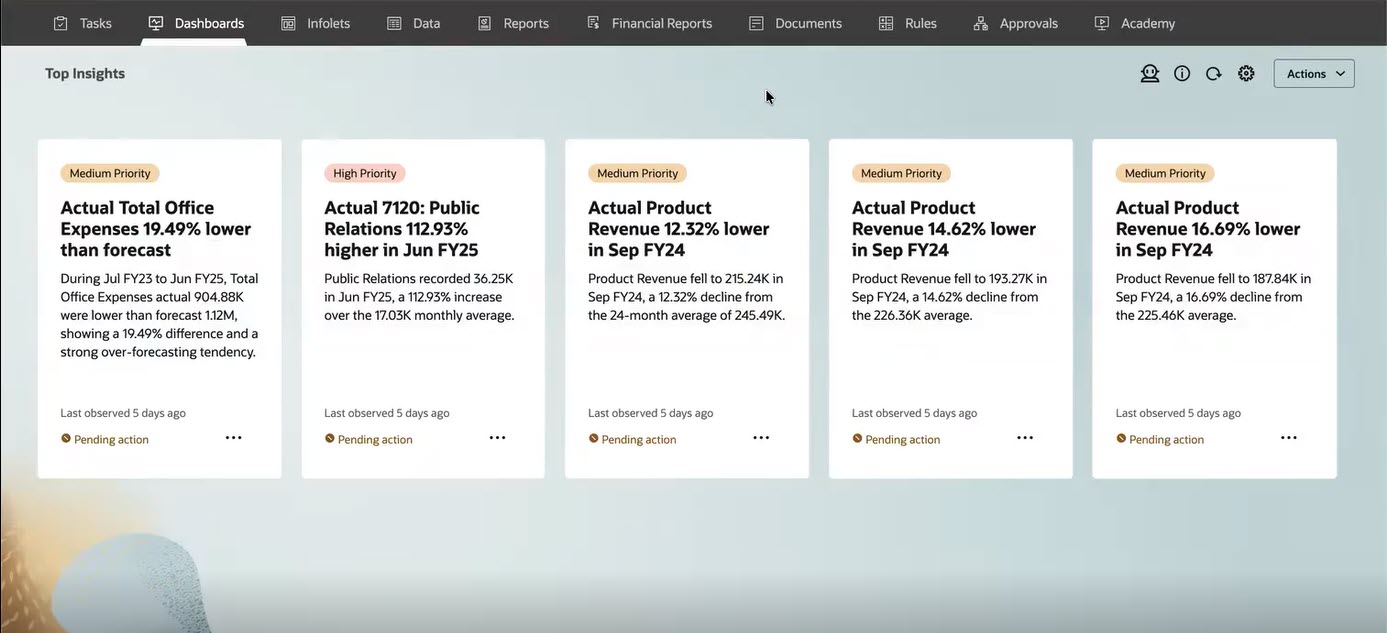
If GenAI is enabled, you see a GenAI-enhanced summary of each insight. If it’s not enabled, you see a template summary.
Hover over the Component toolbar  to display insights as either Card (the default) or
Table.
Each insight displayed in Card view functions as an action card. Click a card to opens the corresponding insight’s Details page.
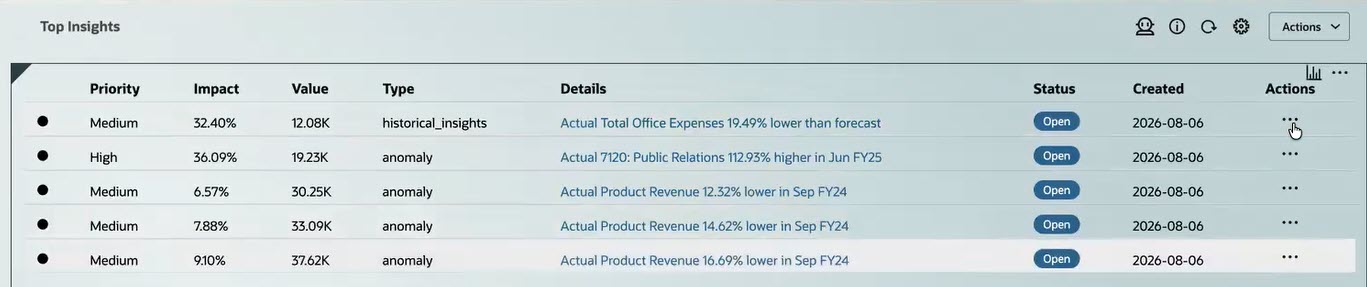
Click the Actions menu  in an insight to see insight details, open it as an ad-hoc grid, and dismiss or
delete an insight. You can also navigate to the Insights
List.
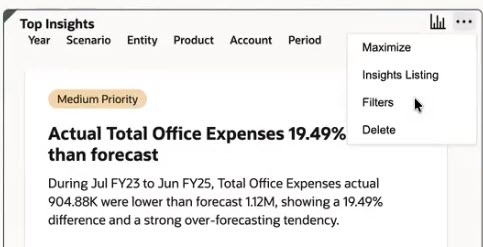
Depending on how the administrator set up the dashboard, for each dashboard component, the Filter dialog box allows you to filter members in each dimension by IDescendants, IChildren or Member. Insights are displayed only for this slice.
To filter the insights display, hover in the upper right corner of the insight component and select Filters from the menu:
Note the following about insights dashboard components:
- Add Comment is not supported in either Card or Table display.
- Pending action status changes to Completed only when the insight is dismissed.
- If the dashboard contains only insight components, (and there are no forms or
charts), when you click
 , you see a message: "Unable to load insights at this time." This action is
not supported in this scenario.
- The Count options are only 5, 10, 15, or 20.
- When the count is set, when you dismiss or delete an insight, the number of insights displayed remains the same, as the Insights engine filters and pulls in additional insights to match the count.
- There is a 120-character restriction in rendering the short summary for newly-generated insights. For existing insights, the entire content of Insights AI is displayed, and is not restricted to 120 characters.
For more information about working with insights, see Using IPM to Inform Your Decision-Making.