Tool Nodes
Tool nodes provide direct access to some common tools that are available to use in workflow agents. Here are the tools that can be used in a Tool node:
- Deep Link
- Intent change indicator
- Chat attachments reader
- User session
To add a tool node in your agent team of type Workflow, add a node of type Data → Tool.
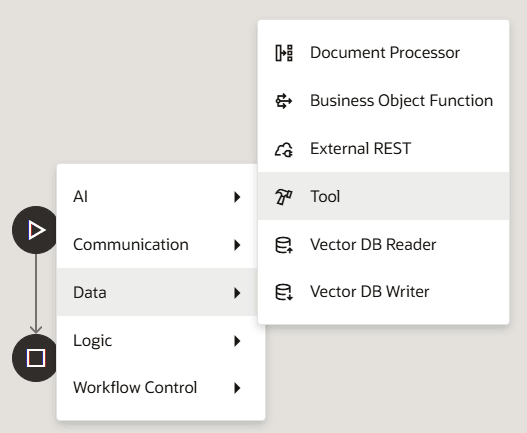
For each Tool node, you'll need to specify these common configuration items:
- Enter a unique name for your tool.
- The code field will automatically populate based on the name field. You can change this if you wish.
- Select an error-handling option from the list.
Based on the selected tool type, the fields will vary.
| Tool Type | Description |
|---|---|
| Deep Link | Enables workflows to reference and execute an existing Deep
Link tool without recreating it. This tool is used to generate
context-aware navigation links to Oracle Fusion Cloud
Applications; for example, links to business objects or
transactions. This tool mirrors the functionality of Deep Link usage in supervisor agents. It references preexisting Deep Link tools, returns a URL that points to a specific business function, and enables seamless navigation from the workflow to the application UI. Select Deep Link as the type and enter these details:
|
| Chat attachments reader | Enables workflows to process files uploaded during a chat
session. The output is the extracted content, provided as plain
text in Markdown or Base64 format. This tool is also known as
Multifile Processor. Select Chat attachments reader as the type and enter these details:
|
| Intent change indicator | Enables workflows to reset or segment the chat history based
on the intent specified in the expression entered in the Intent
field. Select Intent change indicator as the type and enter this detail: Intent: Select the
variables to uniquely identify intent change indicator. Type
{{ to add a variable, or select from the Insert
Expression
|
| User session | Enables adding the User Session tool as a node and returns
the data from the tool relevant for the signed in user, such as
PersonNumber or Username.
Select User session as the type. |
 to change any parameters shown.
 menu. You can add multiple variables.