Projects Page
The Projects page in Intelligent Advisor Hub shows the repository where decision service projects, template projects, flow projects, flow scheme projects and Policy Modeling projects are stored.
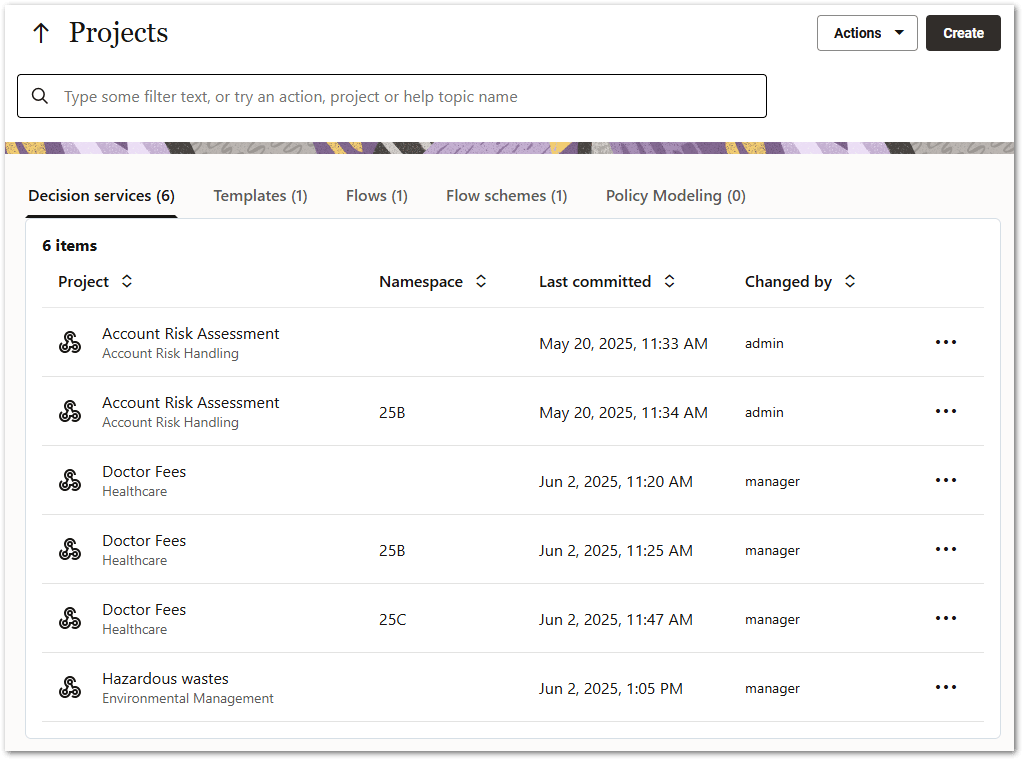
The Projects page is accessed by clicking either the View all projects link in the Projects column on the dashboard page, or Projects in the Navigation Pane.
Note: The Projects page is only accessible if the user has an Author, Manager or Viewer user role.
On the Projects page you can:
- Use the up arrow to navigate back to the dashboard page
- Use the search field to filter the list of projects. The list can be filtered by project name, workspace or namespace, or by flow scheme for flow projects.
- Generate an Inclusions report. For more information, see See Which Projects Use Which Inclusions.
- (Managers only) Import a project. For more information, see Import an Existing Project.
- (Managers only) Create a decision service, template, flow or flow scheme project. For more information, see Create a New Project.
Decision services tab
On the Decision services tab you can:
- View all the decision service projects. For each project, the following information is displayed:
- decision service project icon

- name
- workspace
- namespace (if the project is in a namespace)
- when it was last committed
- which user last changed it
- decision service project icon
- Click on a project name to open that project. For more information, see Open an Existing Project.
- Click on the menu for a project to:
- Export the decision service project. For more information, see Export a Project.
- (Managers only) Branch the project. For more information, see Branch a Project to Create a New Project and Branch a Project Into a Namespace.
- (Managers only) Change the workspace for the project. For more information, see Change the Workspace for a Project.
- (Managers only) Delete the project. For more information, see Delete a Project From a Repository.
Templates tab
On the Templates tab you can:
- View all the custom template projects. For each project, the following information is displayed:
- template project icon

- name
- workspace
- namespace (if the project is in a namespace)
- when it was last committed
- which user last changed it
- template project icon
- Click on a project name to open that project. For more information, see Open an Existing Project.
- Click on the menu for a project to:
- Create a decision service project from the template. For more information, see Create a New Project.
- Export the template project. For more information, see Export a Project.
- (Managers only) Branch the project. For more information, see Branch a Project to Create a New Project and Branch a Project Into a Namespace.
- (Managers only) Change the workspace for the project. For more information, see Change the Workspace for a Project.
- (Managers only) Delete the project. For more information, see Delete a Project From a Repository.
- View all the standard templates that come pre-installed with Intelligent Advisor Hub. These are shown in a right hand sidebar to distinguish them from user-defined (custom) templates. For each template you can click the plus icon to create a decision service project using that template.
Flows tab
On the Flows tab you can:
- View all the flow projects. For each project, the following information is displayed:
- flow icon (
 dialog,
 chat,
 workflow,
 task,
 request,
 flow). The icon used will depend on the icon chosen in the flow scheme associated with the flow project.
- name
- workspace
- namespace (if the project is in a namespace)
- flow scheme
- when it was last committed
- which user last changed it
- flow icon (
- Click on a project name to open that project. For more information, see Open an Existing Project.
- Click on the menu for a project to:
- Export the flow project. For more information, see Export a Project.
- (Managers only) Branch the project. For more information, see Branch a Project to Create a New Project and Branch a Project Into a Namespace.
- (Managers only) Change the workspace for the project. For more information, see Change the Workspace for a Project.
- (Managers only) Delete the project. For more information, see Delete a Project From a Repository.
Flow schemes tab
On the Flow schemes tab you can:
- View all the flow scheme projects. For each project, the following information is displayed:
- flow scheme project icon

- name
- workspace
- namespace (if the project is in a namespace)
- when it was last committed
- which user last changed it
- flow scheme project icon
- Click on a project name to open that project. For more information, see Open an Existing Project.
- Click on the menu for a project to:
- Export the flow scheme project. For more information, see Export a Project.
- (Managers only) Branch the project. For more information, see Branch a Project to Create a New Project and Branch a Project Into a Namespace.
- (Managers only) Change the workspace for the project. For more information, see Change the Workspace for a Project.
- (Managers only) Delete the project. For more information, see Delete a Project From a Repository.
Policy Modeling tab
On the Policy Modeling tab you can:
- (Authors and Viewers only) View all the projects that have been added to the project repository in the Hub from Policy Modeling. For each project, the following information is displayed:
- Policy Modeling project icon

- name
- workspace
- namespace (if the project is in a namespace)
- when it was last committed
- which user last changed it
- Policy Modeling project icon
-
Sort the data by clicking on the up/down arrows in any of the column headings
-
Click on a Policy Modeling project name to view the settings and versions for that project. For more information, see View Uploaded Versions of a Project.
- Click on the menu for a project to:
- Download the latest version of a project. For more information, see Download a Project Version.
- (Authors only) Branch the project. For more information, see Branch a Project to Create a New Project and Branch a Project Into a Namespace.
- (Authors only) Change the workspace for that project. For more information, see Change the Workspace for a Project.
- (Authors only) Delete the project. For more information, see Delete a Project From a Repository.