Example: Change the Mobile Application Header Text
Intelligent Advisor Flows was only made available to select customers, and will not be made Generally Available.
To update the mobile application header text that is displayed on a large screen:
-
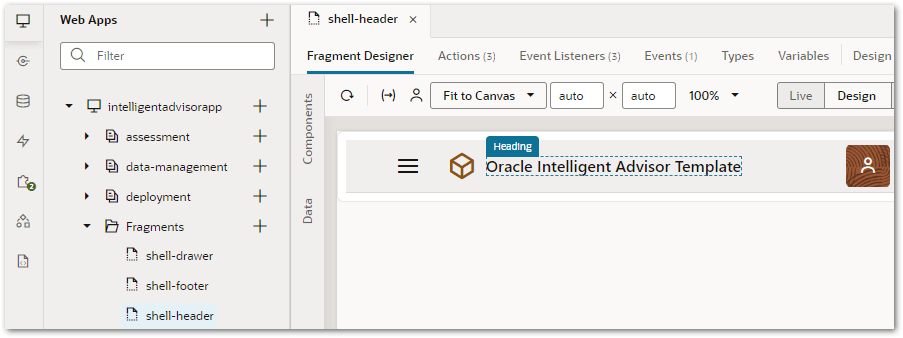
In Visual Builder, go to the Fragments folder in the intelligentadvisorapp.
-
Open the shell-header fragment.
-
In the Fragment Designer, select Design view and then click on the heading text.
-
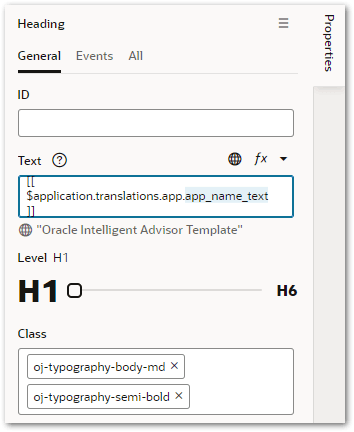
In the right-hand Properties pane, view the Text property. This displays the translation bundle entry used and its current value. Copy the last section of the key, in this case, app_name_text.
-
Open the app-strings.json application translation bundle file in the following directory: intelligentadvisorapp/Resources/strings/app/nls/root.
-
In the file source editor, search for the key text copied in step 4.
-
Update the text value of the key to the desired value.

You can also update the corresponding description text for translation purpose, but it does not affect the user interface. -
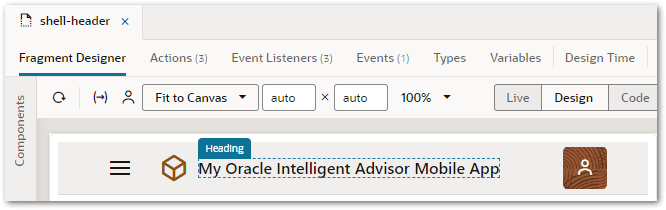
Re-open the shell-header fragment and verify that the application header text rendering has been updated.
Tip: You can change the footer text of the mobile application by following the same process but using the shell-footer fragment.