Example: Limit a Text Input to a Particular Number of Characters
The Limit Text Demo project demonstrates how to implement an interview extension that limits a text input control (single or multi line text box) to a particular number of characters. This control also:
- Shows the maximum number of characters permitted below the text input.
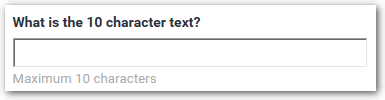
- Dynamically shows the number of permitted characters remaining as the user types.

- Indicates when the limit is exceeded and dynamically shows the number of characters exceeding the permitted number.

- Does not let the user proceed if they click Next and too many characters have been entered in the text field.

- Discards any text longer than the permitted length if the user navigates away from the screen using the navigation strip. If the user returns to the screen, any excess text will no longer be shown.

To see this control in action, open the Limit Text Demo project in Oracle Policy Modeling and test the interview in the Debugger.
To use this interview extension in a different policy model:
- Open the /interview-theme/resources folder for the Limit Text Demo project.
- Copy the limit.js and limit.css files.
- Open the /interview-theme/resources folder for your project. (This folder is created when you click the Custom Files button in the Styles dialog box on the Interview tab in Policy Modeling.)
- Paste the limit.js and limit.css files.
- Open your project in Policy Modeling.
- On the Interview tab, select the text control in the screen list or the screen layout view.
- Click the Properties button.
- In the Custom Properties section, define the following key-value pairs:
- Key: type; Value: limit
- Key: maxChars; Value: <the maximum number of characters that you want to be permitted>

Tip: If you want to simply restrict a text attribute to a particular number of characters without the additional features offered by using this interview extension, you can define a regular expression on the attribute. For more information, see Use Regular Expressions.