Authenticate the User In a Visual Builder Application
To enable an Intelligent Advisor interview embedded in an Oracle Visual Builder application to load and submit data from/to the appropriate objects in Oracle Fusion, the Visual Builder application needs to authenticate and pass identity. To do this, a service connection is called to retrieve a JWT token from Oracle Fusion on application load, and sets the variable, opaEngagementCloudJWT, used in the Intelligent Advisor Interview component.
The steps required to set this up are:
- In Oracle Fusion, generate a JWT token for the logged-in user from Oracle Fusion which can be used in REST web services to authenticate the user. One way in which this can be done is explained in Generate a JWT Token for the Logged-In User.
- In Visual Builder, retrieve the JWT token. The method you use to do this will depend on the authentication scheme you are using. If you used the authentication scheme described in Generate a JWT Token for the Logged-In User, you could retrieve the JWT token as follows:
- In Visual Builder, open your application.
- Open the Services tab and click +, then Service Connection. to create a service connection. The way in which you create the service connection will depend on the source of your service connection. One way in which you can do this is to point to a URL of an endpoint and define its parameters declaratively. To do this:
- In the Create Service Connection wizard, on the Select Source page, select Define By Endpoint.
- On the next page, specify:
- Method: GET
- URL: the URL for the REST service request (to obtain the JWT token)
- Action Hint: Get Many

Click Next.
- On the next page on the Overview tab, specify getJWT as the Service Name.
- On the Server tab, in the Authentication drop-down, select:
- Propagate Current User Identity if using Oracle Identity Cloud Service.
- Basic otherwise. Enter the Username and Password for the user.
For more information, see Configure Connection and Authentication Types for Service Connections and Backends.
- On the Test tab:
- In the Request section, click Send Request.
- In the Response section, check that a JWTToken is returned.

- Click Save as Example Response.
- Click Create. The Services pane now lists getJWT as a service connection.
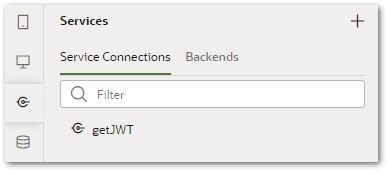
For more information, see Create a Service Connection from an Endpoint.
- Create an action chain that retrieves the JWT token from Oracle Fusion when the application is loaded and then sets the opaEngagementCloudJWT variable used in the Intelligent Advisor Interview component. To do this:
- Select the application node in the Web Apps pane to open the application in the designer.
- Open the Event Listeners tab.
- Click the + Event Listener button.
- In the Create Event Listener dialog, select vbEnter. This event is used to trigger data fetches and is dispatched after all the page scoped variables have been added and initialized to their default values, values from URL or persisted values. Click Next.
- Click the plus button next to Application Action Chains. In the New Application Action Chain id field, specify getJWT. Click Finish. The Event Listeners view for the application now lists the getJWT event as a Lifecycle Event Listener.
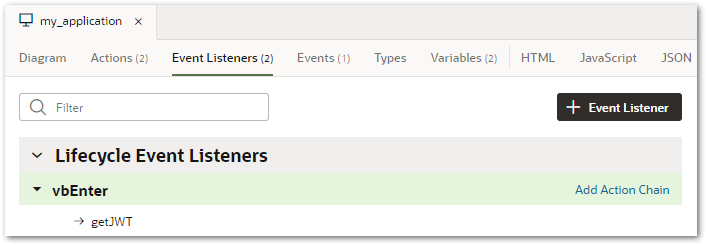
For more information, see Create Event Listeners for Events. - Select the getJWT event listener and then click Go to Action Chain. The Actions editor for the getJWT action chain is displayed.
- Drag the Call REST action from the Actions palette into the action chain.

- In the Call REST right-hand pane, click Select next to Endpoint.
- In the Select Endpoint dialog, select the endpoint of the service connection for the JWT token (for example, the getJWT connection).
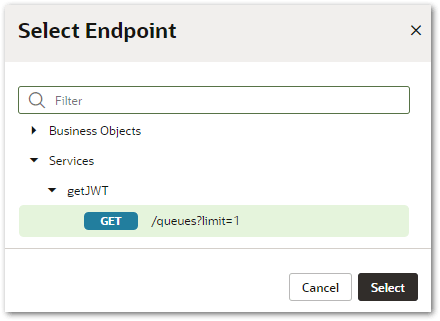
Click Select. For more information, see Add a Call REST Endpoint Action. - Drag the Assign Variables action from the Actions palette into the action chain in the success branch.

- In the Assign Variables right-hand pane, type a name for the variable in the Id field (for example, assignJWT), then click Assign. This opens the Assign Variables dialog where you can map the source of the results to an application variable.
- Drag the source of the results in the Sources pane onto the target application variable in the Targets pane. (For example, drag the JWTToken_c item from the Action Chain to the opaEngagementCloudJWT application variable.)

Click Save. The Assign Variables right-hand pane now shows the opaEngagementCloudJWT variable as mapped.
The authentication steps are now complete.