Change an Interactive Hub User's Password
A Intelligent Advisor Permissions administrator can change an interactive user's password. It can be reset to a randomly generated password, or changed to a manually set password.
Any Intelligent Advisor Hub user can change their own password.
Note: When Intelligent Advisor Hub is working in external authentication (SSO) mode, including in Identity Cloud Service mode, user passwords are managed externally and cannot be reset or changed from within Intelligent Advisor Hub.
To change a user's password:
- In Intelligent Advisor Hub, navigate to the Permissions Page.
- Select the Users tab.
- Click the user name.
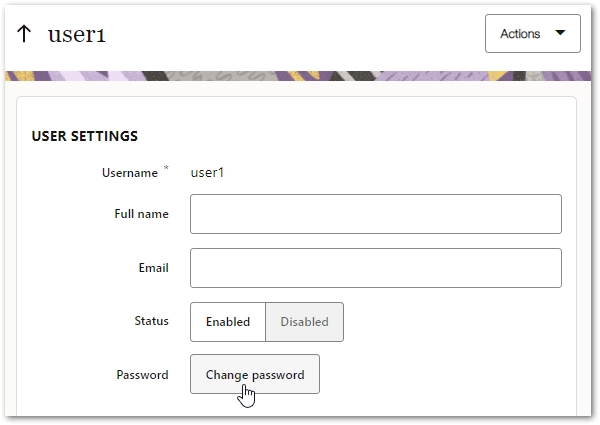
- On the user details page, in the USER SETTINGS section, click Change password.
A new randomly generated password is displayed in the Password field and copied to the clipboard.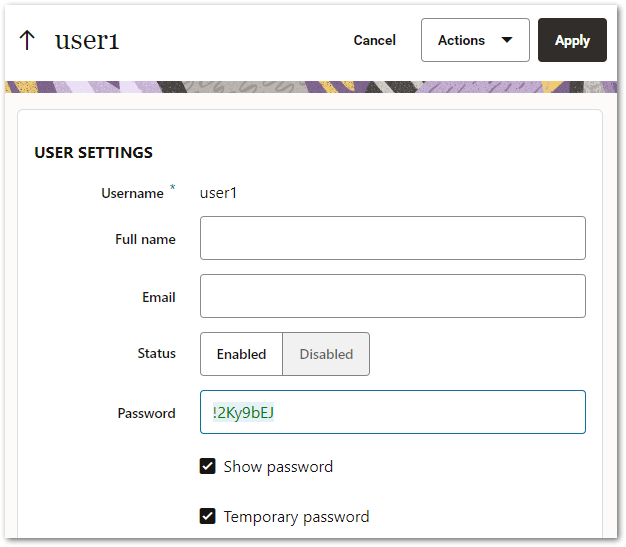
- (Optional) Enter a new password in the Password field.
- (Optional) Unselect the Temporary password check box to make this the permanent password. If the Temporary password check box is left selected, then the first time the user logs in to Intelligent Advisor Hub, they will be prompted to change their password. They can also change their own password at any time after logging in.
- Click Apply to activate the new password.
Note: Users should log off and log on again for any new permissions to take effect.
Tip: Self-managed Intelligent Advisor customers can also reset the password for the Intelligent Advisor Permissions and Connections administrator user roles via the command line. For more information, see Reset the Password for Intelligent Advisor Administrators.