Add Or Edit a Number Or Date Formatter In a Flow Scheme
Intelligent Advisor Flows was only made available to select customers, and will not be made Generally Available.
Formatters define the number and date parsers for the flows that use the flow scheme. They control how dates and numbers are presented to consumers of the flow. Each group (Number or Date) will always have exactly one formatter used for the display of that type of data. Individual formatters can also be specified as the default format for input controls of that type of data. The formatter used as the default format for display will also be used as a default format for input.
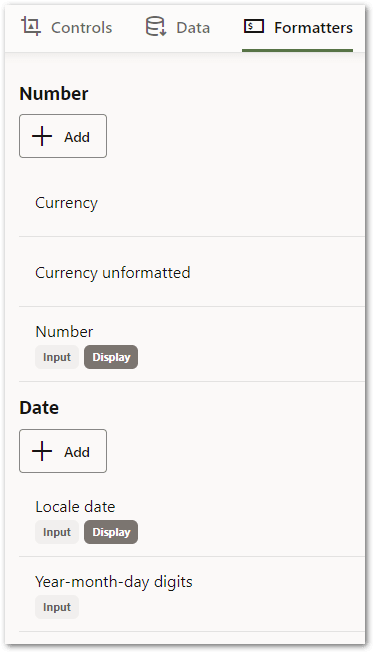
Add a number formatter
To add a number formatter to a flow scheme:
- Open the flow scheme for the flow.
- Select the Formatters tab.
- Under Number, click the Add button.
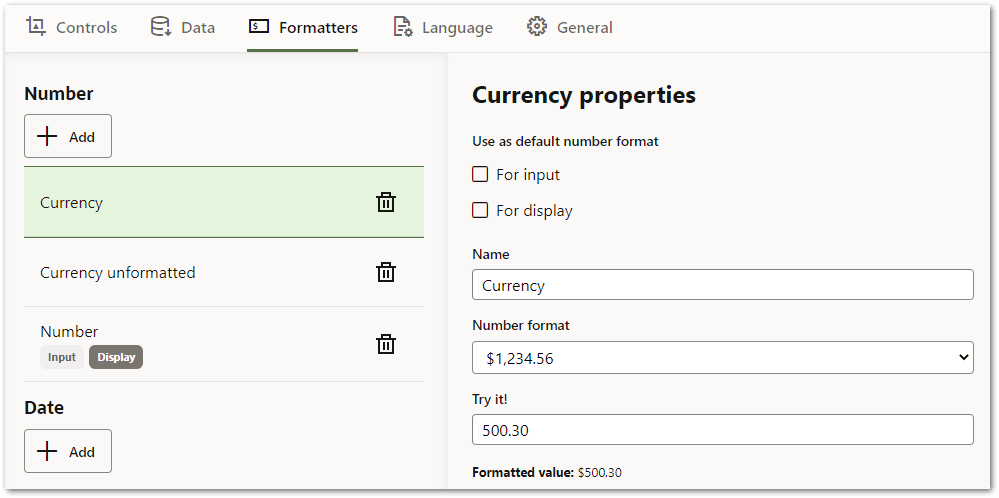
- In the properties panel, specify the following settings:
- For input: Select to make this formatter the default number format for input. If there is only one number formatter defined in the flow scheme then this option will be disabled.
- For display: Select to make this formatter the default number format for display. If there is only one number formatter defined in the flow scheme then this option will be disabled. Unselecting a formatter as the default display format will result in another formatter being automatically promoted to being the default display format.
- Name: Enter a name for the formatter. This will be used for identification purposes.
- Number format: Select from the list of common number formats, or select the Custom option to define your own number format. If the Custom option is selected, then additional settings need to be defined. For more information, see Add a custom number formatter below.
- (Optional) Use the Try it field to enter a value to parse using the current settings for the formatter.
- Commit your changes.
Add a custom number formatter
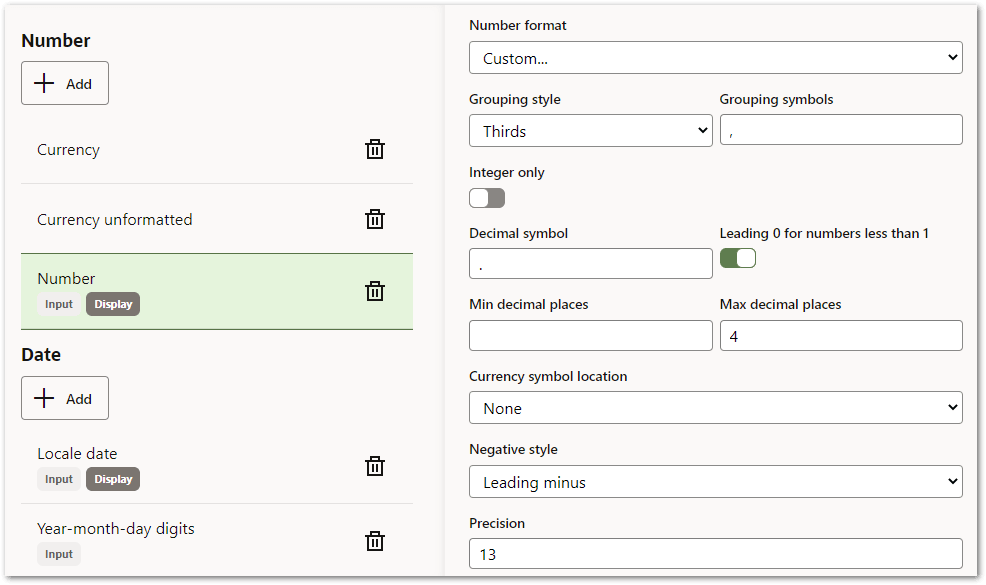
When adding a number formatter using the Custom number format type (see step 4 above), you need to specify the following additional settings:
-
Grouping style: Configures how larger numbers should be grouped. Options are None, Thirds, First third and Lakh and crore (Indian numbering system).
-
Grouping symbols: Character used for the grouping symbol. Only visible if a grouping style is chosen.
-
Integer only: Controls whether the formatter supports fractional values
-
Decimal symbol: String used for decimal symbol. Hidden if integer only.
-
Leading 0 for numbers less than 1: Controls whether the formatter uses a leading 0 for numbers less than 1. For example, 0.1 versus .1.
-
Min decimal places: Minimum number of decimal places. For example, 0.2 or 0.20.
-
Max decimal places: Maximum number of decimal places
-
Currency symbol location: Configures where the currency symbol should be placed (if at all). Options are None, Before number and After number
-
Currency symbol: String used for currency symbol. Hidden if no currency symbol.
-
Negative style: Configures how negative numbers are displayed
-
Precision: (Optional) Controls the acceptable number of digits of precision used for formatted numbers
Add a date formatter
To add a date formatter to a flow scheme:
- Open the flow scheme for the flow.
- Select the Formatters tab.
- Under Date, click the Add button.
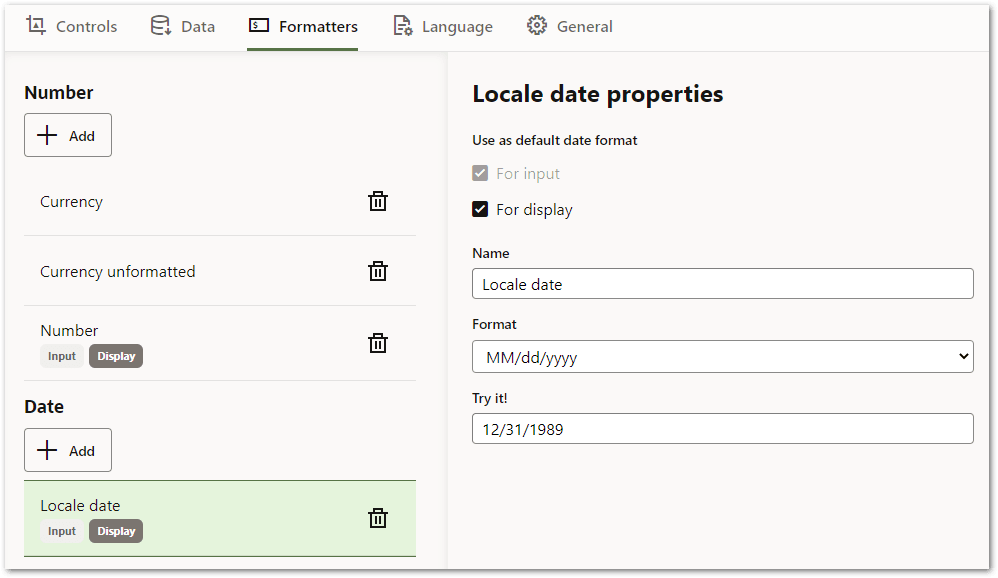
- In the properties panel, specify the following settings:
- For input: Select to make this formatter the default date format for input. If there is only one date formatter defined in the flow scheme then this option will be disabled.
- For display: Select to make this formatter the default date format for display. If there is only one date formatter defined in the flow scheme then this option will be disabled. Unselecting a formatter as the default display format will result in another formatter being automatically promoted to being the default display format.
- Name: Enter a name for the formatter. This will be used for identification purposes.
- Format: Select from the list of common date formats, or select the Custom option to define your own date format. If the Custom option is selected, then the format need to be specified in the field below it. This field has special handling for certain character sequeneces:
d: Day of the month
dd: Day of the month but zero padded to 2 digits. For example, 03.
E: Short day of the week. For example, Mon Tue Wed.
EEEE: Long day of the week. For example, Monday.
M: Month of the year as number
MM: Month of the year but zero padded to 2 digits. For example, 07.
MMM: Month of the year as short text. For example, Jan Feb.
MMMM: Month of the year as long text. For example, January.
yy: Two digit year
yyyy: Four digit year
Note that where there is a sequence of the special characters that doesn't match a defined length, it will be treated as the first matching length. For example, "yyy" would be treated as "yy".
- (Optional) Use the Try it field to enter a value to parse using the current settings for the formatter.
- Commit your changes.
Edit a formatter
To edit a formatter in a flow scheme:
- Open the flow scheme for the flow.
- Select the Formatters tab.
- Click on the formatter that you want to change.
- In the properties panel, change the settings as required.
- Commit your changes.
Delete a formatter
To delete a formatter in a flow scheme:
- Open the flow scheme for the flow.
- Select the Formatters tab.
- Click on the formatter that you want to delete.
- Click the trash can icon. The formatter is deleted.
- Commit your changes.
Note: There must be at least one number and one formatter defined in a flow scheme.