Add a Control Group to a Flow
Intelligent Advisor Flows was only made available to select customers, and will not be made Generally Available.
Control groups are designed for grouping and repeating controls within a page. Control groups have their own properties that are used for controlling visibility and behavior for the group. The properties for control groups also determine whether the group is repeating. Control groups can be nested within other control groups.
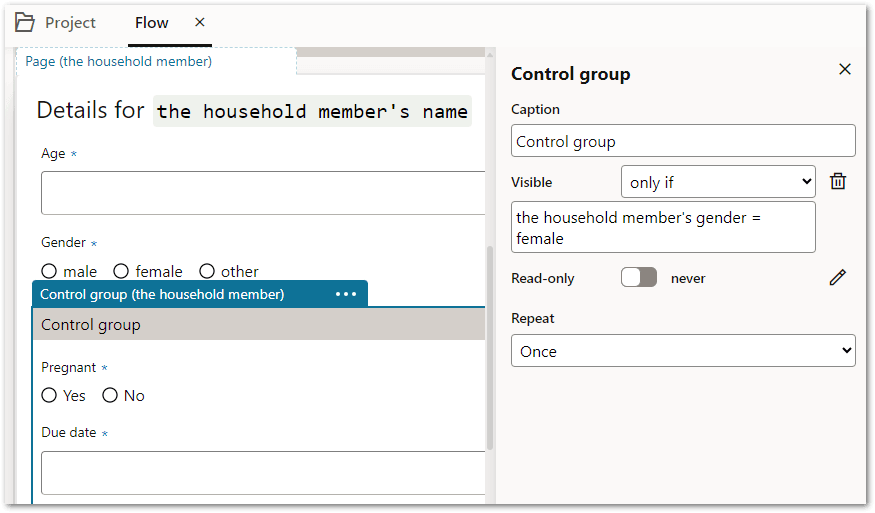
To add a control group to a flow:
-
Drag the control group control from the Controls panel onto page in the flow editor where you would like it to appear.
-
In the properties panel:
-
In the Caption field, type a caption for the control group. (This can also be edited inline in the flow editor.)
-
Specify the Visible settings for the control group. By default, the control group is always visible.
-
Use the toggle to turn visibility off (the control group will be hidden) and on (the control group is will be visible).
-
Use the pencil button to define conditions for when the control group will be shown or hidden. The options are:
-
Visible if relevant for goals
-
Visible only if [condition]
-
Visible unless [condition]
-
-
-
Specify the Read-only settings for the control group. By default, the control group is never read-only.
-
Use the toggle to turn read-only on
-
Use the pencil button to define conditions for when the control group will be read-only or enabled. The options are:
-
Read-only only if [condition]
-
Read-only unless [condition]
If a control group is read-only at runtime, then all controls within the control group will be treated as read-only regardless of their individual configuration.
-
-
-
Specify the Repeat settings for the control group. By default, control groups only display once. Note that using a repeating group changes the object context of the page to the context of the object being repeated. To have the control group repeat:
-
For a record list:
-
Select For each of '<object>' in the drop-down list.
-
Specify the Visible choice settings. The options are:
-
Only show choices where [condition]
-
Hide choices where [condition]
-
-
-
For an object:
-
Select For each of ... in the drop-down list.
-
Select an object in the drop-down list.
-
In the in field, specify an expression that evaluates to a reference list of the objects. This is useful if you want to select from an inferred object from rules, as inferred objects are not offered in the initial drop-down list. Note that repeated groups over an inferred object do not support user collected fields, that is, the only form of input fields supported are always read-only ones.
-
-
-
Specify the custom property value for the control group (if required).
-