Add a Table Rule
A table rule in a decision service or flow project is a shorthand way of defining multiple field rules.
To add a table rule:
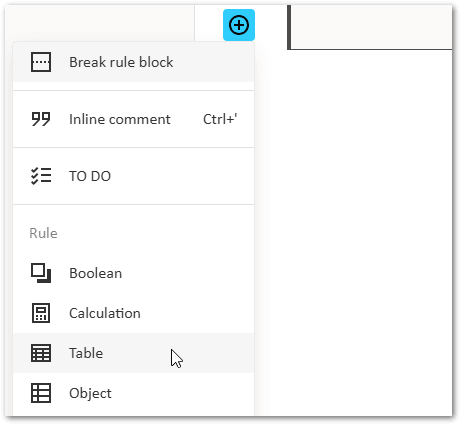
- In the rule editor, on a new line, click the menu button in the margin.
- In the drop-down menu, select Table.
- In the rule block, a table rule template is added. This table has one condition column and one result column by default.

Note: An error will be shown for the rule until "result" is replaced with a result field. Also, a warning will be shown for the result field in the Tasks list for the project until the field is used. - Provide values for the column headings and cells as required.
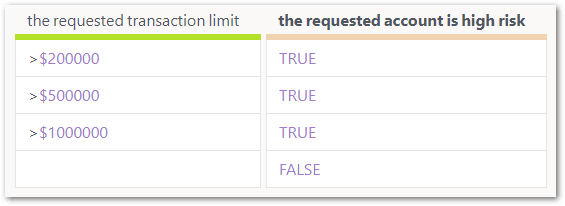
Tip: For further information and examples on using table rules, see Write Rules Using Tables.
Note that a table rule must have:
- one or more condition columns. Condition columns can be either condition field columns or condition expression columns.
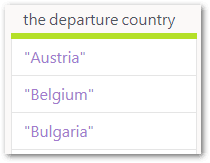
- A condition field column has the name of the condition field as the heading, and constants or comparisons for the column cells. For example:
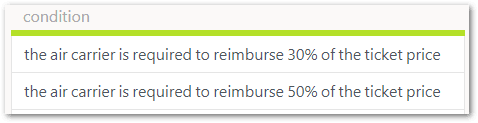
- A condition expression column has a blank heading, and complete expressions in the column cells. For example:
- A condition field column has the name of the condition field as the heading, and constants or comparisons for the column cells. For example:
- one or more result columns. A result column has the name of the result field as the column heading. For example:
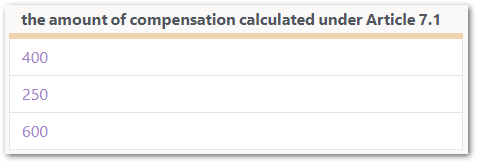
- one or more condition rows.
- valid values in the cells:
- for String fields, values must be in quotes. For example, "high".
- for Number fields, the dollar sign can optionally be included before currency values. For example, $535.60.
- for Date fields, values must be in the format yyyy-mm-dd. For example, 1952-06-30.
- for Boolean fields, values must be either TRUE, true, FALSE or false.
- blank values are acceptable
Note: If none of the conditions in a table are met, then a "null" value will be the result.