Download Changes From the Project Repository
When you are collaborating on a Policy Modeling project, you should always download the latest version of the project from the project repository in Intelligent Advisor Hub before beginning any new work. This will synchronize your existing working copy of a project with the main version in the project repository in Intelligent Advisor Hub that contains any changes uploaded by other users.
To do this:
- Open the project in Policy Modeling.
- On the Projects tab, click the Download Changes button. This will display the Download Changes dialog box (unless there are no new changes to download). Note: The Download Changes button will only be enabled if the project has been added to a repository.
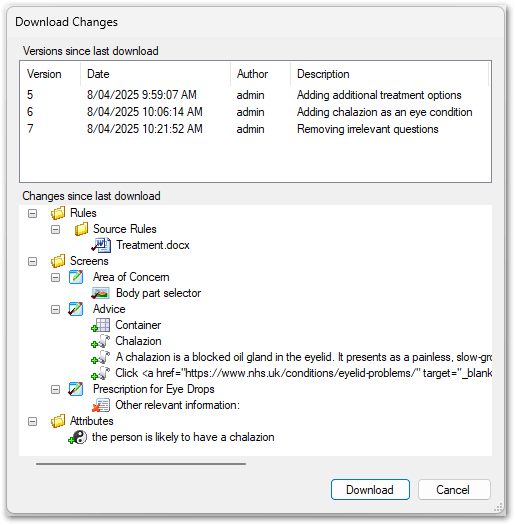
- Review the changes listed in the dialog box. Tip: For Word rule document changes you can right-click and select Show changes to view a 2-document comparison between the document in the version that the project was last synchronized with (version X) and the document in the latest Hub version (version Y). Note that this view is not showing any changes that you have made locally.
- Click Download.
Note: If the repository version of the project has been upgraded to a newer version of Policy Modeling, when you click Download Changes you will be unable to download the changes until your version of the project is upgraded. This may be automatic if you already have the latest version of Policy Modeling installed or it is available on the Hub.