Define Conditions for Loading Data During an Interview
When loading data during an Intelligent Advisor interview from a specific connected application, you can specify what data to load based on user input, other existing interview data or on rules. This means that only data that is actually needed at the current point in the interview will be loaded.
Loading data dynamically during an interview in this way is fully compatible with dynamic interviews. That is, as input data changes on the screen, the data loaded will be filtered accordingly.
Tip: You can define sample data in Excel for offline testing of load conditions in Policy Modeling. For more information, see Test Dynamically Loaded Data.
To define the conditions for which reference data items to load:
- In Policy Modeling, on the Data tab, select the Input Mapping view.
- In the left hand pane, double-click the mapped table.
- In the Edit Entity dialog, in the Mapping section, select Load all instances that meet one or more conditions from the second drop-down list.
- In the Condition field, specify the conditions. You write the conditions using a similar syntax to Intelligent Advisor rules. As you start to type, there is auto-complete style functionality to help you write your condition. This drop-down shows matching fields from the chosen application table, attributes in the Policy Model, as well as functions that you can use in your condition. For more information, see Writing conditions below.
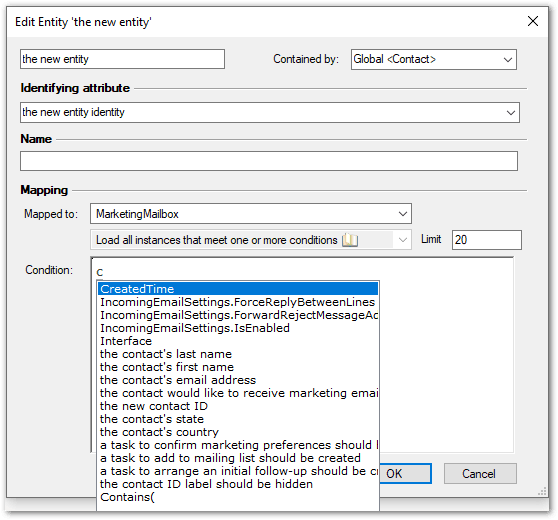
- (Optional) In the Limit field, change the number of rows of the table to load that meet any specified conditions. By default, the maximum number of rows is 20. Note that:
- For Oracle Fusion mappings, results are limited to a maximum of 50 for the Asset, Category and Product objects, and 500 for all the other objects.
- Click OK. Note that the identifying attribute for the entity is automatically input mapped.
Writing conditions
Conditions use fields from the chosen application table. The field does not need to have been mapped in. You can only use a condition on a single table (that is, no joins/relationships are supported).
A field in a condition can be compared, using the standard comparison operators, to:
-
An Intelligent Advisor attribute

-
A constant value

Note that dates need to be in the format yyyy-MM-dd, datetimes in the format yyyy-MM-dd HH:mm:ss and times in the format HH:mm:ss. Text strings must be enclosed in double quotes " ". -
A value calculated using a rule function with Intelligent Advisor attributes

A Boolean field can be used as a self-contained condition.

The Not function can be used to express the negation of a Boolean field.

The following functions can also be used on fields: IsNull, StartsWith, Contains and EndsWith.

Tip: You can also use Not(IsNull(field)) to check if a field is not null.
Conditions can be connected using 'and' or 'or'.

Note: For Oracle Fusion mappings, you cannot have more than two levels of connectors ('and's and 'or's) in the condition.
Grouping operators ('any', 'either', 'all', 'both' and their natural language forms) can be used. The conditions that the operator applies to needs to be indented.
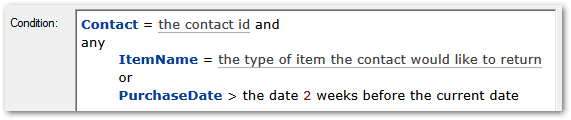
A field can be used on either side of a comparison.

An invalid condition is shown with a red squiggly line under the text. You can hover over the text to see what the error is.

Note: Connector framework web service connections may have different limitations on conditions. These will be reported as errors at runtime and will need to be resolved with the developer of the connector.