Input Map Application Fields to Existing Attributes
To input map an existing attribute in Policy Modeling from an application field:
- On the Data tab, select the Input Mapping view.
- In the left hand pane, select the application table that contains the field that you want to map to.
- In the right hand pane, hover over the empty space in the Attribute column for the field that you want to map. A drop-down field is displayed.
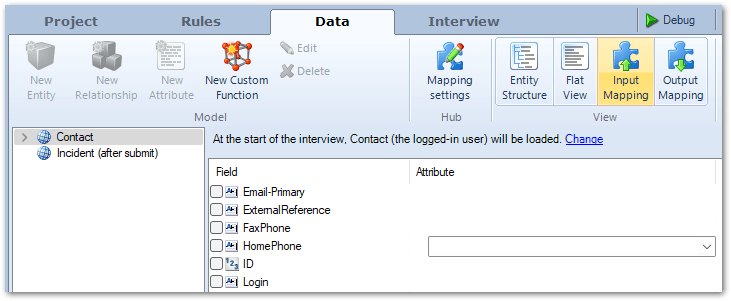
- Click the drop-down arrow to see a list of all available existing un-mapped attributes. You can filter the list of attributes by typing in the field.
- Select an existing attribute to map the field to.

- Press Enter. The right hand pane now shows the field with a checked check box to show that the field is mapped, and the attribute that it is mapped to listed beside it.

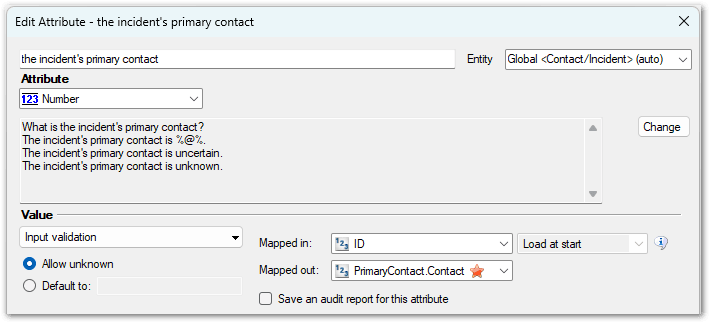
An alternative way to map an existing Intelligent Advisor attribute to a application field is using the Mapped in field in the Edit Attribute dialog. The Edit Attribute dialog can be accessed by clicking the Edit Attribute button for the selected attribute in the Entity Structure view or Flat View on the Data tab.